
Not all tracking needs to happen in real time.
In many advanced analytics setups, it’s more efficient — and sometimes more accurate — to collect and send data on a schedule rather than instantly.
If you need to pull data from a database at specific intervals and send it to analytics or reporting tools, the Schedule power-up inside Stape provides a clean and automated solution.
Let’s explore how it works and when you should use it.
Why Scheduled Data Collection Matters
Real-time event tracking works well for:
- Page views
- Purchases
- Form submissions
But some types of data are better handled in batches, such as:
- Daily revenue summaries
- Total purchase counts
- Subscription renewals
- Offline conversions
- CRM updates
Instead of triggering events manually or building complex cron jobs, you can automate these tasks directly inside your server-side GTM container.
Schedule Power-Up: The Use Case
The Schedule power-up allows you to send requests automatically at defined intervals.
For example:
- Every day at 6:00 PM
- Every hour
- Once per day
- At recurring intervals
A common scenario:
You want to collect the total number of purchases and total revenue from your database once per day and send that summary to Google Analytics 4 or Google Sheets.
Instead of manually exporting data or writing backend scripts, you configure the schedule once — and it runs automatically.
Practical Example: Daily Revenue Summary
Let’s say your ecommerce system stores transactions in a database.
You want to:
- Query total purchases for the day
- Calculate total revenue
- Send this data every day at 6 PM to GA4 as a custom event
With the Schedule power-up, your server container:
- Sends a request at 6 PM daily.
- Hits a specific request path (for example, /daily-summary).
- That endpoint pulls data from your database.
- The processed data is then forwarded to your chosen analytics platform.
No manual work required.
When Should You Use the Schedule Power-Up?
The Schedule power-up is ideal when:
- You need periodic database reporting
- You want daily or hourly summaries
- You manage offline or delayed conversions
- You track subscription renewals
- You want to automate recurring data exports
It is particularly useful when real-time tracking isn’t necessary — or when batching improves efficiency.
Benefits of Using Schedule in sGTM
Using the Schedule power-up gives you:
✔ Automated recurring requests
✔ Cleaner data pipelines
✔ Reduced manual work
✔ Better control over timing
✔ Flexible integration with analytics and reporting tools
Instead of reacting to user events, you proactively control when data is collected and sent.
How to Set Up the Schedule Power-Up
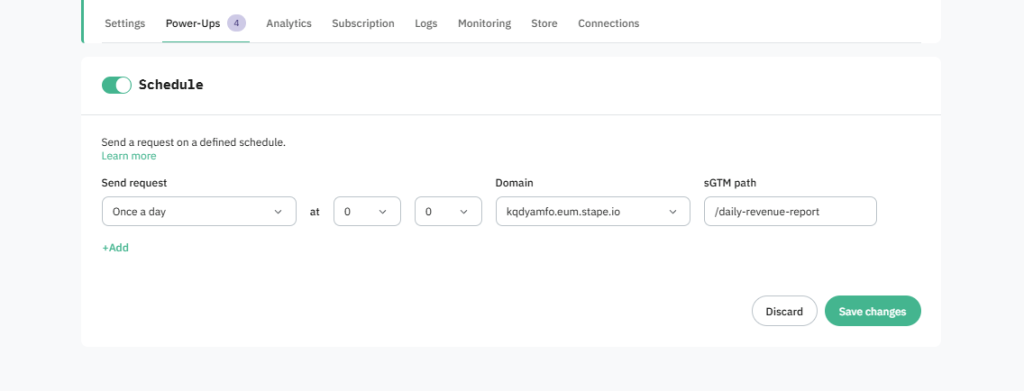
To use the Schedule power-up:
- Log in to your Stape account.
- Go to Stape Admin → Power-Ups.
- Click Use next to Schedule.
Then configure:
- How often to send a request (e.g., once a day or every hour)
- Domain selection from the dropdown
- Request path that should be triggered on schedule
For example:
- Frequency: Once per day
- Domain: tracking.yoursite.com
- Path: /daily-revenue-report
After configuration:
- Click Save changes.
Your scheduled automation will now run according to your defined timing.
Note: The Schedule power-up is available for customers on the Business plan and above.
Why This Is Better Than Manual Automation
Without the Schedule power-up, you would need to:
- Configure external cron jobs
- Set up backend scripts
- Maintain separate automation systems
- Monitor failures manually
With Schedule inside Stape:
- Everything runs within your server GTM infrastructure
- No external automation tools are required
- Setup is simple and centralized
It keeps your data automation aligned with your tracking environment.
Final Thoughts
Not all analytics workflows need real-time triggers.
Sometimes, structured and scheduled data collection is more efficient, cleaner, and easier to manage.
The Schedule power-up in Stape gives you a practical way to:
Automate database data collection
Send structured summaries
Maintain consistent reporting
If you regularly pull data from your database and send it to analytics or reporting tools, automating that process inside your server container can save time and improve reliability.