
The LinkedIn Insight Tag is a powerful tracking solution that enables conversion measurement, website retargeting, and actionable audience insights for LinkedIn Ads. When implemented correctly, it helps advertisers understand how users interact with their website after clicking or viewing LinkedIn ads.
In this guide, you’ll learn how to install the LinkedIn Insight Tag using Google Tag Manager (GTM). By deploying the tag through GTM, you can manage tracking across your entire website without making manual code changes, ensuring accurate data collection and easier ongoing maintenance.
Why Use Google Tag Manager for the LinkedIn Insight Tag?
Installing the LinkedIn Insight Tag via GTM offers several benefits:
- Centralized tag management without touching website code
- Faster deployment and easier updates
- Better control over tag firing conditions
- Built-in testing and debugging with GTM Preview mode
This approach is scalable and well-suited for teams managing multiple marketing and analytics tags.
Prerequisites
Before getting started, make sure you have:
- Access to your LinkedIn Campaign Manager account
- An active Google Tag Manager container on your website
- Permission to publish changes in GTM
Step 1: Retrieve Your LinkedIn Partner ID
- Log in to LinkedIn Campaign Manager
- Navigate to Account Assets → Insight Tag
- Select I will install the tag myself or I will use a tag manager
- Copy your Partner ID (only the numeric ID, not the full JavaScript snippet)
This Partner ID connects your website activity to your LinkedIn ad account.
Step 2: Add the LinkedIn Insight Tag in Google Tag Manager
- Log in to Google Tag Manager and open your website container
- Go to Tags → New
- Name the tag (for example: LinkedIn Insight Tag – Base)
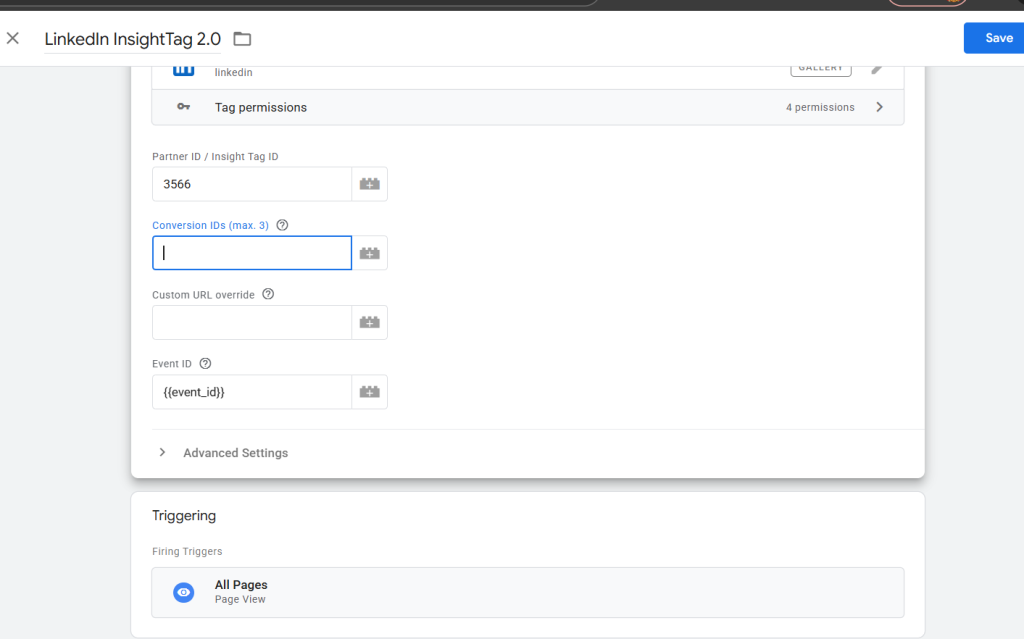
- Click Tag Configuration
- Select Discover more tag types in the Community Template Gallery
- Search for LinkedIn Insight Tag 2.0 and add it
- Enter your Partner ID in the required field

Step 3: Set the Trigger
- Click Triggering
- Select All Pages
Firing the tag on all pages is recommended to enable full-site tracking and effective retargeting. If needed, you can later configure more specific triggers for conversion pages.
Step 4: Test the LinkedIn Insight Tag
Before publishing, always test your implementation:
- Enable Preview mode in Google Tag Manager
- Enter your website URL and navigate through key pages
- Confirm the LinkedIn Insight Tag fires correctly
You can also verify activity inside LinkedIn Campaign Manager under Signals Manager or the Insight Tag status section.
Step 5: Publish Your Changes
Once testing is successful:
- Click Save on the tag
- Submit your GTM container
- Publish the changes
The LinkedIn Insight Tag is now live on your website.
Step 6: Configure LinkedIn Conversion Events
After installing the base tag, you can track specific user actions such as purchases, form submissions, or sign-ups.
To create a conversion event:
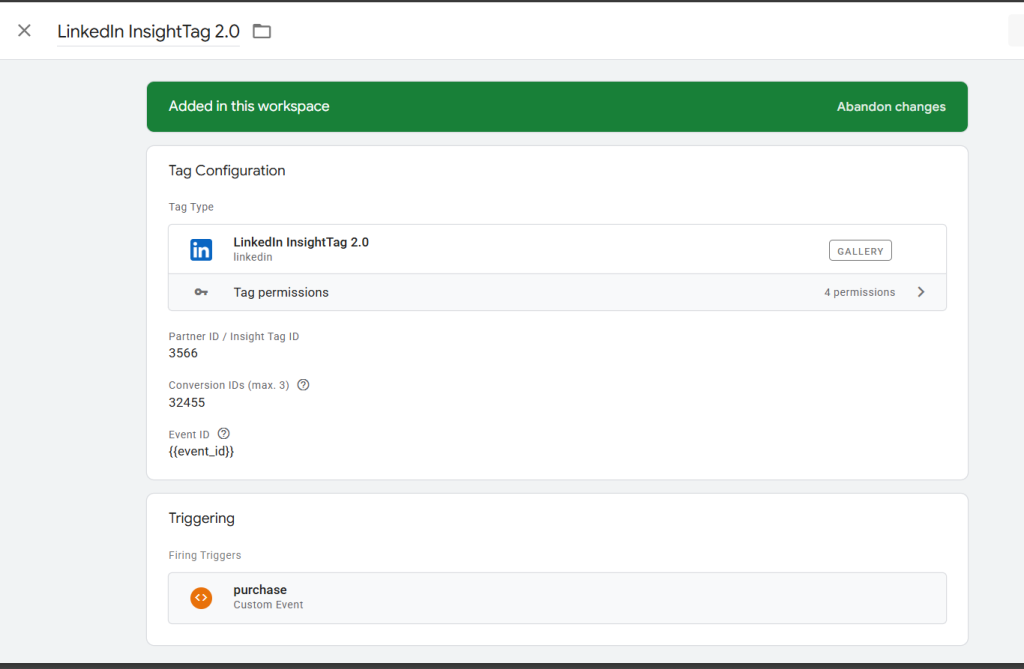
- Create a new tag in GTM
- Choose LinkedIn Insight Tag as the tag configuration
- Enter your Partner ID and the relevant Conversion ID
- Select a trigger based on your website behavior or GA4 events (for example, a purchase event)
- Save and test the tag
Repeat this process for each conversion you want to measure.
Best Practices
- Do not place the Insight Tag on pages that collect or display sensitive health or financial information
- Use clear, consistent naming conventions for tags and triggers
- Regularly review data in LinkedIn Campaign Manager to ensure accuracy
- Test new events thoroughly before publishing changes
Troubleshooting Common Issues
Tag not firing
- Verify trigger configuration
- Confirm the Partner ID is entered correctly
No data appearing in LinkedIn Campaign Manager
- Ensure the GTM container is published
- Re-test using GTM Preview mode
Duplicate events
- Use precise triggers
- Avoid firing the same event on multiple page loads or actions
Final Thoughts
Installing the LinkedIn Insight Tag using Google Tag Manager is a reliable and scalable way to track conversions, build remarketing audiences, and optimize LinkedIn ad performance. With a clean GTM setup and consistent testing, you’ll gain accurate insights that support smarter, data-driven marketing decisions.