
Shopify’s Customer Events feature allows you to implement Google Analytics 4 using a custom pixel, giving you more control over data collection while staying aligned with Shopify’s privacy framework.
This guide walks you through setting up GA4 on Shopify using a custom pixel.
Step 1: Open Customer Events in Shopify
- Log in to your Shopify Admin.
- Go to Settings.
- Click Customer Events.
- Select Add custom pixel.
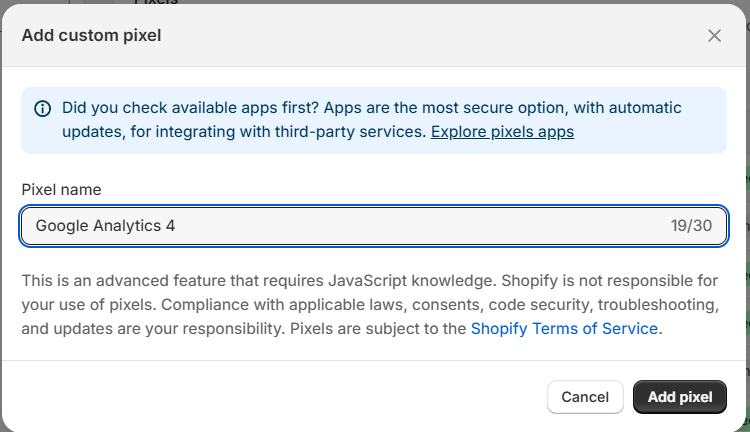
Step 2: Create a Custom Pixel
- Enter a pixel name (for example, Google Analytics).
- Click Add pixel.
This will open the custom pixel configuration screen.
Step 3: Add the GA4 Custom Pixel Code
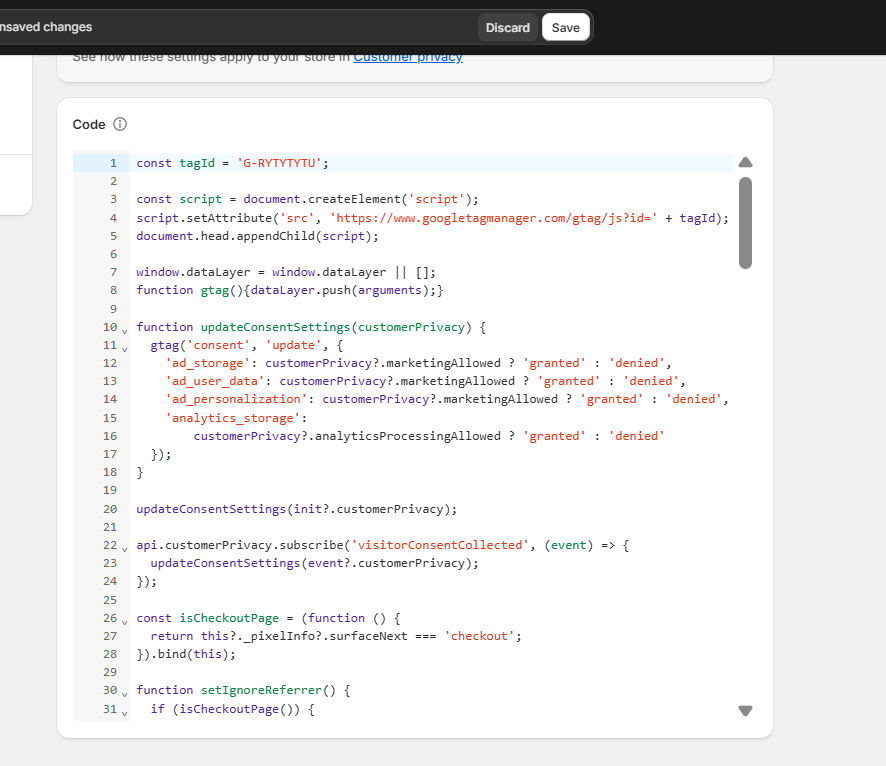
- Replace the existing code with GA4 custom pixel code from below: :
const tagId = ‘G-1234657’;
const script = document.createElement(‘script’);
script.setAttribute(‘src’, ‘https://www.googletagmanager.com/gtag/js?id=’ + tagId);
document.head.appendChild(script);
window.dataLayer = window.dataLayer || [];
function gtag(){dataLayer.push(arguments);}
function updateConsentSettings(customerPrivacy) {
gtag(‘consent’, ‘update’, {
‘ad_storage’: customerPrivacy?.marketingAllowed ? ‘granted’ : ‘denied’,
‘ad_user_data’: customerPrivacy?.marketingAllowed ? ‘granted’ : ‘denied’,
‘ad_personalization’: customerPrivacy?.marketingAllowed ? ‘granted’ : ‘denied’,
‘analytics_storage’:
customerPrivacy?.analyticsProcessingAllowed ? ‘granted’ : ‘denied’
});
}
updateConsentSettings(init?.customerPrivacy);
api.customerPrivacy.subscribe(‘visitorConsentCollected’, (event) => {
updateConsentSettings(event?.customerPrivacy);
});
const isCheckoutPage = (function () {
return this?._pixelInfo?.surfaceNext === ‘checkout’;
}).bind(this);
function setIgnoreReferrer() {
if (isCheckoutPage()) {
gtag(‘set’, {‘ignore_referrer’: ‘true’});
}
}
setIgnoreReferrer();
gtag(‘set’, ‘developer_id.dMmQyMD’, true);
gtag(‘js’, new Date());
gtag(‘config’, tagId, {
‘send_page_view’: false
});
// Helper function to send ecommerce events
function sendEcommerceEvent(eventName, eventParams, event) {
gtag(
‘set’,
‘page_location’,
event?.context?.document?.location?.href);
setIgnoreReferrer();
gtag(‘event’, eventName, eventParams);
}
function computeVariantName(productVariant) {
const name = productVariant?.title;
if ([‘default’, ‘title’, ‘default title’, ”].includes(
String(name).toLowerCase())) {
return null;
}
return name;
}
function computeValue(checkout) {
const subtotal = checkout?.subtotalPrice?.amount;
const discounts = checkout?.discountsAmount?.amount;
return subtotal && discounts ? subtotal – discounts : subtotal;
}
// Subscribe to Shopify events and send data to GA4
analytics.subscribe(“checkout_completed”, (event) => {
const items = event?.data?.checkout?.lineItems?.map((item) => ({
item_id: item?.variant?.product?.id,
item_name: item?.variant?.product?.title,
item_brand: item?.variant?.product?.vendor,
item_category: item?.variant?.product?.type,
coupon: item?.discountAllocations?.[0]?.discountApplication?.title,
price: item?.variant?.price?.amount,
quantity: item?.quantity,
item_variant: computeVariantName(item?.variant)
}));
sendEcommerceEvent(“purchase”, {
currency: event?.data?.checkout?.currencyCode,
value: computeValue(event?.data?.checkout),
transaction_id: event?.data?.checkout?.order?.id,
coupon: event?.data?.checkout?.discountAllocations,
shipping: event?.data?.checkout?.shippingLine?.price?.amount,
tax: event?.data?.checkout?.totalTax?.amount,
items: items
}, event);
});
analytics.subscribe(“payment_info_submitted”, (event) => {
const items = event?.data?.checkout?.lineItems?.map((item) => ({
item_id: item?.variant?.product?.id,
item_name: item?.variant?.product?.title,
item_brand: item?.variant?.product?.vendor,
item_category: item?.variant?.product?.type,
coupon: item?.discountAllocations?.[0]?.discountApplication?.title,
price: item?.variant?.price?.amount,
quantity: item?.quantity,
item_variant: computeVariantName(item?.variant)
}));
sendEcommerceEvent(“add_payment_info”, {
currency: event?.data?.checkout?.currencyCode,
value: event?.data?.checkout?.subtotalPrice?.amount,
items: items
}, event);
});
analytics.subscribe(“checkout_started”, (event) => {
const items = event?.data?.checkout?.lineItems?.map((item) => ({
item_id: item?.variant?.product?.id,
item_name: item?.variant?.product?.title,
item_brand: item?.variant?.product?.vendor,
item_category: item?.variant?.product?.type,
coupon: item?.discountAllocations?.[0]?.discountApplication?.title,
price: item?.variant?.price?.amount,
quantity: item?.quantity,
item_variant: computeVariantName(item?.variant)
}));
sendEcommerceEvent(“begin_checkout”, {
currency: event?.data?.checkout?.currencyCode,
value: computeValue(event?.data?.checkout),
items: items
}, event);
});
analytics.subscribe(“cart_viewed”, (event) => {
const items = event?.data?.cart?.lines?.map((item) => ({
item_id: item?.variant?.product?.id,
item_name: item?.variant?.product?.title,
item_brand: item?.variant?.product?.vendor,
item_category: item?.variant?.product?.type,
coupon: item?.discountAllocations?.[0]?.discountApplication?.title,
price: item?.variant?.price?.amount,
quantity: item?.quantity,
item_variant: computeVariantName(item?.variant)
}));
sendEcommerceEvent(“view_cart”, {
currency: event?.data?.cart?.cost?.totalAmount?.currencyCode,
value: event?.data?.cart?.cost?.totalAmount?.amount,
items: items
}, event);
});
analytics.subscribe(“product_added_to_cart”, (event) => {
sendEcommerceEvent(“add_to_cart”, {
currency: event?.data?.cartLine?.cost?.totalAmount?.currencyCode,
value: event?.data?.cartLine?.cost?.totalAmount?.amount,
items: [{
item_id: event?.data?.cartLine?.merchandise?.product?.id,
item_name: event?.data?.cartLine?.merchandise?.product?.title,
price: event?.data?.cartLine?.merchandise?.price?.amount,
quantity: event?.data?.cartLine?.quantity
}]
}, event);
});
analytics.subscribe(“product_viewed”, (event) => {
sendEcommerceEvent(“view_item”, {
currency: event?.data?.productVariant?.price?.currencyCode,
value: event?.data?.productVariant?.price?.amount,
items: [{
item_id: event?.data?.productVariant?.product?.id,
item_name: event?.data?.productVariant?.product?.title,
price: event?.data?.productVariant?.price?.amount
}]
}, event);
});
analytics.subscribe(“page_viewed”, (event) => {
sendEcommerceEvent(‘page_view’, {}, event);
});
- The code is developed by Google.
- Replace the tagId value in the code with your GA4 Measurement ID (e.g., G-XXXXXXXXXX).
- Paste the updated code into the Custom Pixel Code section.
Step 4: Configure Permissions
- Set Permission to Analytics.
- Under Data Sale, select:
Data collected does not qualify as data sale.
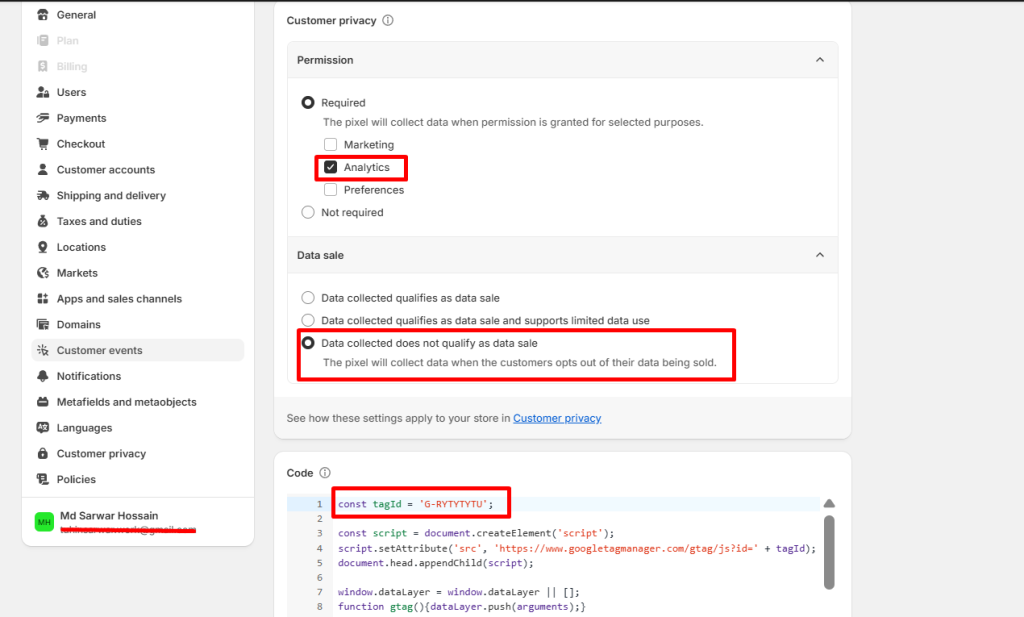
These settings ensure your GA4 implementation complies with Shopify’s data and consent framework.
Step 5: Save and Test
- Save & connect the custom pixel.
- Visit your storefront and perform test actions (page views, product views).
- In Google Analytics 4, go to Realtime to confirm events are being received.
Final Notes
Using Shopify’s Custom Pixel approach is the recommended way to run GA4, as it:
- Works with Shopify’s checkout and customer event system
- Respects consent and privacy settings
- Provides more reliable data than legacy script-based installs
Once verified, your GA4 setup is ready to support reporting, e-commerce tracking, and future integrations.