
In this article, we’ll guide you through configuring Adtraction conversion tracking using a server-side Google Tag Manager (GTM) container. By the end of this guide, you’ll know how to set up Adtraction tags, track page views and conversions, and ensure your server-side tracking is accurate and reliable.
What is the Adtraction Tag
The Adtraction tag integrates the Adtraction platform with your website via a server GTM container, allowing you to track pageviews and conversions effectively.
Because it works server-side, the tag offers several advantages:
- Extended cookie lifetime – track users over longer periods.
- Reliable data collection – unaffected by ad blockers.
- Enhanced data control – easier compliance with privacy regulations.
Prerequisites for Setting Up the Adtraction Tag
Before you begin, make sure you have:
- A server GTM container.
- A configured data flow from your website to the server GTM container, such as a server-side Google Analytics 4 setup
Step-by-Step Guide to Setting Up Adtraction Conversion Tracking
1. Add the Adtraction Tag
- Add the Adtraction tag from the GTM community Template Gallery.

2. Create a New Tag
- In Tags, click New.
- Choose Tag Configuration → Adtraction by Stape.
3. Configure the Tag
3.1 Select Event Type
- Page View – stores the at_gd URL parameter (Click ID) inside the at_gd cookie.
- Conversion – sends a tracking request to Adtraction when a conversion occurs.
For page views, the setup is complete if the Click ID URL parameter is at_gd. Adjust only for custom implementations.
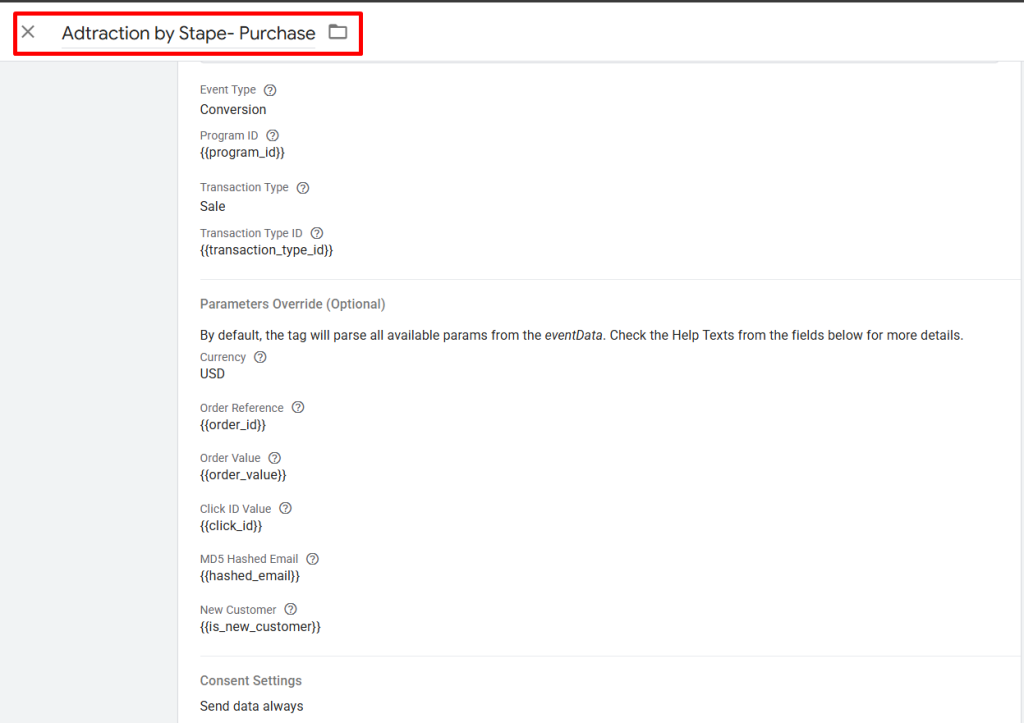
3.2 Configure Conversion Event (if applicable)
- Program ID – provided by Adtraction. Contact your account manager if unsure.
- Transaction Type – choose the type you want to track: sale or lead.
- Transaction Type ID – provided by Adtraction.
- Optional Parameters Override – selectively override parameters parsed from eventData. Options include:
- Currency
- Order reference
- Discount code
- Click ID value
- MD5 Hashed Email
- Last paid click referring channel
- New customer
Here’s an example of a fully configured Adtraction tag:
4. Add a Trigger
- Assign a trigger to the tag so it fires on the intended events (pageviews or conversions).

5. Test the Tag
- Trigger events in your environment to ensure the tag works correctly within the server GTM container.
- For troubleshooting, refer to Adtraction’s debugging and monitoring guides to verify proper data collection.
Summary
Setting up Adtraction conversion tracking with server GTM is straightforward. Server-side implementation ensures accurate, reliable, and privacy-compliant data collection, giving you confidence in your tracking strategy.
By following this step-by-step guide, you can track page views and conversions, optimize your Adtraction campaigns, and maximize the effectiveness of your performance marketing efforts.