
Klaviyo forms (popups, embeds, flyouts) can’t be tracked with Google Tag Manager’s default Form Submission trigger. To see Klaviyo opt-ins in Google Analytics 4 , you need to use a custom event listener and the Data Layer.
1. Add a Klaviyo form listener
Create a Custom HTML tag in GTM and paste:
<script>
window.dataLayer = window.dataLayer || [];
window.addEventListener(“klaviyoForms”, function(e) {
if (e.detail.type === ‘submit’) {
dataLayer.push({
event: ‘klaviyo’,
formId: e.detail.formId,
formTitle: e.detail.metaData.$source
});
}
});
</script>
Use this if you need email address in the datalayer
<script>
window.dataLayer = window.dataLayer || [];
window.addEventListener(“klaviyoForms”, function(e) {
if (e.detail.type == ‘submit’) {
dataLayer.push({
‘event’ : ‘klaviyo’,
‘formData’ : e.detail
});
}
});
</script>
Set it to fire on All Pages (or Window Loaded if needed).
2. Create Data Layer variables
Create two Data Layer Variables:
- formId
- formTitle
Test in GTM Preview mode to ensure values are populated after form submission.
3. Create a Custom Event trigger
- Trigger type: Custom Event
- Event name: klaviyo
This fires whenever a Klaviyo form is successfully submitted.
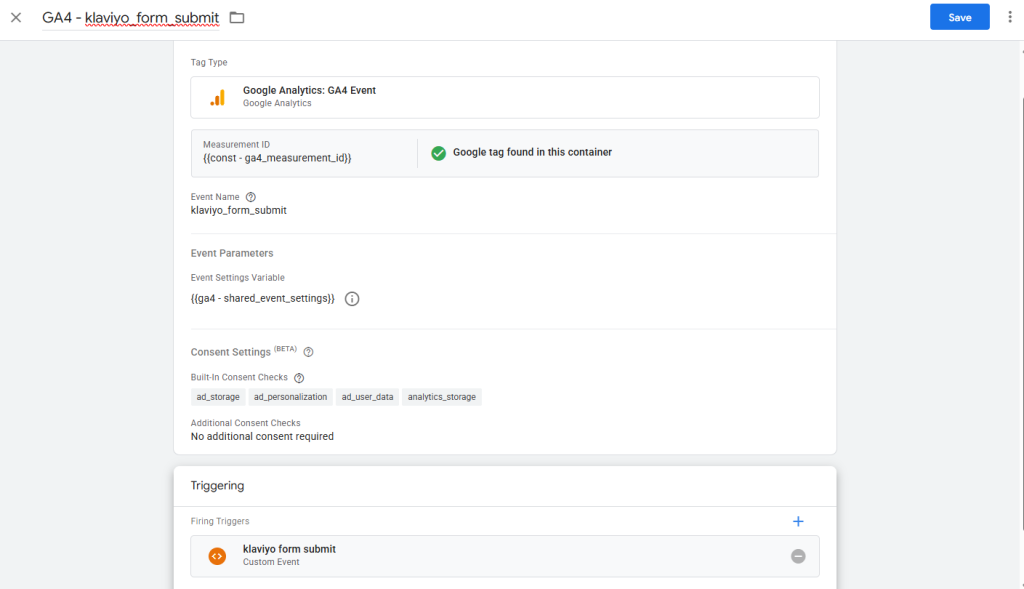
4. Send the event to Google Analytics 4
Create a GA4 – Event tag:
5. Mark it as a conversion
In Google Analytics, create a Goal based on the event to track Klaviyo form submissions as conversions.
Final note
Avoid sending form field values (like email addresses) to Google Analytics—this violates GA policies. Track only non-PII metadata such as form ID or title.