
Server-side tracking gives you more control, better data delivery, and improved reliability compared to client-side setups. But there’s one challenge many advanced implementations face:
Data is sometimes sent too early.
If you’re struggling with duplicate events, incorrect purchase tracking, or webhook timing issues, the problem may not be your tagging logic — it may be request timing.
In this article, we’ll look at how the Request Delay power-up inside Stape helps you control when data is sent from server-side Google Tag Manager (sGTM), improving accuracy and stability.
Why Timing Matters in Server-Side Tracking
Server-side Google Tag Manager processes events very quickly. While speed is usually good, it can create problems in complex setups involving:
- Ecommerce payment gateways
- Webhooks from Shopify or WooCommerce
- CRM updates
- Subscription systems
- Multi-step checkout flows
Common timing issues include:
- Purchase events firing before payment confirmation
- Webhooks triggering multiple times
- Deduplication mismatches between client and server
- Revenue being recorded before order validation
When requests are sent at the wrong moment, reporting becomes unreliable.
What Is the Request Delay Power-Up?
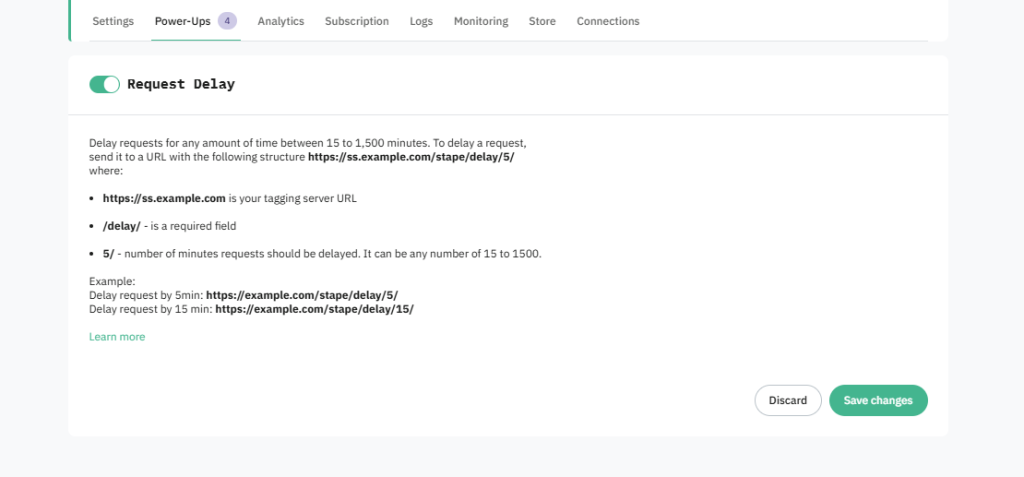
The Request Delay power-up allows you to delay outgoing requests in server-side GTM.
With it, you can postpone sending data anywhere from:
- 1 minute
- Up to 1500 minutes
Instead of sending events instantly, you intentionally delay them to ensure that:
- Data is complete
- Systems are synchronized
- Final order states are confirmed
This gives you precise control over your data flow.
Practical Use Cases for Request Delay
Let’s explore real-world situations where delaying requests improves accuracy.
1. Confirm Payment Before Sending Purchase Data
In some ecommerce setups:
- A checkout event fires.
- Payment confirmation happens seconds or minutes later.
- Failed or refunded transactions are updated afterward.
If you send purchase data immediately to platforms like Google Analytics 4 or ad platforms, you risk:
- Tracking failed payments as successful sales
- Inflated revenue numbers
- Attribution inconsistencies
Adding a short delay ensures only confirmed transactions are sent.
2. Reduce Duplicate Events
Webhooks and backend systems sometimes trigger the same event multiple times within a short period.
For example:
- Order created
- Order updated
- Payment confirmed
- Order marked as paid
If each triggers a server request, duplicates may appear.
A delay allows the system to stabilize before dispatching the final event.
3. Improve Deduplication Between Client and Server
In hybrid tracking setups (client-side + server-side), deduplication relies on matching event IDs.
If timing between the two is misaligned:
- Deduplication may fail
- Conversions may be double counted
- Attribution may break
Delaying server-side requests slightly can improve synchronization and reduce mismatches.
4. Handle Complex Webhook Workflows
When using webhooks from ecommerce platforms or CRMs:
- Data may arrive in stages
- Identifiers may not be fully available immediately
- Order status may change shortly after creation
By introducing a delay, you allow complete and finalized data to be sent — not partial payloads.
Benefits of Using Request Delay in sGTM
Using Request Delay provides:
✔ Better control over event timing
You decide when requests leave your server container.
✔ Reduced duplicate data
Events are sent after systems stabilize.
✔ More accurate revenue reporting
Only finalized transactions are tracked.
✔ Cleaner attribution
Improved alignment between client-side and server-side events.
✔ Customizable data flow
Adapt timing based on your business logic.
How to Set Up Request Delay in Stape
To use the Request Delay power-up:
- Log in to your Stape account.
- Open your server container.
- Go to Power-Ups.
- Click Use next to Request Delay.
- Toggle it ON.
- Click Save changes.
Once activated, you can configure the delay duration based on your needs.
⚠ Note: The Request Delay power-up is available starting from Stape’s Business plan.
When Should You Use Request Delay?
You should consider using it if:
- You see duplicate purchases in analytics
- Revenue reporting looks inflated
- Webhooks trigger multiple similar events
- Payment confirmation timing varies
- You run subscription or recurring billing models
It may not be necessary for simple setups, but for advanced implementations, timing control becomes critical.
Final Thoughts
Server-side tracking gives you power and flexibility — but timing control is often overlooked.
If your data is being sent too early, you may face duplicates, inflated metrics, or inaccurate attribution.
The Request Delay power-up in Stape offers a simple yet powerful solution:
Send the right data — at the right time.
When implemented correctly, it helps transform your server-side setup from functional to reliable and optimized.