
When you’re analyzing your GA4 data, you want to understand how real users are interacting with your website. But there’s one small issue—your own visits, your team’s testing, and internal activity are also being tracked.
Over time, this can quietly affect your numbers. Traffic may look higher, engagement may seem stronger, and conversions might not reflect actual customer behavior. That’s why excluding internal traffic is an important step in keeping your data clean and reliable.
What Is Internal Traffic?
Internal traffic includes visits from your team, such as employees, developers, or marketers accessing the site from office or known locations. Since these are not actual customers, it’s best to filter them out.
How to Exclude Internal Traffic in GA4
GA4 uses a two-step process:
- Define internal traffic (based on IP address)
- Create a filter to exclude that traffic
Both steps are important—missing one means the setup won’t work.
Step 1: Define Internal Traffic
Start by telling GA4 what counts as internal traffic.
- Go to Admin
- Under the Property column, click Data Streams
- Select your website data stream
- Click Configure tag settings
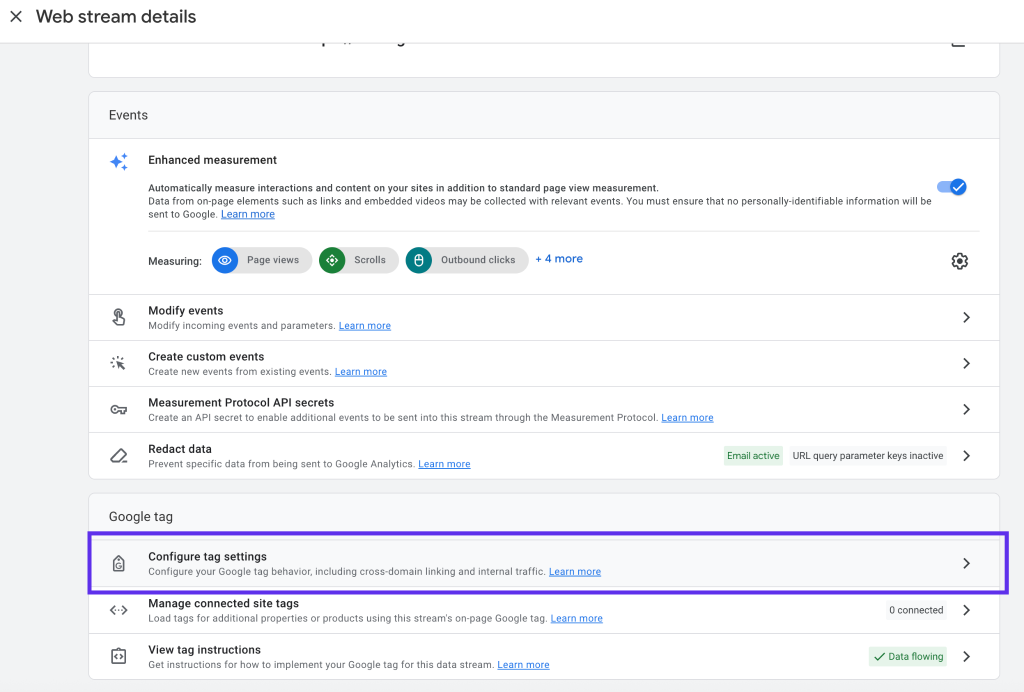
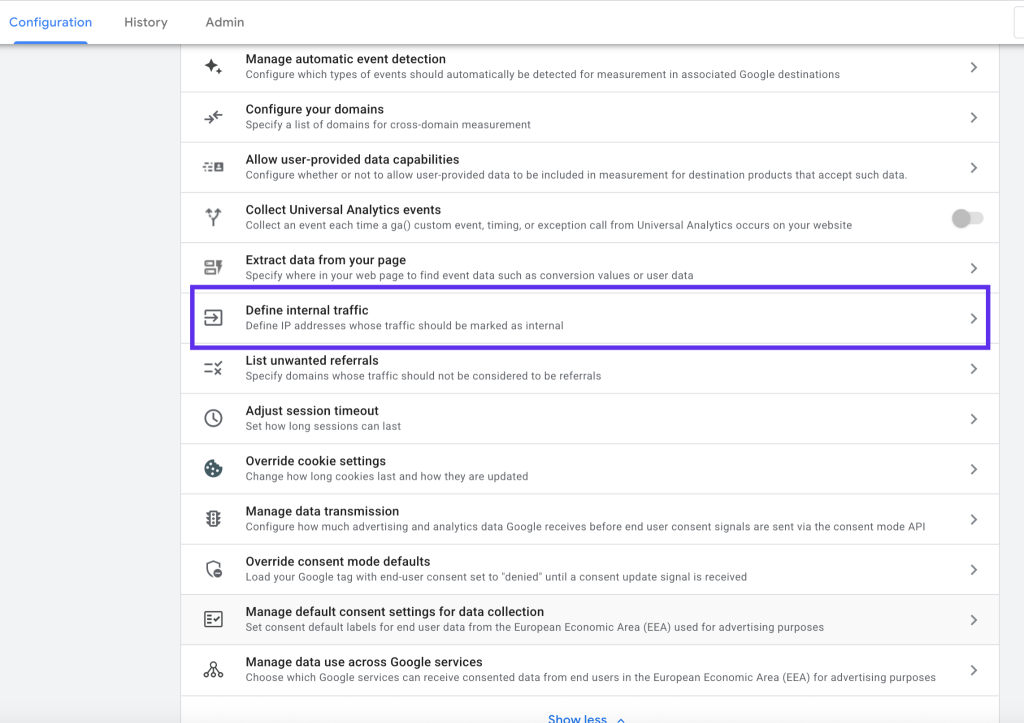
- Go to Define internal traffic
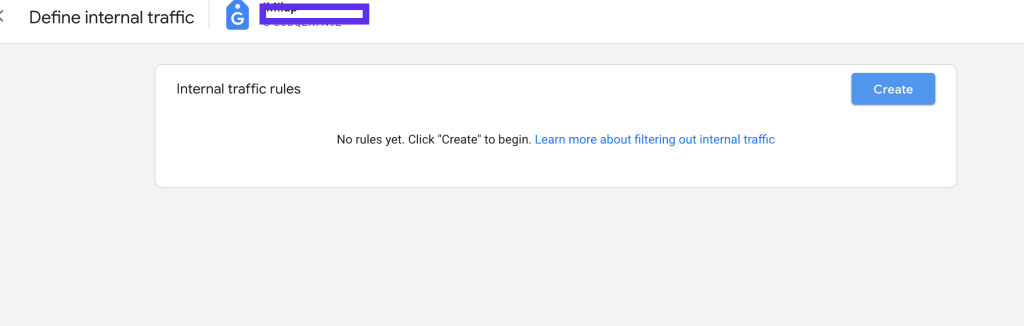
6. Click on create
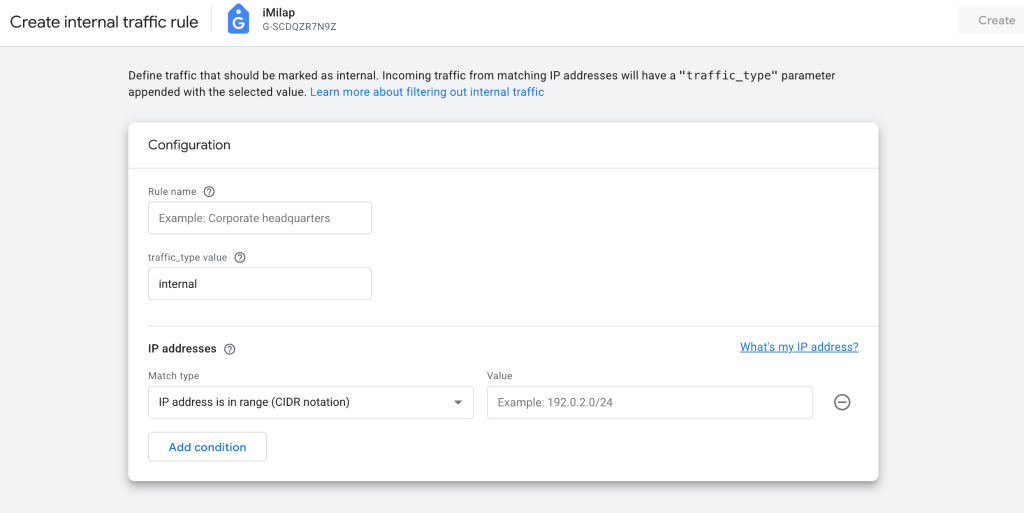
Here, you’ll add your office or team IP addresses.
- Choose a rule (usually IP address equals or IP address starts with)
- Enter your IP address (or range)
Give it a name like “office” or “internal”
Once saved, GA4 will tag this traffic as internal.
Step 2: Create a Data Filter
Now that GA4 knows what internal traffic is, you need to exclude it.
- Go to Admin
- Click Data Settings → Data Filters

- You’ll see a filter called Internal Traffic
- Set it to Active
That’s it—GA4 will now exclude internal traffic from your reports.
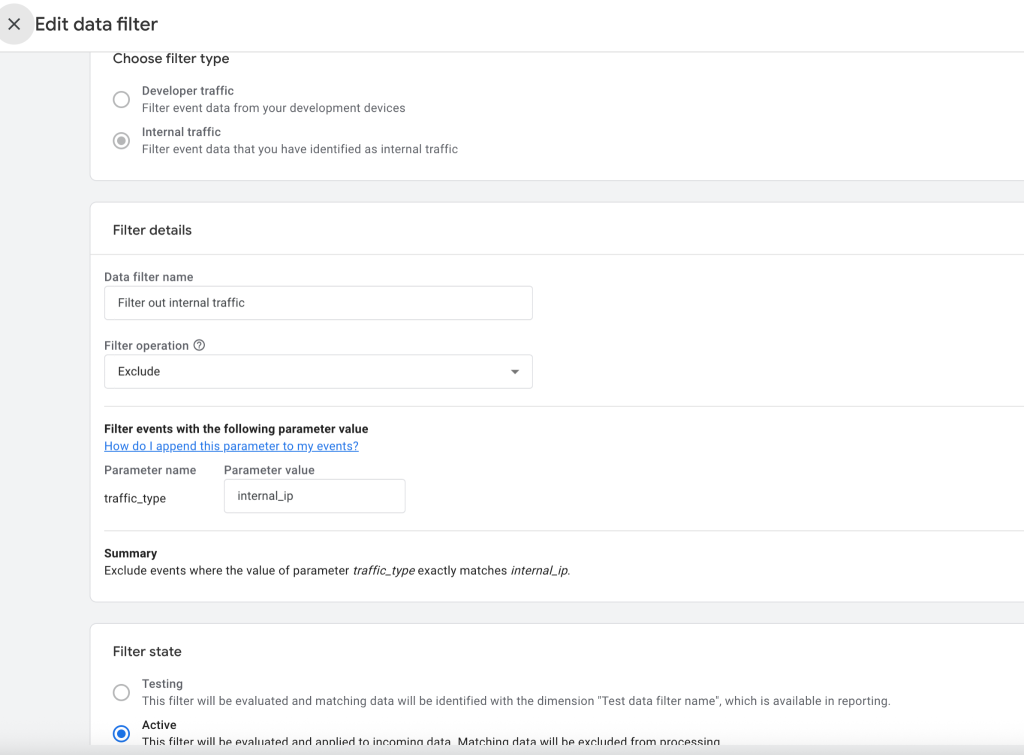
Note – Make sure the traffic_type value in the Data Filter matches exactly the value you defined in Step 1 (Define Internal Traffic)—for example, if you used “Filter out internal traffic” there, use the same value in the filter so GA4 can correctly identify and exclude that traffic.
Important Tip
By default, the filter may be in Testing mode. This allows you to verify everything is working before fully applying it. Once confirmed, switch it to Active.
Final Thoughts
Excluding internal traffic is a simple step, but it makes a big difference. Once done, your reports will reflect actual user behavior more accurately—giving you better insights and more confidence in your data.