
Most advertising platforms — including Google Ads and Google Analytics 4 — optimize based on revenue, not profit.
But revenue includes:
- Product cost
- Shipping
- Taxes
- Payment fees
If you optimize campaigns using revenue alone, you might scale products that generate sales but not real profit.
That’s where Profit on Ad Spend (POAS) becomes critical.
In this guide, you’ll learn how to configure POAS using Stape Store inside Stape and send profit instead of revenue to your advertising platforms.
Why Track Profit Instead of Revenue?
Standard ROAS formula:
Revenue ÷ Ad Spend
POAS formula:
Profit ÷ Ad Spend
Example:
- Revenue: €50
- Cost of goods: €30
- Profit: €20
- Ad spend: €15
ROAS = 3.3x
POAS = 1.33x
Very different business outcome.
If you optimize on revenue, you may unknowingly scale low-margin products.
Overview of the Setup
To track POAS correctly, you need:
- A product catalogue with profit values
- That catalogue stored inside Stape Store
- A server-side GTM variable that retrieves profit
- Send profit instead of revenue to ad platforms
Let’s walk through it step-by-step.
Step 1: Store Product Profit in Stape Store
Inside Stape:
Go to:
Stape Store → Add collection
Create a collection called:
poas
Each product document should contain at minimum:
- Product_ID (or SKU)
- Profit
Example document:
Product_ID: 54638245
Price_(EUR): 16.5
Sale_Price_(EUR): 12.99
Profit: 7.875
The important field here is:
Profit
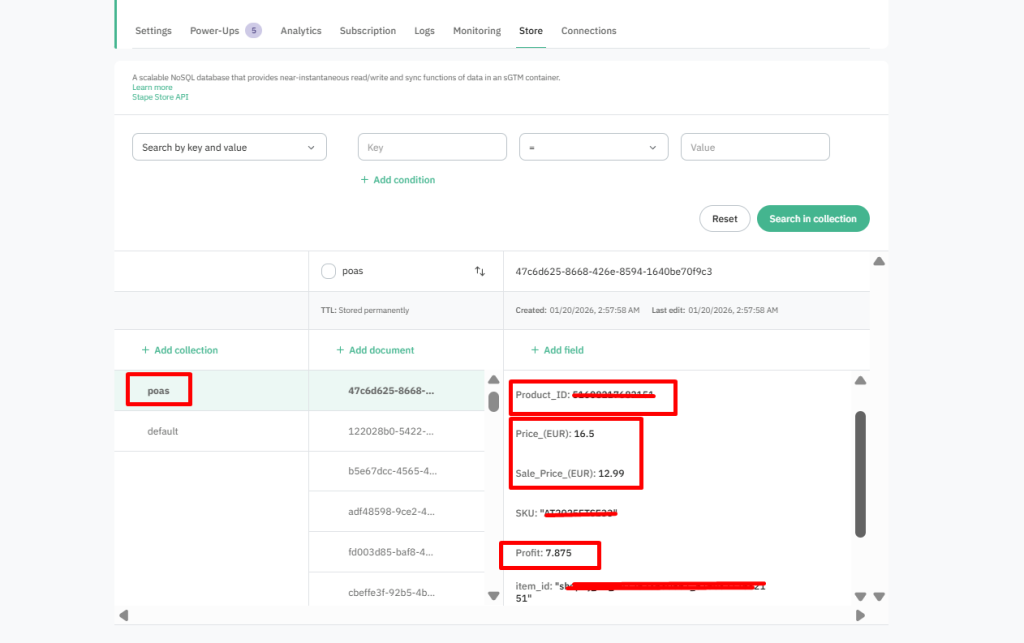
This is the value that will be sent to advertising platforms.
Step 2: Create a Stape Store Lookup Variable in sGTM
Now go to your Server GTM container.
Create a new variable:
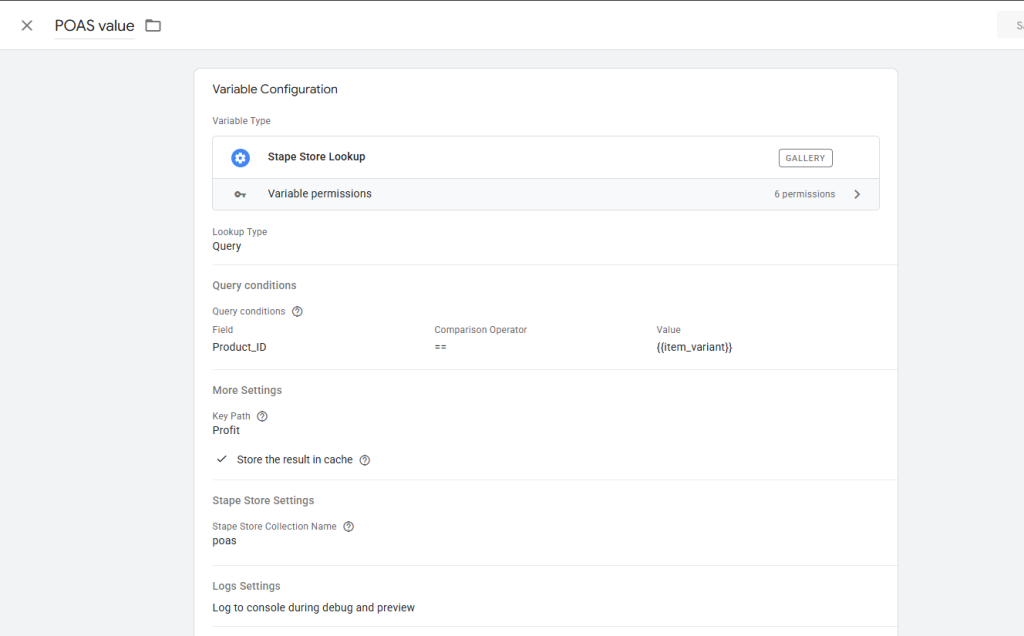
Variable Type:
Stape Store Lookup
Configure it as follows:
Lookup Type
Query
Query Condition
Field:
Product_ID
Comparison:
==
Value:
{{item_variant}} (or item_id / SKU depending on your setup)
⚠ IMPORTANT:
The value must match exactly the field stored in Stape Store.
If your store uses:
Product_ID = 54638245
Then your purchase event must send the same value.
Step 3: Set the Key Path
Under More Settings:
Key Path: Profit
This tells Stape which field to return from the document.
Enable:
Store result in cache
Collection Name:
poas
Save the variable.
Step 4: Make Sure Your Matching Field Is Correct
This is the most common mistake.
Your purchase event may contain:
- item_id
- item_variant
- item_sku
You must verify which one matches your Stape Store field.
To check:
- Open sGTM Preview
- Trigger a purchase
- Inspect:
Incoming Request → Event Data → items
If purchase contains:
Product_ID = 54638245
Then your lookup must match Product_ID , not item_variant.
Step 5: Use the Variable in Your Google Ads Tag
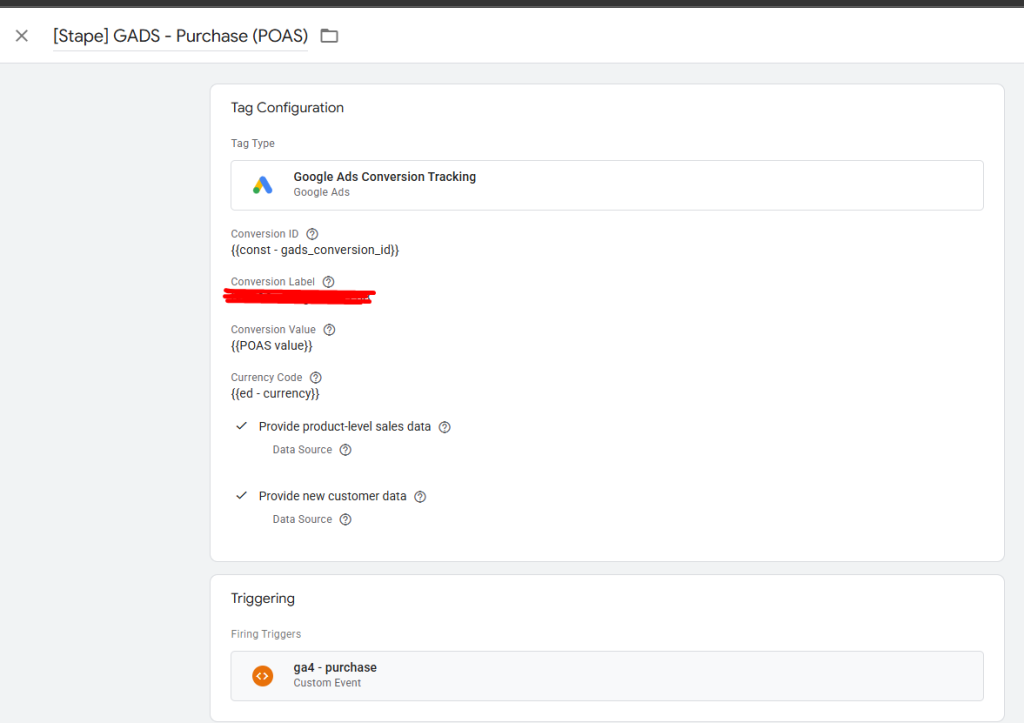
Open your Google Ads Conversion tag.
Instead of:
value = {{Revenue}}
Use:
value = {{POAS value}}
Now Google Ads receives profit instead of revenue.
Your bidding strategy will optimize for profitability.
Important: Multi-Item Orders
The Stape Store Lookup variable retrieves profit for one product.
If your store allows multiple items per order, this approach only works correctly if:
- Orders contain one item
OR - You manually calculate totals
For multi-item carts, the recommended approach is using:
Margin Lookup variable (Stape template)
This variable:
- Loops through items[]
- Matches each product
- Multiplies by quantity
- Returns total profit
This is the production-ready approach for ecommerce stores.
Testing the Setup
Before publishing:
- Open sGTM Preview
- Trigger a test purchase
- Check:
- Does POAS variable return a value?
- Is it correct?
- Does it reflect quantity?
Only publish after validation.
Final Thoughts
Tracking revenue is easy.
Tracking profit is powerful.
By using Stape Store and server-side GTM, you can:
- Store product-level profit securely
- Match it dynamically during purchase
- Send profit instead of revenue
- Optimize campaigns based on real business performance
If you’re serious about scaling ads profitably, POAS tracking is one of the most impactful upgrades you can implement in your measurement strategy.