
Connecting Mixpanel to Slack only takes a few minutes and allows your team to share reports, receive alerts, and preview Mixpanel dashboards directly inside Slack.
Before you begin, make sure:
- You have access to your Mixpanel project
- You’re logged into your Slack workspace
- Your Slack workspace allows app installations (some organizations restrict this to Slack admins)
Step 1: Open the Mixpanel Slack Integration
Log in to Mixpanel and navigate to the Slack Integration page.
Mixpanel will prompt you to authorize a Slack workspace.
At this stage, you’ll need to select the Slack workspace you want to connect.
https://mixpanel.com/slack/oauth?slack_v2=true
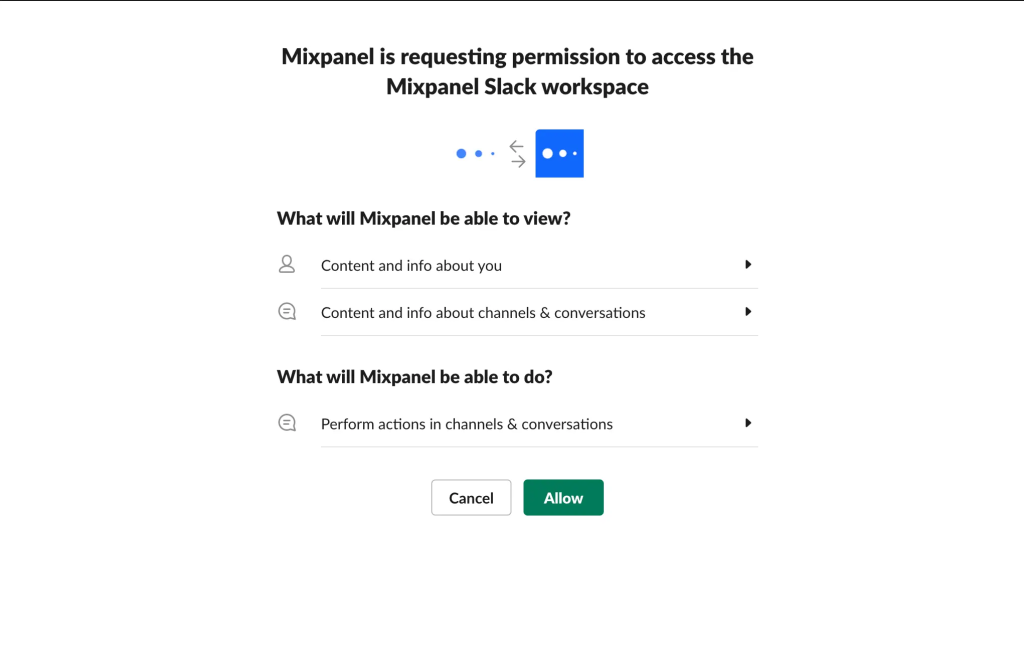
Step 2: Authorize the Slack Workspace
Click Allow to grant Mixpanel access to your Slack workspace.
During this step, Slack will display the permissions Mixpanel requires to:
- Preview Mixpanel reports
- Send dashboard subscriptions
- Deliver alert notifications
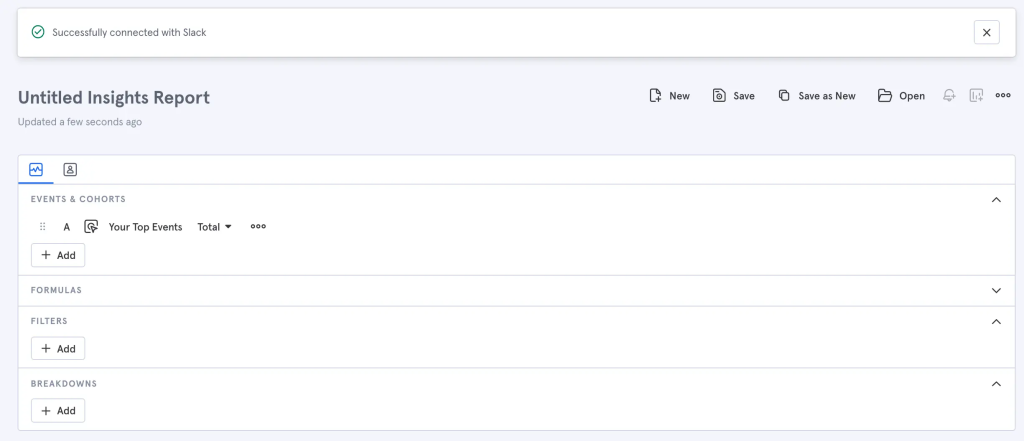
Once authorization is complete, you’ll be redirected back to Mixpanel and see a confirmation message indicating the integration was successfully connected.
Step 3: Verify the Connection
After connecting Slack, Mixpanel becomes available within your Slack workspace.
A quick way to test the integration is to copy a Mixpanel report URL and paste it into a Slack channel.
For supported reports such as:
- Insights
- Funnels
- Retention
- Flows
Slack will automatically generate a preview containing report metadata and, in many cases, a chart preview.
This allows teammates to understand the report without opening Mixpanel.
Step 4: Connect Individual User Accounts
One detail that often surprises teams is that the integration works at both the workspace and user level.
After the first person connects Mixpanel to Slack, other Slack users who share Mixpanel links will see a prompt asking them to connect their own Mixpanel account.
This is intentional.
Mixpanel uses individual authentication to ensure users only see reports they already have permission to access.
Once connected, future Mixpanel links shared by that user will automatically generate previews inside Slack.
Step 5: Start Using Mixpanel in Slack
After setup, you can use the integration in several ways:
Share Report Previews
Paste any Mixpanel report link into Slack and automatically generate previews.
Send Custom Alerts
Configure Mixpanel alerts to notify Slack channels when important metrics change.
Examples include:
- Revenue drops
- Signup spikes
- Conversion rate changes
- Product adoption changes
Send Scheduled Dashboard Updates
Use Board Subscriptions to automatically send Mixpanel dashboards to Slack channels on a daily, weekly, or monthly schedule.
This is particularly useful for executive reporting, product reviews, and marketing performance updates.
Understanding Permissions
The Slack integration respects Mixpanel permissions.
If a user does not have access to a report in Mixpanel, they will not be able to view its contents through Slack previews.
This ensures sensitive dashboards and reports remain protected while still making analytics easier to share across teams.
Troubleshooting Tips
If report previews aren’t appearing in Slack:
- Verify Mixpanel was successfully authorized
- Ensure the user has connected their own Mixpanel account
- Confirm the report is accessible to that user in Mixpanel
- Check whether Slack administrators have restricted third-party applications
In most cases, reconnecting the Mixpanel account through Slack resolves preview-related issues.