
One of the most overlooked parts of analytics implementation is geolocation tracking.
Most teams assume location data simply appears in Mixpanel automatically—and technically, it does.
But once you start implementing server-side tracking, data warehouses, CDPs, or backend APIs, location data can become surprisingly inaccurate.
I’ve audited Mixpanel projects where:
- Every user appeared to be located in Virginia because the events were sent from AWS servers.
- European users showed up in California because requests were routed through a US-based backend.
- User profiles constantly changed countries because profile updates were being sent from a centralized server.
The problem wasn’t Mixpanel.
The problem was understanding how Mixpanel determines location data.
In this guide, I’ll explain how geolocation works in Mixpanel, how IP addresses are processed, when you should manually define location data, and some common mistakes I see during implementations.
What Geolocation Properties Does Mixpanel Track?
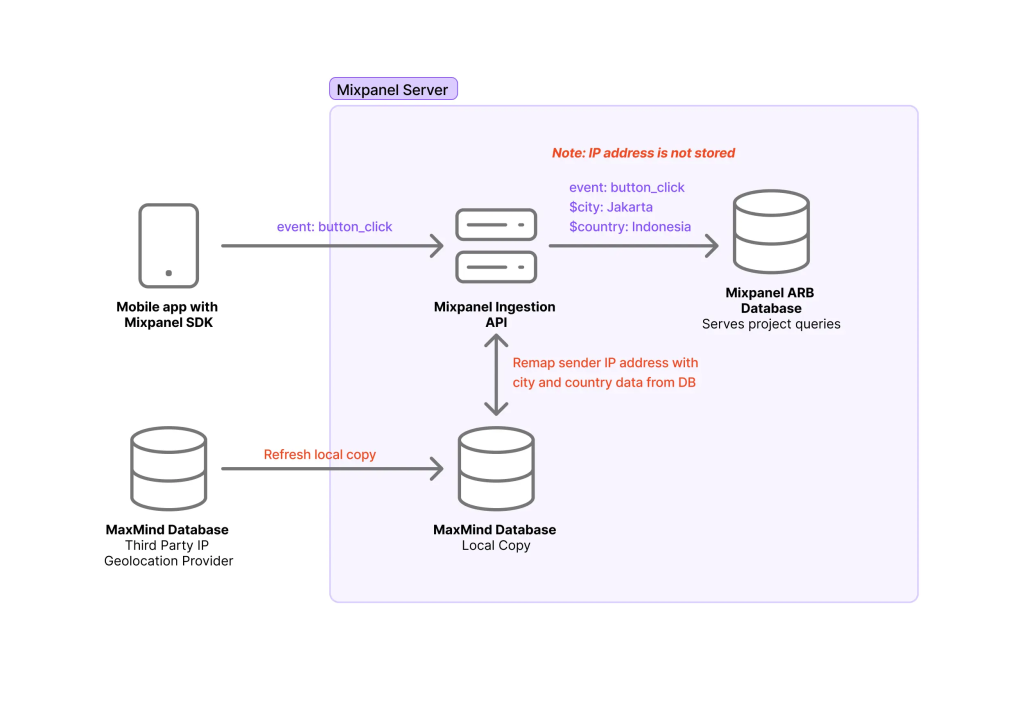
When Mixpanel receives an event or profile update, it automatically attempts to determine the user’s location.
The location information is stored in the following properties:
| Property | Data Type | Used For |
| $city | Event & Profile | User city |
| $region | Event & Profile | State or region |
| mp_country_code | Events | Event country |
| $country_code | Profiles | Profile country |
These are reserved Mixpanel properties.
That means Mixpanel uses them internally for:
- Geographic reporting
- Segmentation
- Filtering
- Cohorts
- Location-based analysis
You’ll often see these properties automatically available inside reports without doing any additional setup.
How Mixpanel Determines User Location
By default, Mixpanel uses the IP address of the incoming request.
For example:
User
↓
Mixpanel Track Request
↓
IP Address
↓
Location Lookup
↓
Country / Region / City
This happens automatically.
If a user visits your website from London and triggers:
mixpanel.track(“Signed Up”);
Mixpanel will attempt to determine:
Country: GB
Region: England
City: London
and attach those values to the event.
The same logic applies to user profile updates.
When you send:
mixpanel.people.set({
plan: “Pro”
});
Mixpanel also determines location from the request IP.
What Happens to the IP Address?
One question I get surprisingly often is:
Does Mixpanel store the user’s IP address?
The answer is no.
Mixpanel uses the IP address only for geolocation processing.
The workflow looks like this:
Request Arrives
↓
Extract IP Address
↓
Lookup Location
↓
Attach Location Properties
↓
Discard IP Address
↓
Store Event
Mixpanel uses MaxMind’s geolocation database to perform the lookup.
The process is:
- Event or profile request arrives
- Mixpanel extracts the request IP
- MaxMind returns location information
- Country, city, and region are attached
- The IP address is discarded
- The event is ingested
As a result:
IP Address → Temporary
Location Data → Stored
This is important from both privacy and compliance perspectives.
Why Server-Side Tracking Creates Geolocation Problems
This is probably the most common issue I see.
Imagine your users are located worldwide:
USA
Germany
Australia
Japan
But all events are sent from:
AWS Virginia
What happens?
Mixpanel sees:
Request Source:
Virginia
and assumes the event originated there.
Now every user appears to be located in Virginia.
I’ve seen this happen with:
- Backend APIs
- Server-side GTM
- Cloud Functions
- CDPs
- ETL Pipelines
The tracking implementation works perfectly.
The location data becomes useless.
Example of Incorrect Server-Side Tracking
Imagine you’re sending events from Node.js.
mixpanel.track(“Purchase Completed”, {
distinct_id: userId
});
Mixpanel only sees:
Server IP
not:
User IP
As a result, location becomes the server location.
Not the customer location.
Fixing Server-Side Geolocation
The simplest solution is to pass the user’s IP address manually.
Most frameworks expose the user’s IP automatically.
Examples:
Django
request.META[‘REMOTE_ADDR’]
Flask
request.remote_addr
Go
request.RemoteAddr
Nginx
$remote_addr
Once you have the user’s IP, send it to Mixpanel.
Example:
{
“event”: “Signed Up”,
“properties”: {
“distinct_id”: “13793”,
“token”: “mytoken”,
“ip”: “136.24.0.114”
}
}
Notice the:
“ip”: “136.24.0.114”
property.
Mixpanel will use this value instead of the server IP.
This is usually the easiest way to preserve accurate location reporting in server-side implementations.
Manually Defining Geolocation
Sometimes you already know where your users are located.
For example:
- CRM data
- User profiles
- Shipping addresses
- Internal databases
In those cases, you may not want Mixpanel to guess location from IP addresses.
Instead, you can explicitly define location properties.
Event Example
{
“event”: “Signed Up”,
“properties”: {
“distinct_id”: “13793”,
“token”: “project_token”,
“mp_country_code”: “US”,
“$city”: “San Francisco”,
“$region”: “California”
}
}
Profile Example
{
“$token”: “project_token”,
“$distinct_id”: “13793”,
“$set”: {
“$country_code”: “US”,
“$region”: “California”,
“$city”: “San Francisco”
}
}
When these values are provided, Mixpanel prioritizes them over IP-derived locations.
When I Recommend This Approach
I typically use manual geolocation when:
- User location already exists in a database
- Location must remain stable
- Users frequently use VPNs
- IP-based accuracy isn’t sufficient
Using Latitude and Longitude
IP addresses are only estimates.
Sometimes you need more precision.
For example:
- Delivery applications
- Ride-sharing apps
- Logistics platforms
- Location-based services
In these cases, you can provide:
“$latitude”
“$longitude”
instead.
Event Example
{
“event”: “Signed Up”,
“properties”: {
“distinct_id”: “13793”,
“token”: “mytoken”,
“$latitude”: 37.77,
“$longitude”: -122.42
}
}
Mixpanel uses reverse geocoding to determine location from coordinates.
This is generally more accurate than IP-based tracking.
Updating User Profiles with Latitude and Longitude
For profiles, latitude and longitude must exist outside the $set object.
Example:
{
“$token”: “mytoken”,
“$distinct_id”: “13793”,
“$latitude”: 37.77,
“$longitude”: -122.42,
“$set”: {
“plan”: “Pro”
}
}
This is one of those implementation details that’s easy to miss.
I’ve seen developers place coordinates inside:
“$set”
and wonder why Mixpanel ignored them.
Ignoring Geolocation Updates
Sometimes you don’t want Mixpanel updating location at all.
This is especially common with server-side profile updates.
Let’s say:
User Location: Germany
Server Location: Virginia
Every time:
people.set()
runs from the server, Mixpanel attempts to update location.
Suddenly:
Germany
↓
Virginia
↓
Germany
↓
Virginia
depending on where requests originate.
The solution is simple.
Set:
“$ip”: “0”
Example:
{
“$token”: “mytoken”,
“$distinct_id”: “13793”,
“$ip”: “0”,
“$set”: {
“plan”: “Enterprise”
}
}
Now Mixpanel ignores IP processing entirely.
Location remains unchanged.
Why Event Location and Profile Location Don’t Always Match
This confuses a lot of teams.
Imagine:
User Logs In From New York
Profile updates:
Country = US
A week later:
User Travels To Germany
Events are now generated from:
Germany
but no profile update occurs.
Result:
| Type | Location |
| Profile | United States |
| Events | Germany |
This is expected behavior.
Profile location updates only when profile operations occur.
Event location updates every time an event is tracked.
They’re related but independent.
Why Users Sometimes Appear in the Wrong Country
Sometimes the data is simply wrong.
Common causes include:
- VPNs
- Corporate Networks
- Privacy Tools
- Mobile Carrier Routing
- Proxy Services
Remember:
IP-based location is an estimate.
Not a guarantee.
If precise location matters to your business, use:
Latitude
Longitude
or manually define geolocation properties.
My Recommended Approach
For most implementations:
Client-Side Tracking
Let Mixpanel handle geolocation automatically.
Server-Side Tracking
Always pass the user’s IP address.
High-Precision Applications
Use latitude and longitude.
Existing Customer Databases
Use manual location properties.
The goal isn’t perfect geolocation.
The goal is consistent and useful geolocation.
And understanding how Mixpanel determines location is usually the difference between trustworthy geographic reporting and dashboards full of misleading data.