
If you’re using UTM parameters in your marketing campaigns, you’ll eventually want to know where that data appears in Google Analytics 4 (GA4).
Whether you’re running email campaigns, social media promotions, or paid advertising, UTM parameters help identify where your website traffic is coming from. Understanding where to find this information in GA4 can help you evaluate campaign performance and make better marketing decisions.
What Is UTM Source?
UTM parameters are tags added to a URL that provide information about the traffic source.
For example:
https://example.com/?utm_source=linkedin&utm_medium=social&utm_campaign=summer_promo
In this example:
- utm_source = linkedin
- utm_medium = social
- utm_campaign = summer_promo
When someone clicks the link, GA4 captures these values and uses them in acquisition reports.
Where to Find UTM Source in GA4
Traffic Acquisition Report
This is the most commonly used report for analyzing campaign traffic.
Navigate to:
Reports → Acquisition → Traffic Acquisition
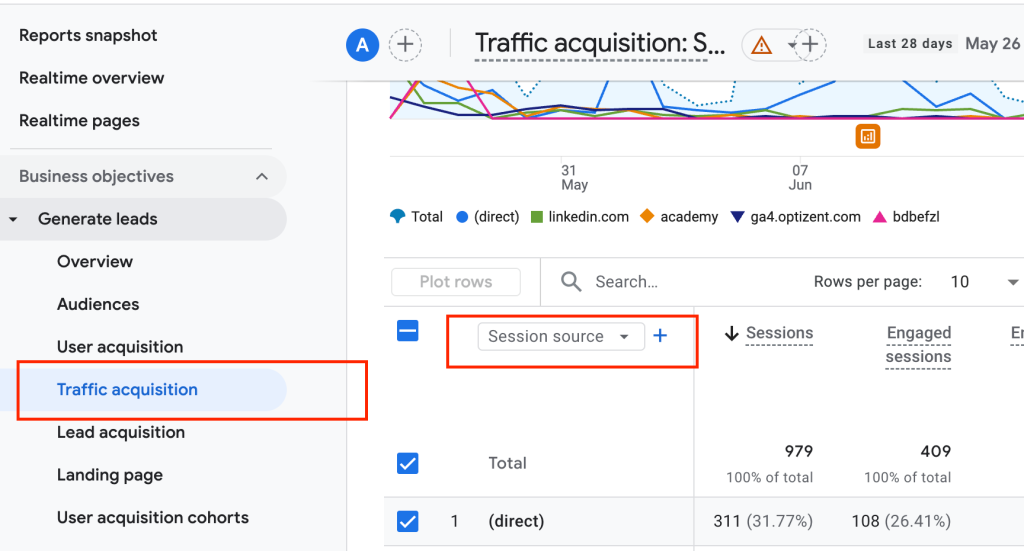
By default, you may see Session Default Channel Group. To view the actual UTM source, change the dimension to:
- Session Source
- Session Source / Medium
You’ll then see values such as:
- newsletter
This report helps answer the question: “Where did users come from during this session?”
User Acquisition Report
If you want to understand how users originally discovered your website, use:
Reports → Acquisition → User Acquisition
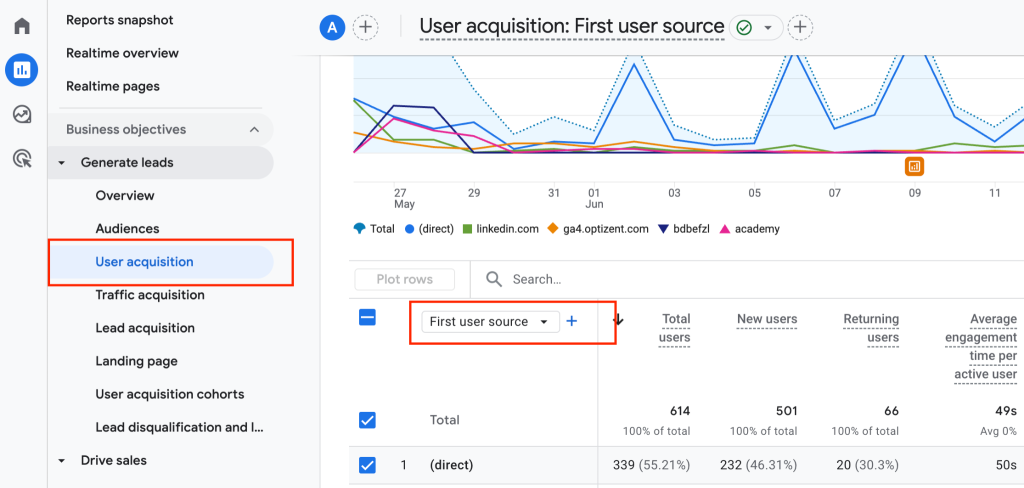
Change the dimension to:
- First User Source
- First User Source / Medium
This report answers: “How was this user originally acquired?”
For example, if a user first visited through Facebook and later returned through Google, the User Acquisition report will still credit Facebook as the original source.
Traffic Acquisition vs User Acquisition
This is one of the most important concepts to understand in GA4.
Traffic Acquisition
Uses Session Source and focuses on the source that drove the current visit.
User Acquisition
Uses First User Source and focuses on the source that originally brought the user to your website.
Because they answer different questions, the source values may differ between the two reports.
Don’t Forget About Attribution Settings
If you’re analyzing conversions or revenue, attribution settings can also affect how sources receive credit.
To review your settings:
Admin →Events → Attribution Settings
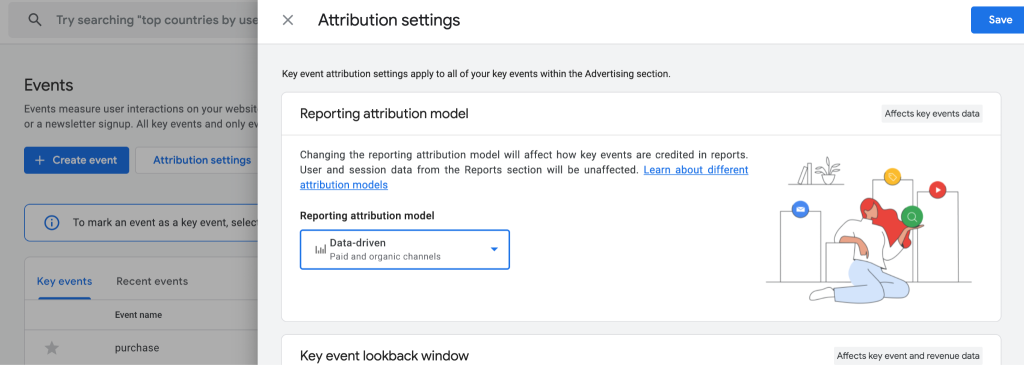
Here you’ll find:
- Reporting Attribution Model
For example, a user might:
- Visit through Facebook
- Return through Google
- Convert through Email
With GA4’s default Data-Driven Attribution model, conversion credit may be shared across multiple touchpoints rather than assigned to just one source.
This is why the source shown in acquisition reports may not always match the source receiving conversion credit.
How to Verify Your UTM Parameters
After launching a campaign, you can verify that GA4 is capturing your UTM values by:
- Opening the tagged URL
- Checking DebugView
- Reviewing the Traffic Acquisition report once data has been processed
Final Thoughts
If you’re trying to find utm_source in GA4, start with the Traffic Acquisition report and use the Session Source or Session Source / Medium dimension. If you’re interested in how users first discovered your website, use the User Acquisition report and the First User Source dimensions.
Understanding the difference between these reports—and how attribution settings influence conversion reporting—will help you interpret your GA4 data more accurately and gain better insights from your marketing campaigns.