
Scenario Plans is a machine-learning media planning tool built into Google Analytics 4 (GA4) under the Cross-Channel Budgeting section of the Advertising workspace.
Instead of looking backward at historical campaign performance, Scenario Plans models future outcomes. You enter a planned budget and select a forward-looking date range, and GA4 uses your property’s historical attribution paths and channel cost data to forecast your total revenue, estimate your blended Return on Ad Spend (ROAS), and recommend an optimal budget distribution across your paid channels.
It answers a specific operational question: If you have a set budget to spend next quarter, how should you allocate it across platforms like Google Ads, Meta, and Pinterest to achieve the highest possible return?
How Scenario Plans Work
When evaluating media investments across multiple ad networks, increasing spend in a single channel does not scale results infinitely. Every platform eventually hits diminishing returns.
Scenario Plans models this dynamic using three core mechanics:
- Diminishing Return Curves: GA4 evaluates historical conversion paths to determine at what spend level a channel begins to saturate.
- Algorithmic Reallocation: The model compares your current spending patterns against projected efficiency, highlighting channels that have headroom to scale versus those where spend should be trimmed.
- Non-Destructive Simulation: Creating and saving a scenario plan only generates an analytical forecast; it does not automatically edit, push, or alter live budgets in your connected advertising accounts
Step-by-Step: How to Test Scenario Plans in GA4
Before starting, navigate to your GA4 property and follow these steps to access the builder or check your property’s readiness:
1. Navigate to Scenarios
- On the left navigation bar, click Advertising
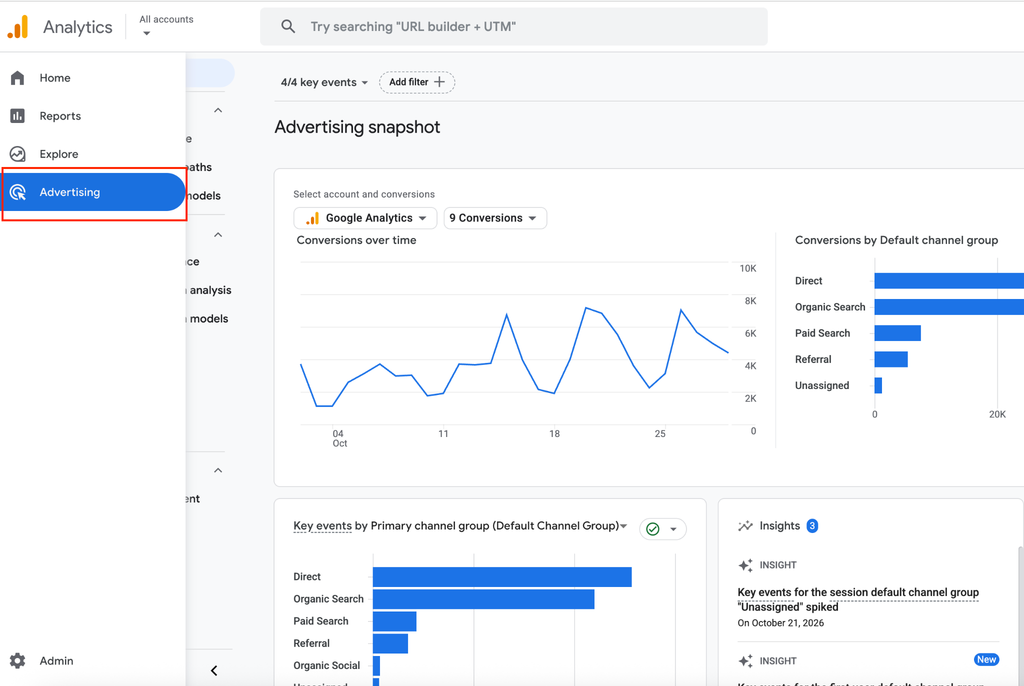
- Expand the Budgeting section in the sub-menu.
- Click Scenarios.
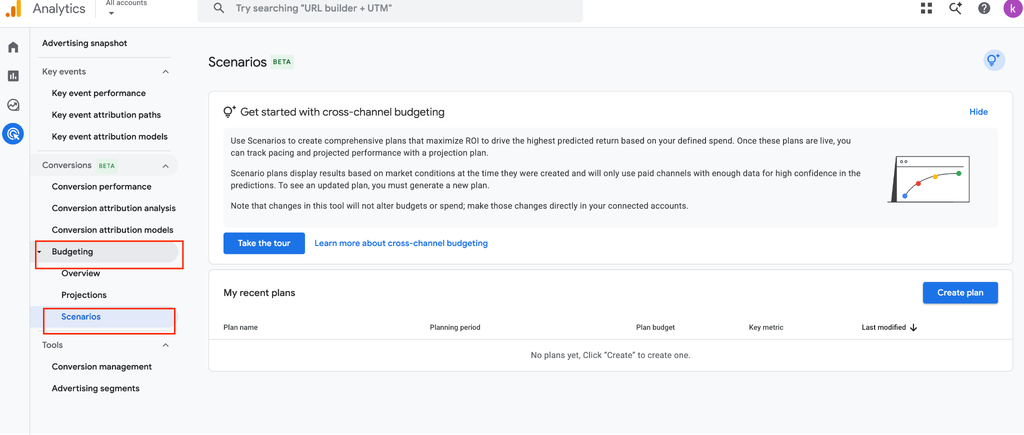
2. Verify Property Eligibility
When opening the Budgeting section for the first time, GA4 evaluates whether your property has sufficient historical tracking data.
- If your screen displays “Budgeting eligibility pending”: GA4’s forecasting algorithms cannot run until baseline data thresholds are satisfied. The setup checklist requires:
- 1 Year of Web Conversion Data: At least 12 continuous months of recorded web conversion events (app conversion streams are not currently supported).
- 1 Year of Cross-Channel Cost Data: While Google Ads integrates spend natively, non-Google channels (such as Meta, LinkedIn, Pinterest, or TikTok) require 12 months of daily imported spend, clicks, and impressions via Admin > Data import.
- Configured Primary Channel Grouping: Your paid traffic channels must be mapped to compatible channel rules.
- Model Quality Verification: An automated quality check run by Google once your conversion and cost data feeds stabilize.
- If your property is fully eligible: You will see the main Scenarios workspace with a blue Create plan button located in the top-right corner.
3. Configure the Plan Parameters
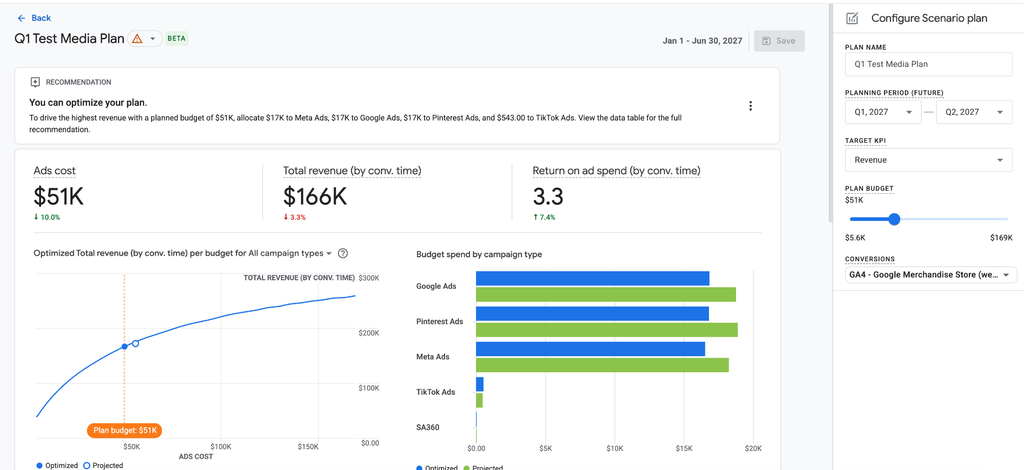
Click Create plan to open the configuration drawer on the right side of the screen:
- Plan Name: Enter a clear identifier for your initiative (e.g., Q1 Test Media Plan).
- Planning Period: Select the upcoming calendar quarter or custom forward-looking date range you want to model.
- Target KPI: Choose Revenue (to optimize for maximum monetary value) or Conversions (to optimize for raw order or lead volume).
- Plan Budget: Enter your planned media investment (e.g., $51K), or drag the budget slider to test various spend levels.
- Conversions: Choose the primary conversion action you want the algorithm to evaluate (such as your completed web purchase event). (Note: GA4 evaluates one primary conversion action at a time to maintain clean response modeling).
4. Review the Forecast and Save
As you adjust your budget and settings, GA4 automatically updates the simulation on the left:
- Summary Metrics: Check your forecasted revenue and predicted ROAS for the planned budget.
- Saturation Curve: See where your budget lands on the diminishing returns curve.
- Channel Split: Review GA4’s recommended spend allocation across each platform.
- Save: Click the Save button in the top-right corner (next to the date range) to store your plan.
GET EXPERT ANALYTICS HELP
Need help making GA4 data work for your business?
Tell us about your tracking or reporting challenge. Optizent can help with GA4 implementation, audits, key events, attribution, and training.
We will use these details to respond to your request. Please do not include passwords, account access, or customer data.