
Projection Plans is an in-flight campaign monitoring and media pacing tool in Google Analytics 4 (GA4), located within the Budgeting section of the Advertising workspace.
A Projection Plan tracks your live campaigns while the money is moving. It compares your actual performance against a target goal and uses machine-learning models to forecast whether you are on track to hit your targets by the end of the campaign period.
It answers the operational question performance teams ask every week: Given our current pace and historical seasonality, will our active campaigns actually meet our target spend, conversions, or revenue?
How Projection Plans Work
Most digital media teams track campaign pacing in spreadsheets using linear arithmetic. For example, if you have a 30-day campaign with a $30,000 budget and you have spent $10,000 by Day 10, a standard pacing sheet marks the campaign 100% on track.
However, real consumer demand is rarely linear. Projection Plans replaces flat linear pacing with predictive pacing models:
- Seasonality and Holiday Modeling: GA4’s algorithms train on your historical conversion and revenue data. The forecast automatically accounts for predictable weekday vs. weekend volume shifts, mid-month lulls, and seasonal holiday spikes.
- Early Deficit and Deviation Detection: If a creative fatigues, ad costs spike, or a channel underperforms, the projection model reflects the dip immediately. Rather than finding out at the end of the month that your revenue fell short, you see the projected shortfall mid-flight.
- Confidence Intervals: Projections provide a forecasted trajectory with confidence bounds. When sudden, unseasonal volatility occurs, the bounds widen to alert you that performance patterns have changed.
- Non-Destructive Tracking: Like Scenario Plans, creating a projection plan inside GA4 only generates an analytical forecast; it will not alter budgets or pause campaigns inside your connected ad accounts.
Step-by-Step: How to Build and Run a Projection Plan in GA4
Before setting up a plan, navigate to your GA4 property to access the tool:
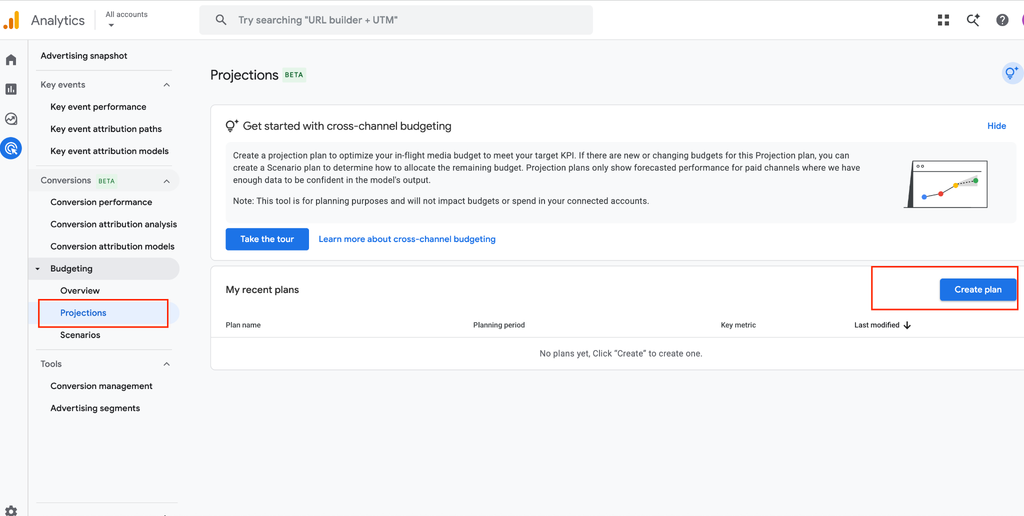
1. Navigate to Projections
- In the left navigation menu, click Advertising (the megaphone icon).
- Expand the Budgeting dropdown menu in the sidebar.
- Click Projections.
2. Verify Property Eligibility
When entering the Budgeting workspace, GA4 checks your historical data foundation:
- If you see “Budgeting eligibility pending”: The forecasting algorithms cannot build seasonal curves without sufficient history. Your setup must meet:
- 1 Year of Web Conversion Data: At least 12 continuous months of recorded web conversions (mobile app streams are not currently supported for budgeting).
- 1 Year of Cross-Channel Cost Data: 12 months of daily spend, clicks, and impressions from Google integrations (Google Ads, DV360) and imported non-Google channels (Meta, TikTok, Pinterest, LinkedIn).
- Compatible Primary Channel Grouping: Active paid channels must be mapped to supported channel rules.
- Model Quality Verification: An automated Google check to ensure historical data consistency.
- If your property is eligible: You will see the Projections dashboard with an active Create plan button in the upper-right corner.
3. Configure Your Plan Parameters
Click Create plan to open the configuration drawer on the right side of your screen:
- Plan Name: Enter a clear label for your campaign flight (e.g., Q4 Paid Acquisition Pacing).
- Planning Period: Choose an active flight date range. The start date must be in the past to establish a baseline, and the end date must be in the future to project remaining delivery.
- Target KPI: Select the primary metric you want to pace against:
- Budget: Paces whether your campaigns will fully spend their allocated media budget.
- Conversions: Paces toward a target order or lead volume.
- Revenue: Paces toward a target monetary return.
- Target Value: Enter your flight goal amount (for example, $50,000 in planned budget or $100,000 in total target revenue).
- Conversions (Required if KPI is Revenue or Conversions): Select the primary web conversion event you want the model to evaluate (such as your completed purchase action). To ensure clean pacing, select only your core conversion event rather than mixing micro-actions like cart additions.
4. Review the Forecast and Save
As you enter your parameters, GA4 generates the in-flight projection dashboard:
- Top-Level KPI Pacing: Review your actual spend/performance to date side-by-side with your final target.
- Pacing Trajectory Line: Examine the trend line comparing actual cumulative progress against the modeled projected line to see whether your curve is tracking above or below the target.
- Channel-by-Channel Breakdown: Identify which individual channels are hitting their expected pace and which platforms are dragging down the blended ROI.
- Save: Click the Save button in the upper-right corner to pin the plan to your workspace, allowing you to return and check live pacing updates throughout the campaign period.
Turning Projections into Optimization Action
A projection plan is designed to trigger timely optimizations while campaigns are live.
If your plan reveals that paid search is exceeding projected ROI while paid social is pacing behind due to ad fatigue, you can take action mid-flight:
- Shift underperforming budget into the higher-performing channel to close the projected revenue deficit.
- Open Scenarios to test alternative budget splits for the remainder of the flight.
- Return to Projections to watch the model update and confirm that your adjustments put you back on track to hit your targets.
By replacing linear spreadsheets with machine-learned pacing, Projection Plans allows media teams to catch campaign drift early and manage cross-channel budgets proactively.
GET EXPERT ANALYTICS HELP
Need help making GA4 data work for your business?
Tell us about your tracking or reporting challenge. Optizent can help with GA4 implementation, audits, key events, attribution, and training.
We will use these details to respond to your request. Please do not include passwords, account access, or customer data.