
Managing data connections in Google Analytics can sometimes feel like a bit of a puzzle. You may have data coming from your website, advertising platforms, CRM systems, and other sources. Keeping track of how everything is connected isn’t always easy.
To make this simpler, Google has introduced Data Manager in Google Analytics, a new feature currently available in beta.
Data Manager brings your data connections together in one place. Instead of checking different settings to understand how your data is collected and shared, you can use one central area to review and manage those connections.
Let’s take a look at what it does and how it can help.
What is Data Manager in GA4?
Data Manager is a central hub in GA4 Admin that helps you connect, manage, and monitor your data sources and connected Google products.
For example, you might have a website sending data to GA4, a Google Ads account linked to the property, and customer data coming from another platform. Data Manager helps you see these connections in one place.
One of its useful features is the data connection map. It provides a visual overview of where your data comes from, how it flows through GA4, and which connected products use it.
This makes it easier to understand your setup and identify connections that may need attention.
What can you do with Data Manager?
Data Manager brings a few useful capabilities together.
1. Manage your data connections in one place
You can view your existing data sources, data streams, and connected products without having to navigate through several different settings.
You can also add new connections directly from Data Manager.
2. View how your data flows
The data connection map gives you a visual view of your setup. You can see the data sources feeding into GA4, the streams receiving the data, and the products connected to your property.
This can be especially helpful when you have several data sources and want to understand how everything fits together.
3. Monitor connection issues
Data Manager helps you identify connection problems and diagnostic alerts. It also includes a data strength guide that can highlight potential measurement gaps and provide recommendations.
This gives you a better starting point when checking whether your data setup needs attention.
Where can you find Data Manager in GA4?
You can access Data Manager from your GA4 property.
- Open your GA4 property.
- Go to Admin.
- Look for Data Manager in the left-hand navigation, below My preferences.
- Open it to view your data connections and connection map.
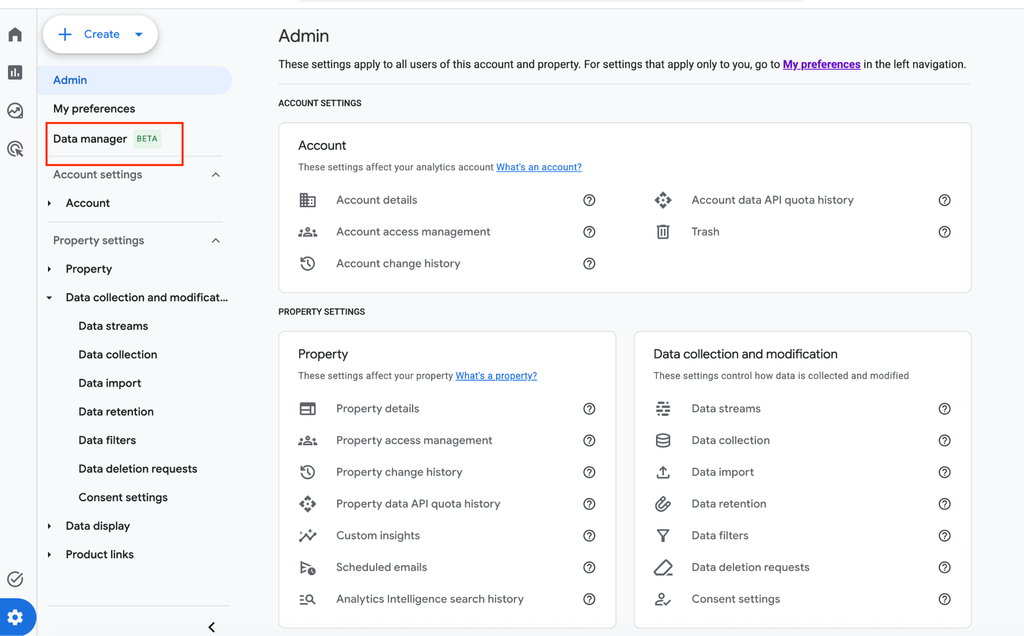
From there, you can select Connect Product to explore available data sources and start setting up a new connection.
One thing to keep in mind
Before creating new connections, check how your existing data is already being shared.
Google specifically warns against setting up the same data pipeline in both Google Analytics and Google Ads. Doing so could result in conversions being recorded twice.
For existing connections managed through Google Ads or Google Marketing Platform, Google recommends continuing to manage them in those platforms rather than recreating them in GA4.
Also, Data Manager is currently in beta, so its features may change. Subproperties and roll-up properties are not currently supported by the Data Manager landing page.
Final thoughts
Data Manager is a useful addition to GA4, particularly for businesses that collect data from multiple sources and use several connected platforms.
Its biggest benefit is bringing data connections, monitoring, and management into one place. The connection map also makes it easier to understand how information moves between your data sources and connected products.
It doesn’t replace your existing tracking setup or automatically fix every data issue. Instead, it gives you a clearer view of how your GA4 data is connected and where you may need to make improvements.
In short, Data Manager makes it easier to see, manage, and monitor your data connections without having to search through different parts of GA4.
GET EXPERT ANALYTICS HELP
Need help making GA4 data work for your business?
Tell us about your tracking or reporting challenge. Optizent can help with GA4 implementation, audits, key events, attribution, and training.
We will use these details to respond to your request. Please do not include passwords, account access, or customer data.