
Introduction
One of the biggest challenges teams face when implementing product analytics is deciding what to track. Product managers want insights, marketers need attribution data, engineers are already overloaded, and analytics teams often spend weeks defining event taxonomies before collecting meaningful data.
This is where Mixpanel Autocapture changes the game.
Instead of manually instrumenting every click, form submission, and page interaction, Mixpanel Autocapture automatically collects key user interactions with minimal setup. Teams can begin analyzing user behavior almost immediately while reducing engineering effort and accelerating time-to-value.
In this guide, we’ll explore what Mixpanel Autocapture is, how it works, what events it captures, when to use it, its limitations, privacy considerations, and how it compares to traditional event tracking.
What Is Mixpanel Autocapture?
Mixpanel Autocapture is a feature available through Mixpanel’s JavaScript SDK that automatically records user interactions on your website without requiring developers to manually implement individual tracking events.
Once enabled, Autocapture begins collecting frontend behavioral data such as:
- Page views
- Button clicks
- Form interactions
- Page scroll activity
- Attribution data
- Dead clicks
- Rage clicks
This means organizations can start gathering behavioral insights from day one rather than spending weeks planning and implementing custom tracking.
The feature is particularly valuable for:
- Early-stage startups
- SaaS products
- Marketing websites
- Product teams validating user journeys
- Companies launching new features rapidly
Rather than asking “What should we track?”, teams can first collect behavioral data and later determine which interactions are most valuable.
Why Traditional Event Tracking Slows Teams Down
Before Autocapture, analytics implementation typically followed a familiar pattern:
- Define business goals
- Create an event taxonomy
- Write tracking specifications
- Assign engineering resources
- Implement tracking
- QA events
- Deploy changes
- Begin analysis
Depending on team size, this process can take weeks or even months.
The problem becomes even worse when:
- New features are released frequently
- Product requirements change
- Stakeholders request additional tracking
- Analytics requirements evolve
Every new event requires another development cycle.
Autocapture removes much of this overhead by automatically collecting a broad set of behavioral interactions from the beginning.
Events Captured by Mixpanel Autocapture
When Autocapture is enabled, Mixpanel automatically records predefined event types.
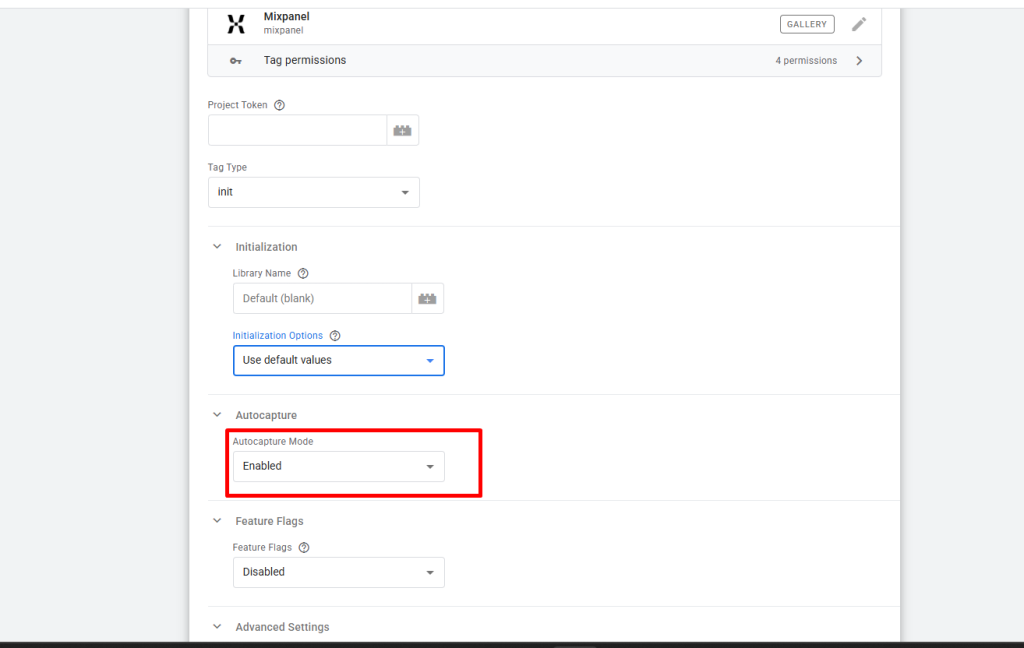
Let’s examine each category.
1. Page Views
Page views provide visibility into how users navigate through your website.
Common questions answered include:
- Which pages receive the most traffic?
- Where do users enter the site?
- Which pages contribute to conversions?
- Where do users drop off?
Without Autocapture, page view tracking usually requires manual implementation. With Autocapture, these interactions are collected automatically.
2. Page Scroll Tracking
Scroll tracking helps teams understand content engagement.
For example:
- Are users reading your blog posts?
- How far do visitors scroll on landing pages?
- Which sections receive the most attention?
This insight is especially useful for:
- Content marketers
- UX designers
- SEO teams
- Product marketers
A high bounce rate doesn’t necessarily mean poor engagement. Scroll depth can reveal whether users are actually consuming content before leaving.
3. Form Interactions
Forms often represent critical conversion points.
Autocapture can monitor form activity such as:
- Form starts
- Form submissions
- Interaction patterns
This helps teams identify:
- Friction during signup
- Lead generation performance
- Checkout abandonment issues
- Conversion bottlenecks
Instead of discovering a broken form weeks later, teams can detect problems much earlier.
4. Element Click Tracking
Every click tells a story.
Autocapture tracks interactions with elements such as:
- Buttons
- Navigation items
- Links
- Interactive components
This data helps answer questions like:
- Which CTAs receive the most engagement?
- Are users finding important navigation paths?
- Which features attract attention?
- Which UI elements are ignored?
For UX optimization, click tracking is often one of the most valuable data sources.
5. Attribution Data
Understanding acquisition sources is essential for growth.
Autocapture can collect attribution information that helps answer:
- Which marketing channels drive conversions?
- Which campaigns generate engagement?
- How do paid and organic visitors behave differently?
By combining attribution data with user behavior, teams can move beyond vanity metrics and evaluate actual business impact.
Understanding Dead Clicks
One of the most useful capabilities within Mixpanel Autocapture is dead click detection.
A dead click occurs when a user clicks something that appears interactive but receives no visible response.
Examples include:
- Broken buttons
- Unresponsive UI elements
- Missing links
- JavaScript errors
- Misleading interface elements
Imagine a user clicking a “Start Free Trial” button multiple times without any response.
The user becomes confused.
Frustration increases.
Conversion probability decreases.
Dead click tracking helps surface these hidden experience issues before they significantly impact business performance.
By default, Mixpanel classifies a click as “dead” when no visible response occurs within approximately half a second.
Understanding Rage Clicks
Rage clicks are even more revealing.
A rage click occurs when users repeatedly click the same area in rapid succession because they expect something to happen.
This behavior often indicates:
- Broken experiences
- Slow interfaces
- Misleading design
- User frustration
Examples include:
- Clicking a disabled button
- Clicking a non-clickable element
- Waiting for a slow-loading interaction
- Attempting to close an unresponsive modal
Rage clicks provide direct insight into user frustration.
While traditional analytics might show that users visited a page, rage click analysis helps explain why they struggled.
For UX teams, this information can be incredibly valuable for prioritizing improvements.
Autocapture vs Precision Tracking
Many teams wonder whether Autocapture should replace manual event tracking.
The answer is no.
The strongest analytics implementations use both.
Autocapture
Best for:
- Rapid implementation
- Initial product discovery
- Behavioral analysis
- UX optimization
- General engagement tracking
Advantages:
- Minimal engineering effort
- Immediate visibility
- Faster deployment
- Broad behavioral coverage
Precision Tracking
Best for:
- Business-specific metrics
- Revenue analysis
- Subscription events
- Product milestones
- Complex funnels
Examples:
- Trial Started
- Subscription Upgraded
- Payment Completed
- Project Created
- File Exported
Advantages:
- Accurate business measurement
- Custom analysis
- Clear KPI tracking
- Advanced funnel reporting
The Recommended Approach
Rather than choosing one method, combine both.
A practical strategy looks like this:
Autocapture for:
- Clicks
- Navigation
- Form interactions
- User engagement
Precision Tracking for:
- Revenue events
- Product activation
- Subscription milestones
- Business-critical actions
This hybrid approach provides complete visibility without overwhelming engineering teams.
Managing Event Volume
A common concern with automatic tracking is event growth.
More captured interactions naturally lead to higher event volume.
Organizations should regularly monitor:
- Event ingestion rates
- Data usage
- Billing impact
- Data quality
Before enabling Autocapture in production, it is wise to test in a staging or sandbox environment.
Questions to evaluate include:
- Are useful events being collected?
- Is event volume reasonable?
- Are unnecessary interactions being tracked?
- Is data quality acceptable?
A short validation period can prevent future analytics challenges.
Privacy Considerations and Best Practices
Privacy should never be an afterthought.
Fortunately, Mixpanel designed Autocapture with privacy-first principles.
By default:
- Text inputs are excluded
- Password fields are excluded
- Form values are excluded
- User-entered content is excluded
- Sensitive fields are not collected
This helps reduce the risk of accidentally capturing personal or confidential information.
However, organizations remain responsible for ensuring compliance with:
- GDPR
- CCPA
- HIPAA-related requirements
- Industry-specific regulations
If your website processes highly sensitive information, additional configuration and careful review are strongly recommended.
Advanced Privacy Controls
Mixpanel provides several mechanisms for excluding sensitive elements.
Teams can:
- Block specific page sections
- Exclude sensitive elements
- Prevent tracking on selected URLs
- Disable tracking for designated CSS classes
Examples include:
- Payment forms
- Healthcare information
- Internal administrative tools
- Sensitive customer portals
These controls allow organizations to tailor Autocapture according to their compliance requirements.
When Should You Use Mixpanel Autocapture?
Autocapture is an excellent fit when:
✅ You need analytics quickly
✅ Engineering resources are limited
✅ You want to discover unknown user behaviors
✅ You are launching a new product
✅ You are improving UX and conversion rates
✅ You want visibility before defining a complete tracking plan
However, it should not be your only tracking strategy if you need detailed business metrics.
For subscription products, SaaS platforms, and ecommerce businesses, Autocapture works best when paired with carefully designed custom event tracking.
Final Thoughts
Mixpanel Autocapture dramatically reduces the barrier to implementing product analytics. Instead of spending weeks instrumenting basic interactions, teams can begin collecting meaningful behavioral data almost immediately.
Its automatic collection of page views, form interactions, clicks, scroll activity, dead clicks, and rage clicks provides valuable visibility into how users experience a website or application.
The most effective implementation strategy is not choosing between Autocapture and custom tracking—it is combining them. Use Autocapture to understand general behavior and user experience, while leveraging precision tracking for business-critical events and KPIs.
When configured thoughtfully and monitored regularly, Mixpanel Autocapture can become one of the fastest and most effective ways to accelerate product analytics maturity while maintaining flexibility, privacy, and data quality.