
Based on the official Stape documentation + hands-on implementation experience.
Server-side GTM solves the data transport problem. You’re no longer relying on a browser to fire tags before an ad blocker, an ITP policy, or a slow network connection gets in the way. The event reaches your server container cleanly.
But there’s a second problem that server-side GTM doesn’t solve by itself: most events arrive at your container without enough identifying information to be useful to Meta, Google, or any other ad platform that needs to match the event to a real user.
Page views are anonymous. Add to cart events carry no email. Checkout events from returning customers often skip the email field entirely. Your server container processes these events faithfully and forwards exactly what it received — which is almost nothing.
The Stape Enricher power-up is the infrastructure-level answer to this problem. It gives your sGTM container a persistent memory layer that stores user data from identifying events and appends it to all future events from the same user — automatically, in real time, before the event reaches any downstream endpoint.
This post covers every aspect of the Enricher: what it does, how to configure each setting, what the different modes mean in practice, how the data flows through your container, and how to verify it’s working.
What the Enricher Actually Does
The Enricher operates as a middleware layer inside your sGTM container. Every incoming request passes through it. The Enricher does two things with each request:
- Store: if the event contains any of the data points you’ve configured (email, phone, name, address, etc.), the Enricher saves those values to a user profile — either in a cookie or in Stape Store (a built-in NoSQL database), depending on your configuration.
- Enrich: if the event is missing data points that exist in a stored profile for this user, the Enricher appends those values to the event data before it’s processed by your sGTM tags.
The result: tags in your sGTM container receive enriched event data — complete with identifiers that were never present in the original request — and forward them to Meta CAPI, Google Ads, GA4, or any other endpoint as if the user had provided that information in the current session.
| 📌 NOTE Enricher is available on the Business subscription plan and higher. To check your current plan or upgrade, go to your sGTM container settings in Stape. |
How the Enricher Identifies Returning Users
Before the Enricher can enrich an event, it needs to identify which stored profile to look up. It uses the following signals, evaluated in priority order from highest to lowest:
- email_address parameter — from the standard payload fields. Highest priority because it’s the most reliable unique identifier.
- _sbp cookie — set by Stape CMS apps. Used when email is not present in the current request.
- FPID cookie — set by GA4. Google’s first-party identifier.
- _ga cookies — set by GA4. The standard Google Analytics client ID.
- _dcid cookie — set by Data Client. Stape’s own data client identifier.
- stape-user-id header — provided by the Stape User ID power-up. Server-set identifier with longer persistence than JavaScript-set cookies.
The Enricher works through this list in order. If email is present in the incoming request, it uses that to look up the profile. If email is absent, it falls back to _sbp, then FPID, then _ga, and so on. This hierarchy means the most reliable identifier always takes precedence, and the Enricher degrades gracefully when strong identifiers aren’t available.
| 💡 PRO TIP Pairing the Enricher with the Stape User ID power-up adds a durable server-set identifier to the lookup chain. Server-set cookies survive Safari ITP’s 7-day limit that degrades JavaScript-set cookies — giving the Enricher a more reliable fallback when email isn’t present. |
Step-by-Step Setup
Here is the complete configuration walkthrough, covering every option in the order you encounter it in the Stape UI.
Step 1–3: Access and Enable
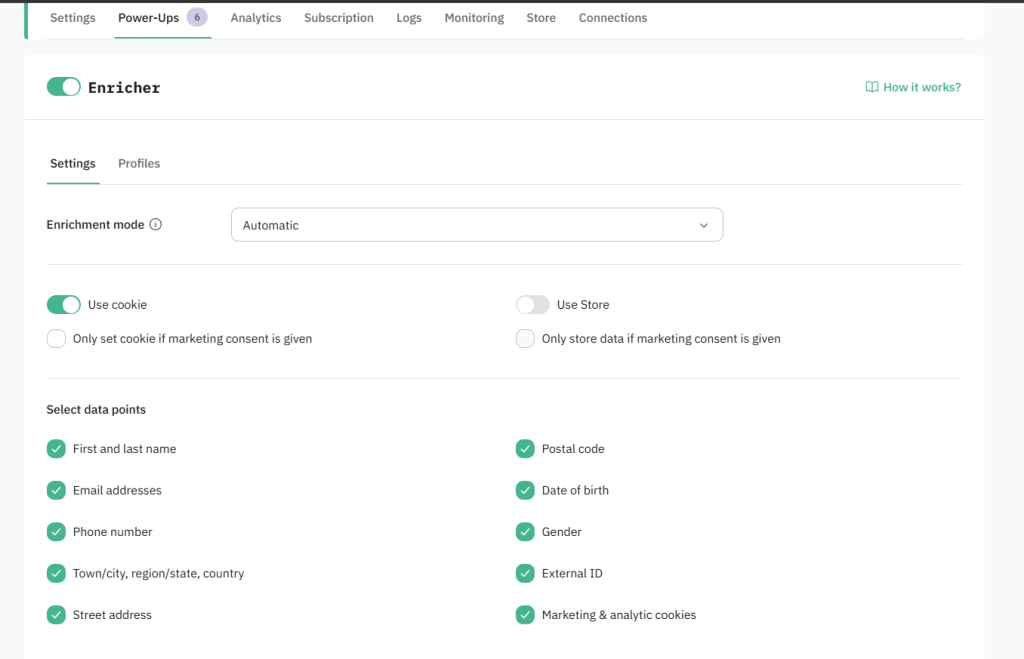
| ⚙️ SETUP 1. Log in to Stape → select your sGTM container from the dashboard. 2. Navigate to Power-ups → click ‘Use’ next to the Enricher panel. 3. Toggle the Enricher switch to enable it. |
Step 4: Choose Your Enrichment Mode
This is the most consequential configuration decision in the Enricher setup. There are two modes:
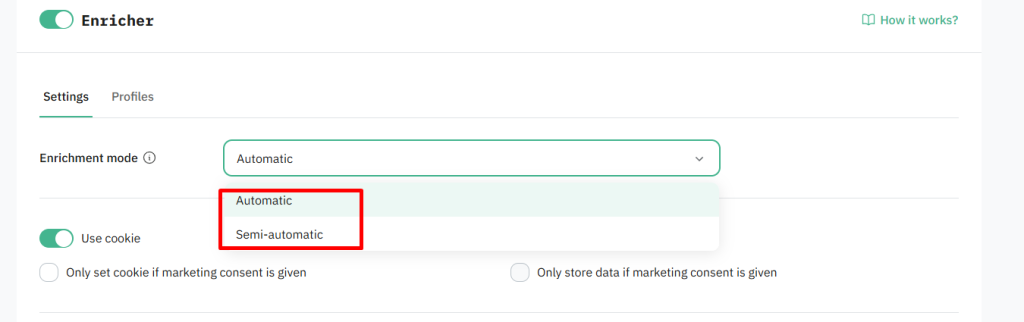
Automatic Mode (default)
In Automatic mode, the Enricher maps enriched data directly to the standard parameter keys used by GA4 (/g/collect requests) and Data Client (/data requests). The majority of sGTM tags will parse and use this enriched data without any additional configuration on your part.
This is the right choice for most setups. You enable the Enricher, select your data points, and your existing Meta CAPI, Google Ads, and GA4 tags automatically receive enriched user data on every event.
Semi-Automatic Mode
In Semi-automatic mode, the Enricher adds enriched data to the event using custom parameter keys prefixed with enricher_. These parameters are available in Event Data, but you must explicitly map them in your sGTM tags using Event Data variables before they’re used.
This mode gives you full control over which tags receive which enriched data points. It’s appropriate for advanced setups where you want to use enriched data selectively — for example, sending enriched email to Meta CAPI but not to a third-party analytics tag.
| 📌 NOTE The parameter keys are completely different between modes. Automatic mode uses standard keys (e.g. ep.user_data.email for GA4 requests). Semi-automatic uses prefixed keys (e.g. enricher_ep.user_data.email). If you switch modes after initial setup, your tag variable mappings will need to be updated. |
Step 5: Choose Your Storage Method
The Enricher needs somewhere to persist user profiles between requests. There are two options, and you can enable both simultaneously:
Cookies (_sbpee)
When enabled, the Enricher creates a cookie called _sbpee that stores the user’s data in encrypted form. This cookie is set server-side, which gives it better persistence than JavaScript-set cookies in most browsers.
The limitation: cookies can be manually deleted by the user, cleared by browser privacy settings, or blocked by certain configurations. For long-term profile persistence, cookies alone are less reliable than Stape Store.
Stape Store
Stape Store is a built-in NoSQL database that lives within your Stape infrastructure. User profiles stored here persist independently of browser state — they can’t be deleted by cookie clearing, and they survive browser ITP policies that would otherwise cap cookie lifespans.
The trade-off: stored data counts toward your usage quota within your subscription plan. For high-volume containers, monitor your Store usage to avoid hitting plan limits.
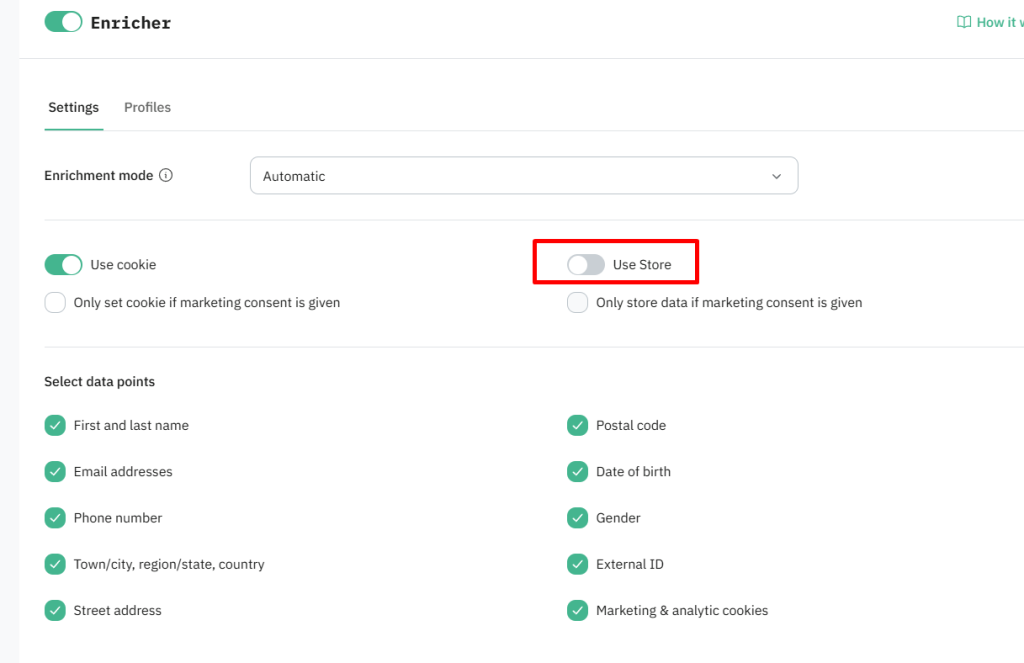
| ⚠️ IMPORTANT If you enable Stape Store as your storage method, you must activate the feature separately. The Store doesn’t auto-activate when you enable the Enricher — it requires its own activation step in your Stape container settings. |
| 💡 PRO TIP For production setups handling real ad spend, enable both methods. Cookies provide fast, immediate lookup for same-browser sessions. Stape Store provides durable, cross-device persistence that survives cookie loss. They complement each other rather than duplicate each other. |
Step 6: Configure Consent Handling
If you’re targeting EU users or any jurisdiction with mandatory data protection laws (GDPR, ePrivacy, certain US state laws), you must configure the Enricher to respect user consent before storing or using personal data.
Enable: ‘Only set cookie/store data if marketing consent is given’.
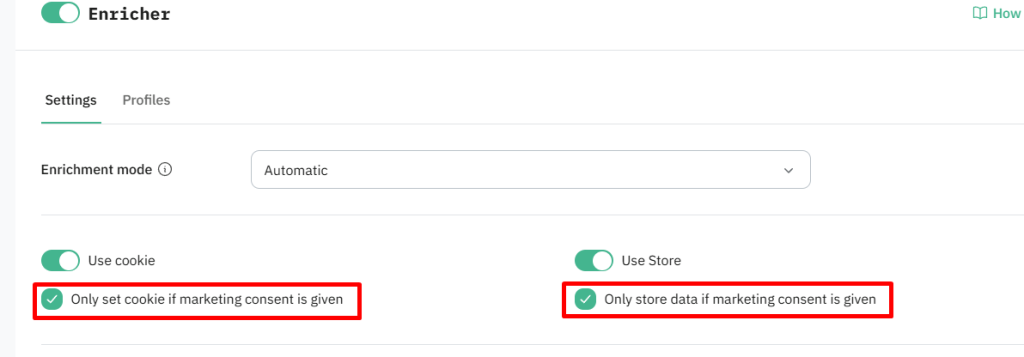
When this option is enabled, the Enricher checks consent signals before storing or retrieving data:
- For /collect requests (GA4 traffic): Consent Mode V2 parameters are used. The Enricher reads ad_storage and ad_user_data consent signals.
- For /data requests (Data Client traffic): The consent_settings object is used to determine consent state.
When a user has not granted consent, the Enricher does not store their data, does not set the _sbpee cookie, and does not enrich incoming events with previously stored data for that user. The event passes through without enrichment.
| ⚠️ IMPORTANT Because the Enricher sets a _sbpee cookie to store encrypted user data, you must update your cookie policy and cookie banner to include this cookie. Users must have an explicit opt-in choice for this cookie to be set legally. Enabling the consent gate without updating your CMP configuration creates a compliance gap. |
Step 7: Select Data Points
Data points define which fields the Enricher will store from incoming events and use to enrich future events. Select every field that’s relevant to your ad platform configuration.
- Email addresses — primary identifier, highest matching priority for Meta and Google.
- Phone number — strong secondary identifier for Meta CAPI.
- First and last name — improves Meta EMQ score and Google Enhanced Conversion match rate.
- Town/city, region/state, country, postal code — address fields used in combination with name for enhanced matching.
- Street address — most granular address field, improves match confidence.
- Date of birth — used by Meta for audience matching in certain markets.
- Gender — additional Meta matching signal.
- External ID — your CRM or internal user ID. Critical for cross-device matching and offline conversion attribution.
- Marketing & analytics cookies — see dedicated section below.
In Automatic mode, selected data points are automatically used to enrich incoming events. In Semi-automatic mode, selected data points are stored and attached to events, but you must explicitly map them in your sGTM tags via Event Data variables.
Marketing & Analytics Cookies — What Gets Stored
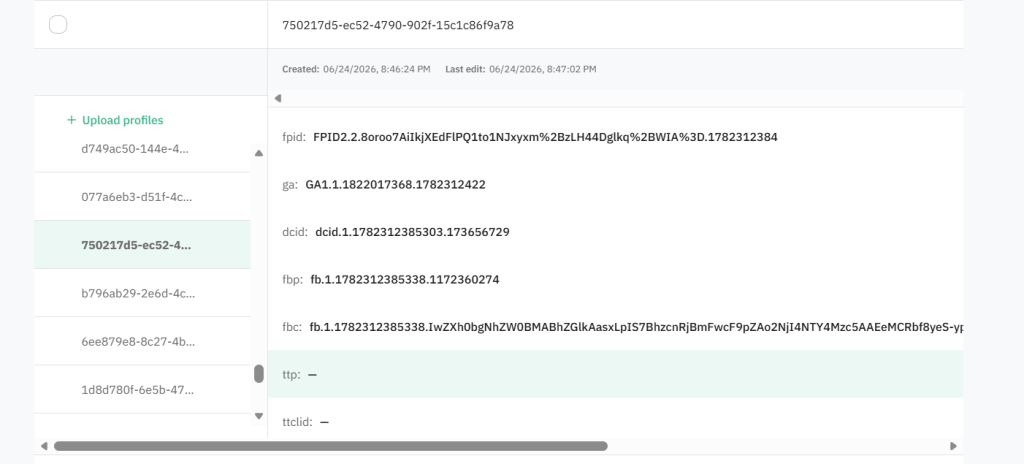
When you enable ‘Marketing & analytics cookies’ as a data point, the Enricher stores and restores the following cookies across sessions. This is particularly valuable for cross-device attribution and for restoring click IDs that may have been lost between sessions.
| Cookie | What It Tracks | Platform |
| _fbp | Facebook browser ID | Meta |
| _fbc | Facebook click ID (fbclid) | Meta |
| _ttp | TikTok pixel cookie | TikTok |
| ttclid | TikTok click ID | TikTok |
| li_fat_id | LinkedIn first-party ad track | |
| _epik | Pinterest click ID | |
| _scclid | Snapchat click ID | Snapchat |
| _scid | Snapchat browser ID | Snapchat |
| FPGCLAW | Google Ads click (first-party) | Google Ads |
| _gcl_aw | Google Ads click ID (GCLID) | Google Ads |
| FPID | GA4 first-party ID | GA4 |
| _ga | GA4 client ID | GA4 |
In Automatic mode, these cookies are forwarded with their standard parameter names (e.g. _fbp, _fbc, _gcl_aw). In Semi-automatic mode, they’re prefixed with enricher_ (e.g. enricher_fbp, enricher_fbc).
| 💡 PRO TIP Storing and restoring _fbc (Facebook click ID) and _gcl_aw (Google Ads click ID) is particularly high value. Click IDs expire or get lost across sessions naturally. The Enricher restoring them on future events means Meta and Google can connect those events back to the original ad click — even days later. |
Complete Parameter Reference — Automatic Mode
In Automatic mode, enriched data is added using standard parameter keys. The keys differ between GA4 (/g/collect) and Data Client (/data) requests:
| Data Point | /g/collect key (GA4) | /data key (Data Client) |
| email_address | ep.user_data.email | email_address |
| phone_number | ep.user_data.phone_number | phone_number |
| first_name | ep.user_data.address.0.first_name | first_name |
| last_name | ep.user_data.address.0.last_name | last_name |
| city | ep.user_data.address.0.city | city |
| country | ep.user_data.address.0.country | country |
| region | ep.user_data.address.0.region | region |
| postal_code | ep.user_data.address.0.postal_code | postal_code |
| street | ep.user_data.address.0.street | street |
| date_of_birth | db | db |
| gender | gender | gender |
| external_id | user_id | user_id |
Complete Parameter Reference — Semi-Automatic Mode
In Semi-automatic mode, all keys are prefixed with enricher_. You must create Event Data variables in sGTM using these exact key paths:
| Data Point | /g/collect key path | /data key path |
| email_address | enricher_ep.user_data.email | enricher_email_address |
| phone_number | enricher_ep.user_data.phone_number | enricher_phone_number |
| first_name | enricher_ep.user_data.address.0.first_name | enricher_first_name |
| last_name | enricher_ep.user_data.address.0.last_name | enricher_last_name |
| city | enricher_ep.user_data.address.0.city | enricher_city |
| country | enricher_ep.user_data.address.0.country | enricher_country |
| region | enricher_ep.user_data.address.0.region | enricher_region |
| postal_code | enricher_ep.user_data.address.0.postal_code | enricher_postal_code |
| street | enricher_ep.user_data.address.0.street | enricher_street |
| date_of_birth | enricher_db | enricher_db |
| gender | enricher_gender | enricher_gender |
| external_id | enricher_user_id | enricher_user_id |
| 📌 NOTE In Semi-automatic mode, the Key Path in your sGTM Event Data variable must start with enricher_. For example: to read enriched email in a /data request, create an Event Data variable with key path: enricher_email_address Without this explicit variable mapping, enriched data will not reach your tags. |
| 💻 KEY PATH / CODE EXAMPLE — Event Data variable config in sGTM (Semi-automatic, /data request): Variable type: Event Data Key Path: enricher_email_address Use in tag: User Data > Email field |
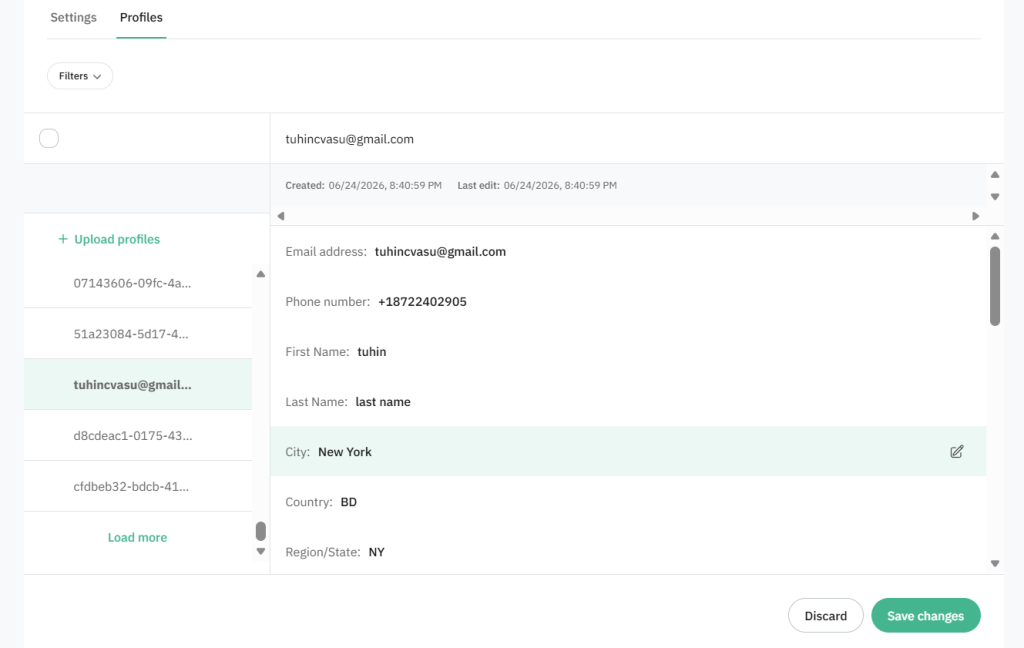
The Profiles Tab — Preloading Your Customer Database
When Stape Store is enabled as your storage method, the Profiles tab becomes available inside the Enricher settings. This is where the Enricher goes from being a passive accumulator to an active enrichment engine from day one.
The Profiles tab lets you upload a CSV of existing user data — typically exported from your CRM or CMS — and import it directly into Stape Store. The Enricher then uses this pre-existing data to enrich events from users it has never seen in a live session.
In practical terms: a returning customer who purchased from your client eight months ago — before the Enricher was enabled — lands on the website today. Without preloading, the Enricher has no profile for them and can’t enrich their events. With preloading, their CRM data is already in Stape Store, and their first page view is immediately enriched with their stored email, phone, and name.
CSV Format Requirements
Email address is a mandatory column — it’s the primary identifier used for matching. All other fields are optional but recommended for maximum enrichment coverage.
| Parameter | Max Length | Notes |
| — | Required. Validated before import. Invalid emails fail the upload. | |
| PhoneNumber | 32 chars | Include country code (+1…) for best matching results. |
| FirstName | 64 chars | Values exceeding limit are silently truncated. |
| LastName | 64 chars | Values exceeding limit are silently truncated. |
| City | 64 chars | — |
| Country | 64 chars | Use ISO country codes for consistency. |
| Region | 64 chars | State/province/region. |
| PostalCode | 32 chars | — |
| Street | 128 chars | Full street address. |
| DateOfBirth | 32 chars | — |
| Gender | 16 chars | — |
| ExternalID | 64 chars | Your internal CRM/system user ID. |
| ⚠️ IMPORTANT Email validation runs before the import starts. If your CSV contains any invalid or unsupported email formats, the ENTIRE upload fails. Clean and validate your email list before uploading. Values exceeding field length limits are silently truncated — no error is returned for these. |
After uploading, you map the CSV columns to the Enricher’s data point fields. Once mapped and confirmed, the profiles populate into Stape Store and become immediately available for enrichment lookups.
| 💡 PRO TIP Set up a recurring CRM sync — weekly or monthly — to keep Stape Store current. A one-time import at Enricher setup gives you immediate coverage for all existing customers. A recurring sync ensures new customers added to your CRM after the initial import are also recognized the next time they visit the site. |
The Three Core Use Cases
| USE CASE 1 📊 Increase Event Match Quality for Ad Platforms |
Event Match Quality (EMQ) on Meta and the equivalent match rate on Google Ads measure how many of your events can be tied to a real user profile on each platform. Both platforms use hashed customer identifiers — email, phone, name, address — to make this connection.
Without the Enricher: only purchase and checkout events carry these identifiers, because that’s the only point in the funnel where the user actively provides them. Every event above that — page views, product views, add to carts — arrives at Meta and Google with no useful identifiers. Poor EMQ. Poor attribution. Poor audience data.
With the Enricher: the first time a user provides their email (at checkout, at form submission, at login), the profile is stored. Every subsequent event from that user — regardless of type — is enriched with those stored identifiers before reaching Meta or Google. Your EMQ score for page_view, view_content, add_to_cart, and initiate_checkout all improve. Meta can match and attribute your full funnel, not just the checkout.
| USE CASE 2 📱 Cross-Device Tracking and Attribution |
Browser cookies are scoped to a single browser instance on a single device. A user who visits on mobile and converts on desktop looks like two separate users to cookie-based tracking systems.
The Enricher breaks this limitation through persistent profile storage. When a user identifies themselves on any device — by logging in, submitting a form, or purchasing — the Enricher stores their profile with their identifiers and any available click IDs. When they visit from a different device and identify themselves again (or when a stored cookie or External ID matches), the Enricher links the sessions to the same profile.
The External ID data point is the most powerful signal here. If you push your authenticated user’s CRM ID to the dataLayer on login, the Enricher can use it as a device-agnostic identifier that survives browser switches, cookie clearing, and ITP entirely.
| USE CASE 3 🏪 Offline Conversion Enrichment |
Phone sales, in-store purchases, and CRM-recorded deals happen outside the browser. To attribute these offline conversions back to the ad campaigns that drove them, Google Ads and Meta need match keys — typically GCLID or hashed email for Google, and hashed email/phone for Meta.
The typical problem: the CRM captures email and phone but not GCLID. Or the offline conversion happens 60 days after the original click, and the GCLID-based attribution window has closed.
The Enricher captures GCLID, fbclid, and all available user identifiers at the moment the user first lands from an ad click. These are stored in the user’s Enricher profile. When you later export offline conversions from your CRM and enrich them with Stape Store data, each CRM record gains the GCLID and full identifier set that was captured at the original website interaction. Your offline conversion imports achieve dramatically higher match rates — and more offline conversions get credited back to the campaigns that actually drove them.
How to Test the Enricher Setup
Stape’s documentation outlines a clear test procedure using GTM Preview mode. Here’s how to run it:
Test 1 — Verify Storage on Identifying Event
- Open your website in a browser with GTM Preview active.
- Authenticate / log in, or submit a form that contains email and phone.
- In GTM Preview, find the event that carried the identifying data.
- Verify: the enriched data fields (email, phone, name) are visible in the tag details for that event.
- Verify: the _sbpee cookie has been set in the browser (check DevTools → Application → Cookies).
- If using Stape Store: open the Enricher → Profiles tab → confirm a new profile entry exists for the test email.
Test 2 — Verify Enrichment on Subsequent Event
- Log out of the website (or navigate to a new page without providing any identifiers).
- Trigger a page_view or other non-identifying event.
- In GTM Preview, find that event.
- Verify: the tag details show additional parameters that were NOT present in the dataLayer push — email, first name, last name (depending on your data point selection).
- These parameters appearing in the tag without being in the dataLayer confirms enrichment is working.
Implementation Notes and Common Mistakes
1. Mode selection is permanent — choose carefully
Switching between Automatic and Semi-automatic after initial setup requires updating all your sGTM tag variable mappings. Decide on your mode before going live and document the choice. For most setups, Automatic is correct. Semi-automatic only makes sense if you have specific requirements about which tags receive which enriched fields.
2. Consent gate must receive the signal to enforce it
Enabling ‘Only store data if marketing consent is given’ does nothing if your Consent Mode V2 signals aren’t reaching your sGTM container. The Enricher reads the consent state from the incoming request — if the consent signal isn’t being forwarded from your browser-side GTM container through the GA4 client or Data Client, the Enricher has nothing to check against. Verify your consent signal chain before going live.
3. External ID requires dataLayer implementation
The External ID data point only works if you’re pushing your authenticated user’s ID to the dataLayer on login and on subsequent authenticated page loads. Without this push, the Enricher never receives an External ID to store. Add a dataLayer.push with your CRM user ID on every authenticated session page load — not just on the login event itself.
4. CSV email validation is strict
The Profiles tab validates every email address before import. One invalid email address will fail the entire upload. Pre-validate your CRM export before uploading. Remove or correct any malformed email addresses, and ensure your email column doesn’t contain placeholder values or test data.
5. Semi-automatic mode requires explicit variable creation
In Semi-automatic mode, enriched data does not automatically flow into your tags. You must create Event Data variables in sGTM with the exact enricher_ prefixed key paths for each field you want to use. Without these variables, your tags won’t see the enriched data at all — it exists in the event data but nothing reads it.
6. Both storage methods can be active simultaneously
Running both cookies and Stape Store together is the recommended production configuration. Cookies provide fast same-browser lookup. Stape Store provides durable cross-device and cross-browser persistence. The Enricher checks both and uses whichever has the relevant data.
Summary
The Stape Enricher is a persistent identity and enrichment layer built into your sGTM infrastructure. It solves the most common data quality gap in server-side tracking setups: events that arrive at your container without enough identifying information to be actionable for Meta, Google, or any other platform that relies on user matching.
The configuration decisions that matter most:
- Automatic vs Semi-automatic mode — choose Automatic unless you have a specific reason to control enrichment at the tag level.
- Cookies vs Stape Store — enable both for production setups. Store is more reliable; cookies are faster for same-session lookups.
- Consent gating — mandatory for any setup serving EU users or consent-regulated jurisdictions.
- Data points — select all fields relevant to your ad platforms. Email and phone are the minimum; External ID is critical for cross-device.
- Profiles preloading — import your customer database before going live. Immediate coverage for all returning customers, no cold-start period.
Get these five decisions right and the Enricher operates as a seamless, consent-aware enrichment layer that makes every event you forward materially more useful to the platforms your clients depend on.