
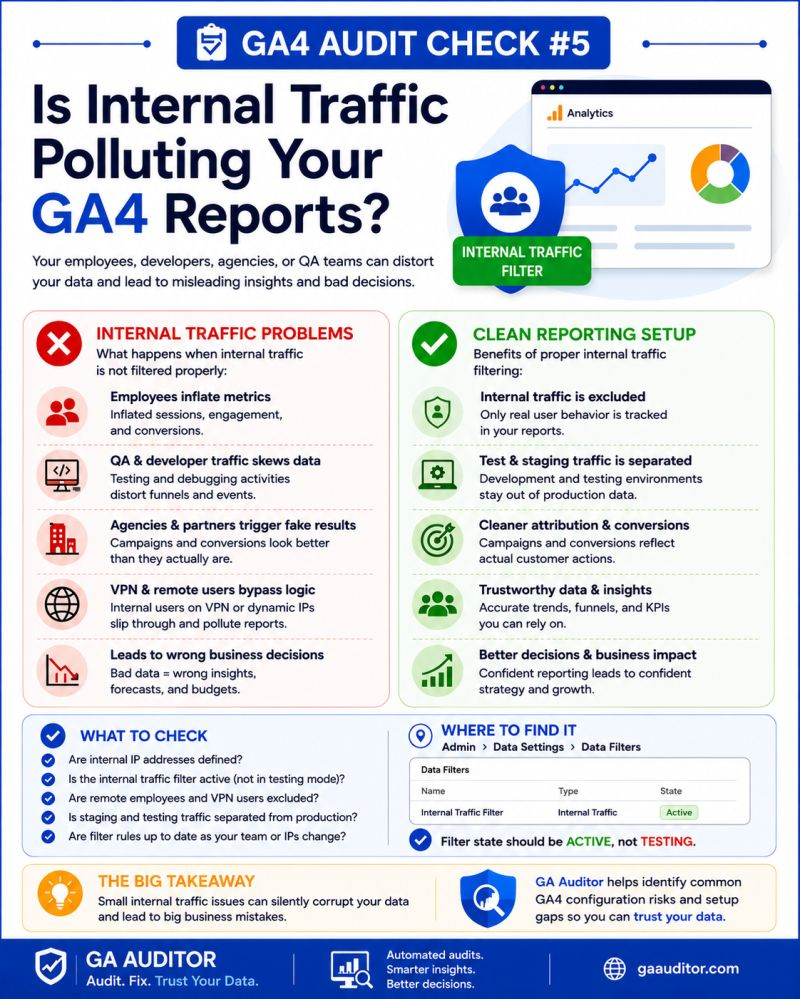
One of the quickest ways to distort your GA4 reports is to allow your own employees, agencies, developers, and stakeholders to be counted as customers.
It sounds obvious, yet internal traffic remains one of the most common issues I find during GA4 audits.
Marketing teams proudly report increases in users, sessions, and engagement, only to discover later that a significant portion of that activity came from employees testing the website, developers validating changes, or team members frequently visiting the site.
The data isn’t broken.
It’s just polluted.
If your goal is to understand how actual customers interact with your website, filtering internal traffic should be one of the first things you review.
How GA Auditor Helps
Internal traffic issues often go unnoticed because the reports still look normal.
Traffic grows.
Conversions occur.
Engagement appears healthy.
Unless someone specifically investigates the source of that activity, teams may continue making decisions based on data influenced by their own behavior.
GA Auditor reviews internal traffic configurations as part of its 150+ point GA4 audit checklist, helping organizations identify whether employee visits, agency testing, and development activity are contaminating business reports.
The objective isn’t simply to collect data.
It’s to ensure the data represents real users and supports reliable decision-making.
Why Internal Traffic Matters
Every visit from an employee has the potential to influence your reports.
This is particularly problematic for businesses with:
- Large internal teams
- Active marketing departments
- Multiple agencies
- Frequent QA processes
- Ongoing website development
Without proper filtering, internal activity can affect:
- User counts
- Session totals
- Engagement rates
- Landing page performance
- Conversion reporting
- Funnel analysis
- Audience creation
The impact is often much larger than organizations realize.
Common Internal Traffic Issues Found During Audits
After reviewing numerous GA4 implementations, several patterns appear repeatedly.
Internal Traffic Filters Were Never Configured
Many businesses simply enable GA4 and never revisit the internal traffic settings.
As a result, all employee activity is treated as customer activity.
Developer Testing Inflates Metrics
Development teams regularly trigger:
- Page views
- Form submissions
- Purchases
- Test conversions
Without exclusions, these interactions become part of production reporting.
Agency Teams Affect Data
Marketing agencies frequently access client websites for:
- Campaign reviews
- QA testing
- Conversion validation
Over time, these visits accumulate and influence reporting.
Remote Employees Were Overlooked
Organizations often exclude office IP addresses but forget about employees working remotely.
As remote work becomes increasingly common, this gap becomes more significant.
Internal Traffic Filters Were Never Tested
Some businesses configure filters but never verify whether they actually work.
They assume internal traffic is excluded when it isn’t.
How to Check Internal Traffic Settings in GA4
Navigate to:
Admin → Data Streams → Select Your Web Stream → Configure Tag Settings → Define Internal Traffic
Review the following:
- Are internal traffic rules configured?
- Which IP addresses are included?
- Are remote employees accounted for?
- Are agency IP addresses considered?
- Are testing environments separated?
Next, navigate to:
Admin → Data Settings → Data Filters
Review whether your internal traffic filter is set to:
- Testing
- Active
If a filter remains in testing mode indefinitely, internal traffic may still be appearing in reports.
Understanding GA4 Internal Traffic Filters
GA4 identifies internal traffic using rules that typically rely on IP addresses.
Traffic matching those rules receives the parameter:
traffic_type = internal
Data Filters then determine how that traffic is handled.
Testing Mode
Testing mode allows you to validate the setup without permanently excluding data.
This is often recommended before activation.
Active Mode
Once you’re confident the rules are functioning correctly, filters can be activated to exclude internal traffic from standard reporting.
Questions to Ask During an Audit
Consider the following:
- Who regularly accesses the website internally?
- Does the company operate from multiple offices?
- Are employees working remotely?
- Does an external agency frequently use the site?
- How often does QA testing occur?
- Are development environments properly separated?
The answers often reveal gaps that standard implementation checklists overlook.
Best Practices for Managing Internal Traffic
To improve reporting accuracy:
- Define internal traffic rules during implementation.
- Include all office locations.
- Consider agency access patterns.
- Account for remote teams where possible.
- Test filters before activation.
- Review filters quarterly.
- Document the rationale behind exclusions.
- Reassess configurations whenever organizational changes occur.
Internal traffic management should be treated as an ongoing governance process rather than a one-time setup task.
Internal Traffic Audit Checklist
Use this checklist during your next GA4 review:
□ Review internal traffic rules.
□ Verify office IP addresses.
□ Consider remote employee access.
□ Review agency activity.
□ Confirm testing environments are separate.
□ Check Data Filter status.
□ Validate traffic exclusion using testing mode.
□ Document internal traffic procedures.
□ Review configurations quarterly.
Final Thoughts
One of the biggest advantages of GA4 is its ability to help organizations understand how real customers interact with their digital experiences.
But that understanding becomes less reliable when employee behavior is mixed with customer behavior.
Internal traffic rarely causes dramatic reporting failures.
Instead, it creates subtle distortions that gradually influence decisions, benchmarks, and optimization efforts.
The goal isn’t to eliminate traffic.
The goal is to ensure the traffic you’re analyzing represents the audience you’re trying to understand.
Because clean data leads to better insights.
And better insights lead to better decisions.