
If you have ever opened the network tab on a site running Google Tag Manager, you have seen the duplication. The container loads once. Then gtag.js loads again for the GA4 property, again for the Google Ads account, and again for whatever Floodlight or legacy destination somebody configured years ago and nobody has touched since. Each one of those is a full library download sitting on top of the container you had already paid for.
That was never a misconfiguration. It was the architecture. A Google Tag was essentially a wrapper around a Tag Manager container, and yet a Tag Manager container could not do what a Google Tag did. So anyone running GA4 and Google Ads through GTM ended up with a separate library per product, two sets of settings maintained in two different interfaces, and no version history on either of them.
Google has now merged the two technologies. With the new tagging experience, your container takes on the capabilities of a Google Tag, and your products attach to it directly as destinations. One library, one set of settings, and those settings finally behave like every other container resource: previewable, publishable, revertible.
This is the biggest structural change to Tag Manager in a decade, and unusually for a Google release, it removes complexity rather than adding it. It is also opt-in, which means it is sitting in your containers right now waiting for someone to run a wizard without reading what it is about to merge.
What follows is a walkthrough of what actually changes, screen by screen: the new Settings section, the destination tag types that replace the Google Tag, what happened to the Conversion Linker, the Hits Sent tab in Preview mode, and the two settings that now quietly govern your advertising data as well as your analytics. I have also flagged where this migration will not help you, and the mistakes worth avoiding before you publish.
The one sentence that explains everything else
Your container is now a Google Tag, and your products are now destinations of it.
Everything else in this update follows from that. Here is the data flow as it used to be:
GTM container → Google Tag (separate gtag.js load) → GA4 / Google Ads / Floodlight
And here is what it looks like after migrating:
GTM container → GA4 / Google Ads / Floodlight
The middle hop is gone. The destinations are no longer loaded as their own gtag.js resources. Their instructions and settings now live inside the Tag Manager file that the browser was already downloading.
That has three consequences worth caring about, and they are the reason this is worth doing rather than just interesting to read about:
- One library instead of several. Whatever your destination count, the browser fetches the container and nothing else. On the client I described above, that removed three library downloads from every page load.
- One set of settings. Cross-domain configuration, internal traffic, cookie settings, consent defaults and automatic event detection are configured once, in GTM, and inherited by every destination attached to the container.
- Settings become versioned workspace changes. This is the part I appreciate most. Changing a Google Tag setting used to take effect the moment you saved it in the Google Tag interface, with no preview and no rollback. Now it is a workspace change: you preview it, you publish it, and if it goes wrong you revert the container version.
The Overview page now draws your data flow
The first place you will notice the change is the container Overview, which now shows a diagram of where your data goes.
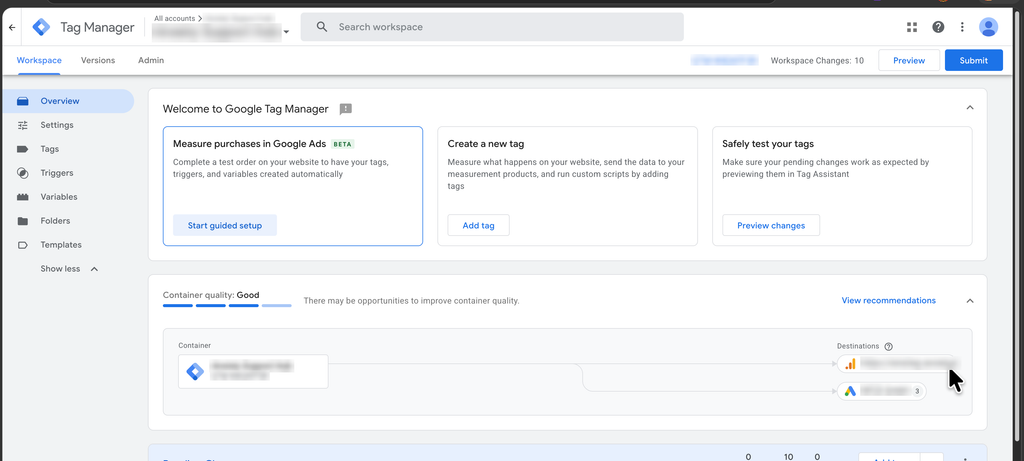
Read it left to right. The container sits on the left. The destinations sit on the right, and the arrows run straight from one to the other. There is no Google Tag drawn in between, because there no longer is one.
The number beside a destination is how many tags in the container reference it. In the screenshot, the Google Ads destination shows three, meaning three tags send data there. Click a destination and you get a details panel listing exactly which tags those are, which is a faster answer than filtering the tag list by hand.
If you still have unmigrated Google Tags in the container, they appear in this diagram as an extra hop before their destination. That makes the Overview a useful audit: anything drawn with a middle step has not been migrated yet. On a container you have inherited from another agency, this is the quickest read on how much legacy setup is still in there.
You will also see a container quality score on this screen with a recommendations link. Treat it as a prompt rather than a verdict. It is directional, and it does not know your business logic.
There is now a Settings section in the container
The container navigation has a new Settings entry, sitting between Overview and Tags. This is where destinations and their shared configuration now live.
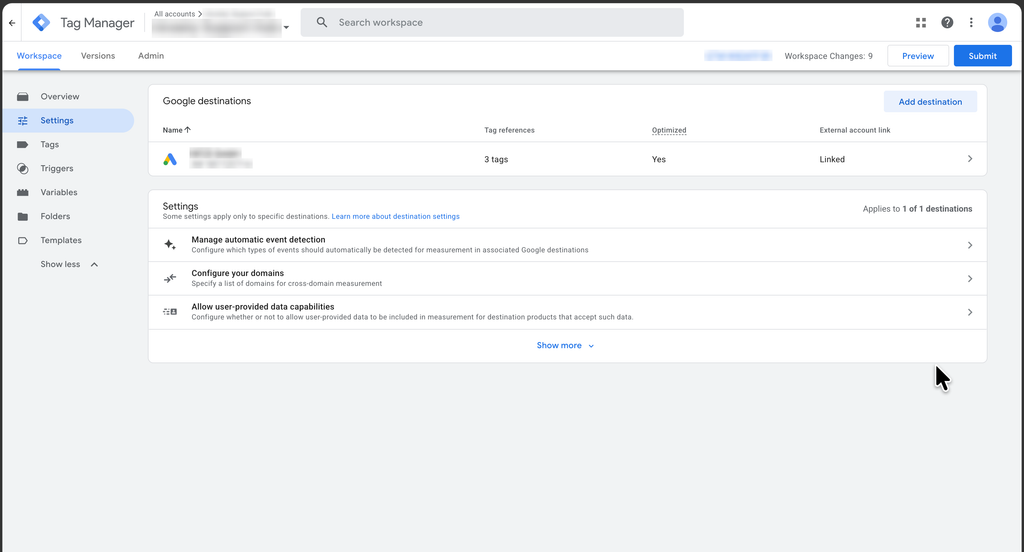
The destinations table is worth reading column by column, because each one answers a question you would otherwise have to go digging for.
Tag references tells you how many tags point at that destination. Optimized tells you whether the destination is wired directly to the container or still going through a legacy Google Tag. External account link tells you whether the people who manage that product account can see this container.
A destination showing Optimized: Yes and Linked is fully migrated. Anything else is unfinished work.
The Add destination button opens a list of every Google Tag destination you have admin access to, so attaching a new product no longer means creating a tag first and hoping the settings line up.
Underneath the table sits the settings list, and the header line above it is the one to pay attention to: it tells you how many destinations these settings apply to.
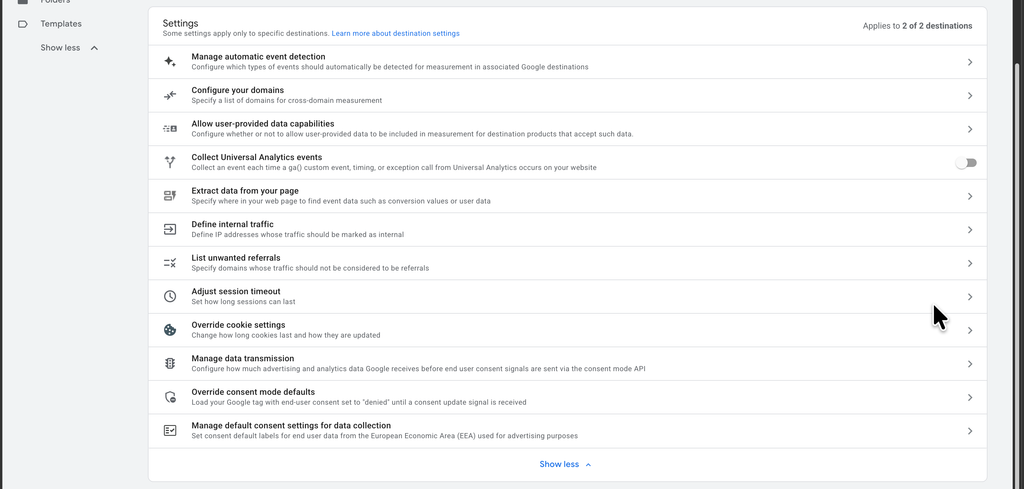
This is a long list, and almost all of it will be familiar if you have ever opened a Google Tag’s settings:
- Manage automatic event detection
- Configure your domains, for cross-domain measurement
- Allow user-provided data capabilities
- Collect Universal Analytics events
- Extract data from your page
- Define internal traffic
- List unwanted referrals
- Adjust session timeout
- Override cookie settings
- Manage data transmission
- Override consent mode defaults
- Manage default consent settings for data collection
The difference is where it lives and what it governs. These used to be per-Google-Tag settings, edited in a different interface, applied instantly, with no history. They are now container resources: versioned, previewable, publishable, and revertible like anything else in GTM.
A destination can still override a shared setting, but only toward a stricter state. If the container blocks user-provided data collection, a destination cannot switch it back on. If the container allows it, a destination can still refuse it. The container sets the ceiling, not the floor.
Enhanced measurement now drives Google Ads, not just GA4
This is the change I would read twice, because it is the one most likely to alter data you are already collecting.
Open Manage automatic event detection from the container settings and you get a set of toggles that will look extremely familiar to anyone who has configured GA4 enhanced measurement.
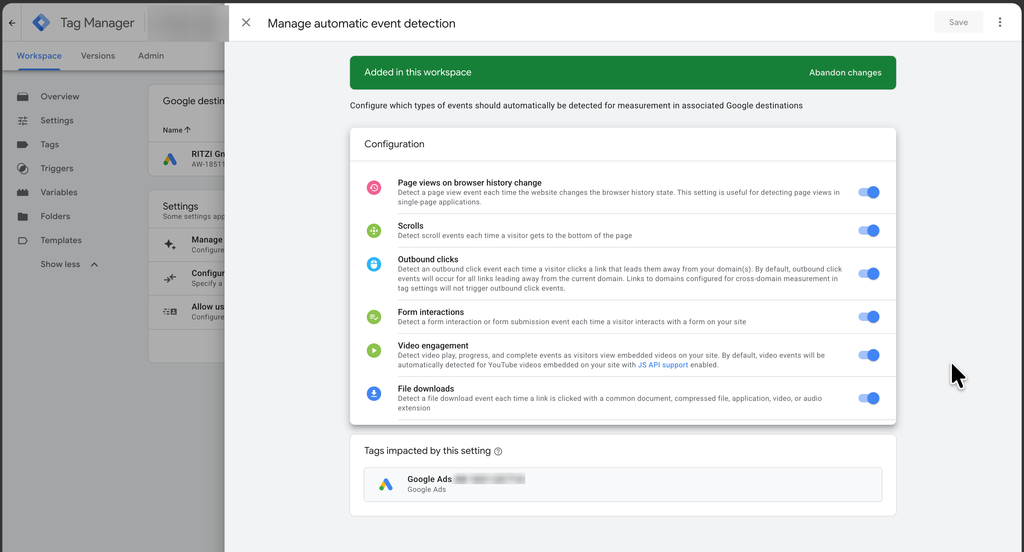
The toggles are page views on browser history change, scrolls, outbound clicks, form interactions, video engagement, and file downloads. These are GA4 enhanced measurement concepts. They were born in Google Analytics and for years they belonged to Google Analytics.
Now look at the panel at the bottom of that screen, headed Tags impacted by this setting. In the screenshot, the impacted tag is a Google Ads destination.
That is the real story. Automatic event detection is now a container-level setting, and it applies to whichever destinations are attached, including Google Ads. Turn on form interactions and your Google Ads destination starts receiving automatically detected form interaction events. The same logic applies to cross-domain configuration, internal traffic definitions, unwanted referrals, session timeout and cookie settings: these were Google Analytics concerns, and they now flow to every attached destination.
For a lot of accounts this is a straightforward upgrade. Cross-domain measurement for Google Ads used to mean the Conversion Linker plus careful URL handling. Now you configure your domains once in the container and the Ads destination inherits it.
But treat it as a behavioural change rather than a free win. If you are running a site where scroll or outbound click events were deliberately kept out of your advertising data, these toggles will start sending them. Check the state of every toggle before you publish, not after. I would also look closely at form interactions on sites with search boxes, filter forms, or newsletter widgets, since those can generate a surprising volume of automatically detected events that nobody asked for.
Cross-domain and consent now configure both products at once
The automatic event detection screen is not the only place this crossover shows up. Two more settings make the point even more clearly, and both are worth opening before you publish a migration.
Configure your domains
Cross-domain measurement used to be a Google Analytics concept, configured per Google Tag. It is now a container setting.
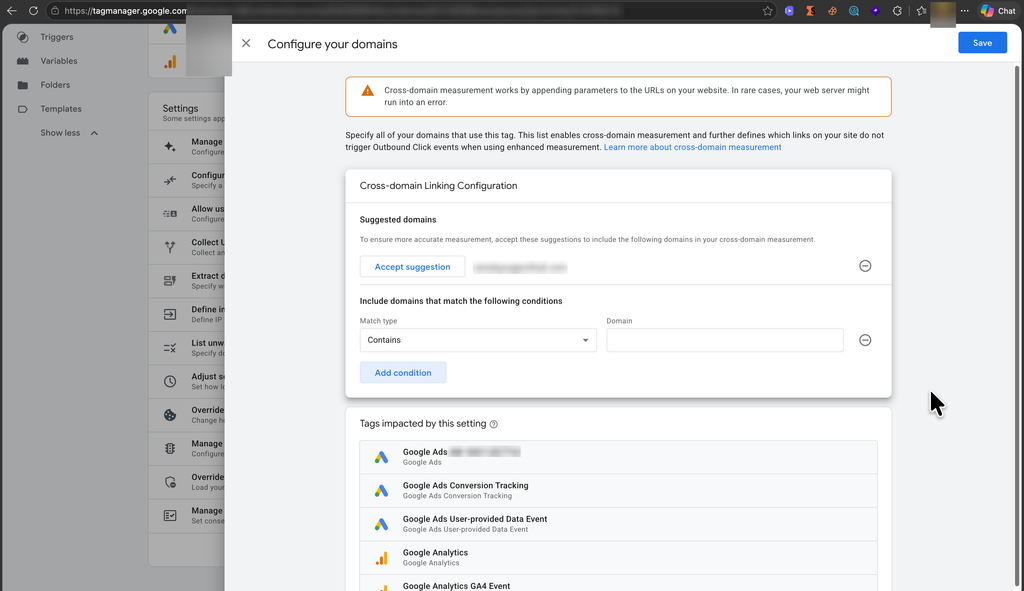
GTM suggests domains it has detected, and you accept them or add your own with match-type conditions, in the same pattern as before.
The important part is the list at the bottom. The impacted tags include the Google Ads destination, Google Ads Conversion Tracking, Google Ads User-provided Data Event, the Google Analytics destination and the GA4 Event tag. One domain list, applied across both products.
If you have ever set up cross-domain tracking for a checkout on a separate domain, you know the old routine: configure it in the GA4 tag, then handle Google Ads separately through the Conversion Linker and hope the two agreed. That whole class of mismatch disappears here.
Note the second thing the panel tells you: this same list defines which links do not count as outbound clicks under enhanced measurement. So your cross-domain configuration and your outbound click data are now the same decision. Get the domain list wrong and you will see your own checkout showing up as an outbound click.
Manage data transmission
This one is effectively Basic Consent Mode as a container-level control.
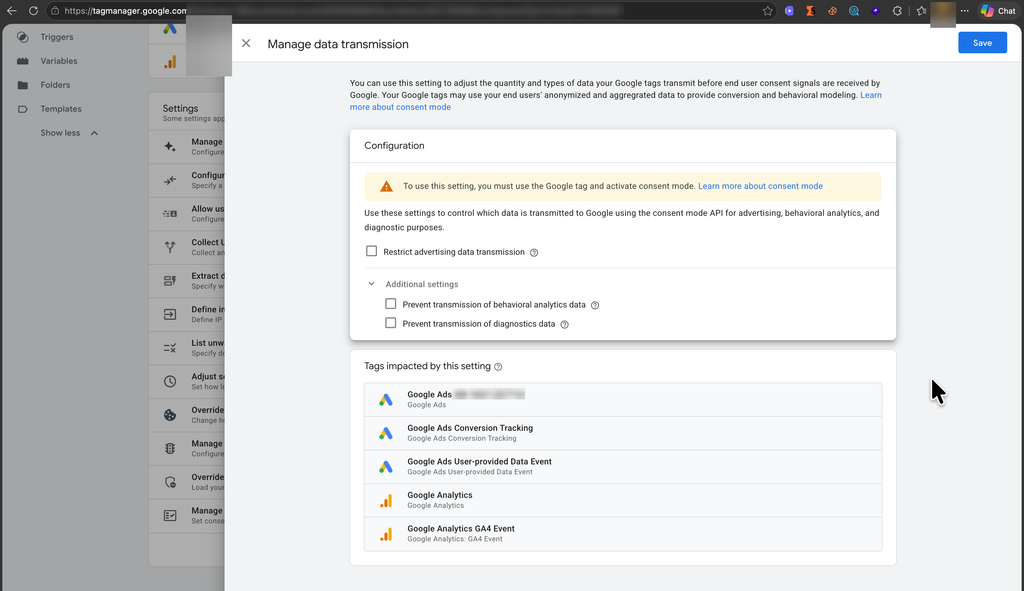
The controls are Restrict advertising data transmission, plus two under Additional settings: Prevent transmission of behavioral analytics data and Prevent transmission of diagnostics data.
What these do is hold hits back until a consent signal arrives, rather than sending a limited payload. If consent is then granted on the page, the withheld hits are released. Queuing and refiring events blocked by missing consent has historically been one of the fiddliest things to build correctly in a Basic Consent Mode setup, and it is now three checkboxes.
Two caveats I would put in front of any client before touching these.
First, read the warning in the panel: the setting requires the Google tag and an active consent mode. It is not a substitute for having consent mode implemented.
Second, and more important, it only governs Google’s own tags. The impacted list is Google Ads and Google Analytics. Your Meta pixel, your TikTok pixel and every other vendor tag in the container are untouched by it. If your compliance position depends on withholding data before consent, this solves the Google side and leaves the rest of your stack exactly where it was. Keep your tag-level consent settings for those.
You can see the Hits Sent tab pay off here too. A hit held back by this setting shows as deferred in Preview rather than sent, and moves once the consent update arrives, so you can watch the behaviour instead of trusting it.
New tag types: Google Analytics and Google Ads, as destinations
Open the tag type picker and you will find new entries at the top of the Google Ads and Google Analytics groups.
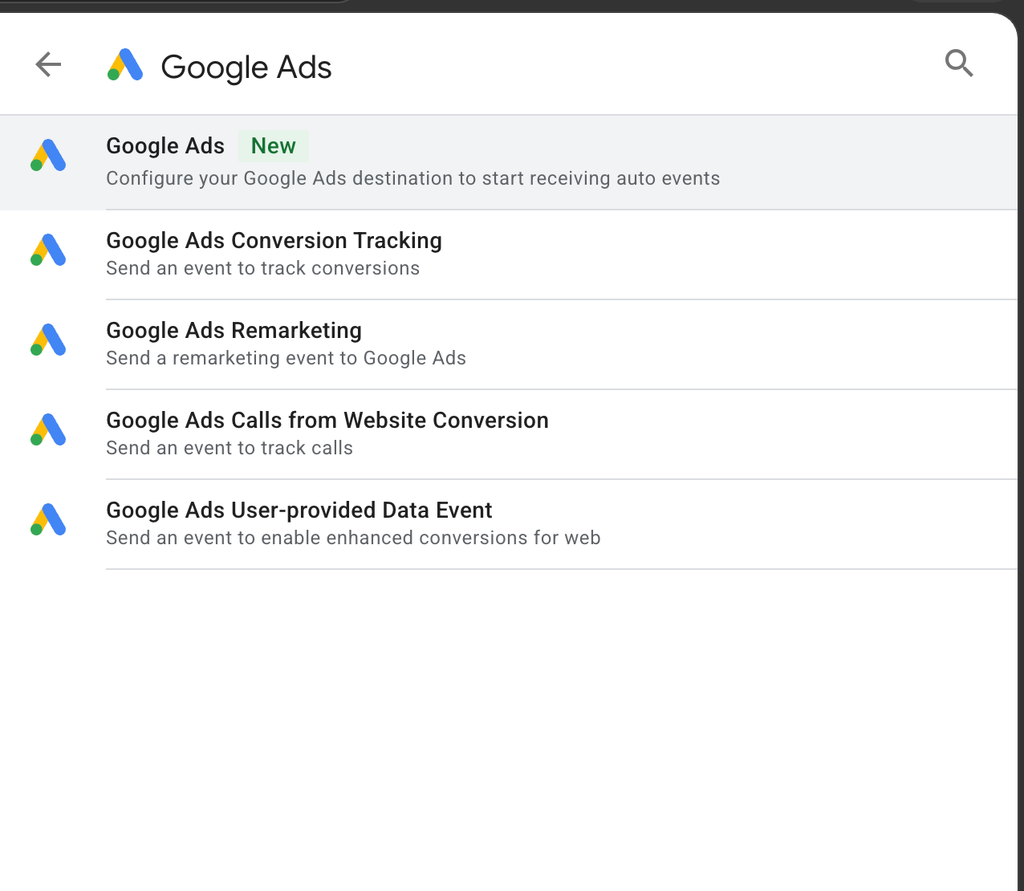
The new Google Ads type sits above the familiar Conversion Tracking, Remarketing, Calls from Website and User-provided Data Event tags. Its description says it plainly: configure your Google Ads destination to start receiving auto events.
That is the job of these new tag types. They are not event tags. They are the thing that attaches a destination to the container and switches on data collection for it, replacing the Google Tag in that role.
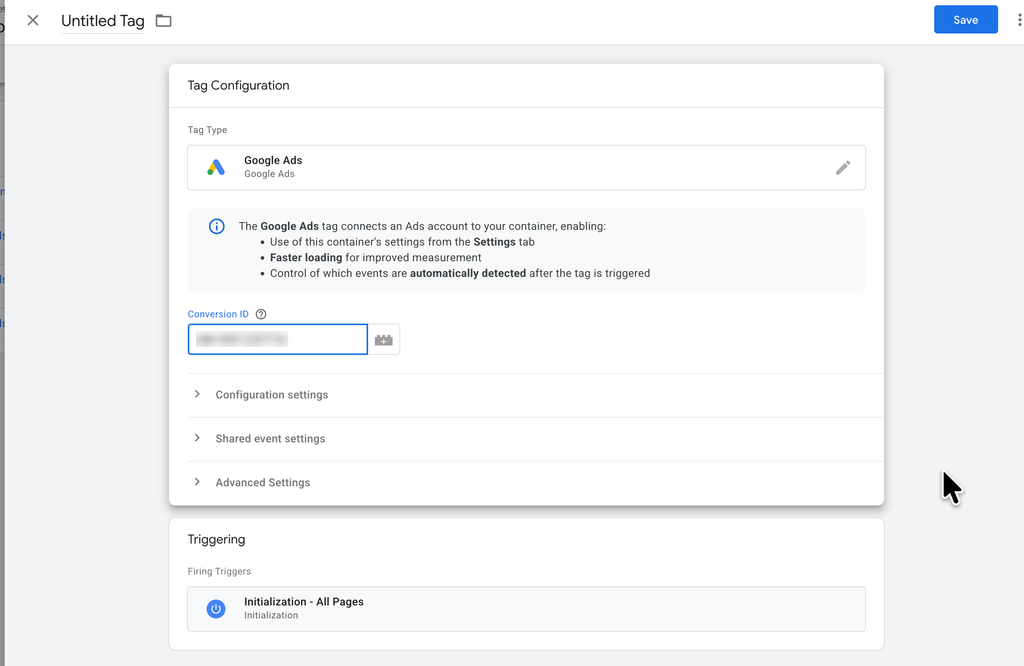
Here is the Google Ads destination tag configured:
And the Google Analytics equivalent:
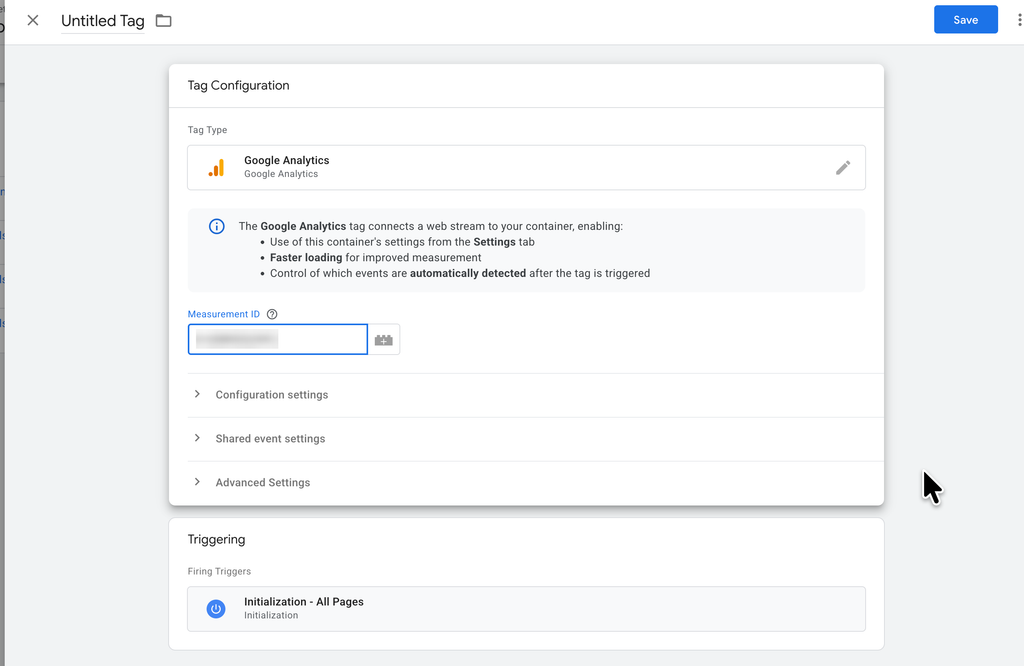
The two are deliberately symmetrical. One takes a Conversion ID, the other a Measurement ID, and both show the same information panel spelling out what you get:
- Use of this container’s settings from the Settings tab
- Faster loading for improved measurement
- Control of which events are automatically detected after the tag is triggered
That third line is the one people skim past. It is the link back to automatic event detection: the destination tag is what makes those container-level toggles take effect for that product.
Both tag types keep the sections you would expect underneath: Configuration settings, Shared event settings, and Advanced Settings. So you can still override individual fields per tag, including a server container URL, and you can still prevent the automatic page view if your setup fires it some other way.
Triggering is unchanged. These fire on Initialization – All Pages, exactly as a Google Tag did.
Merchant Center arrives, Conversion Linker retires
Scroll into the Other Google section of the tag picker and two things stand out.
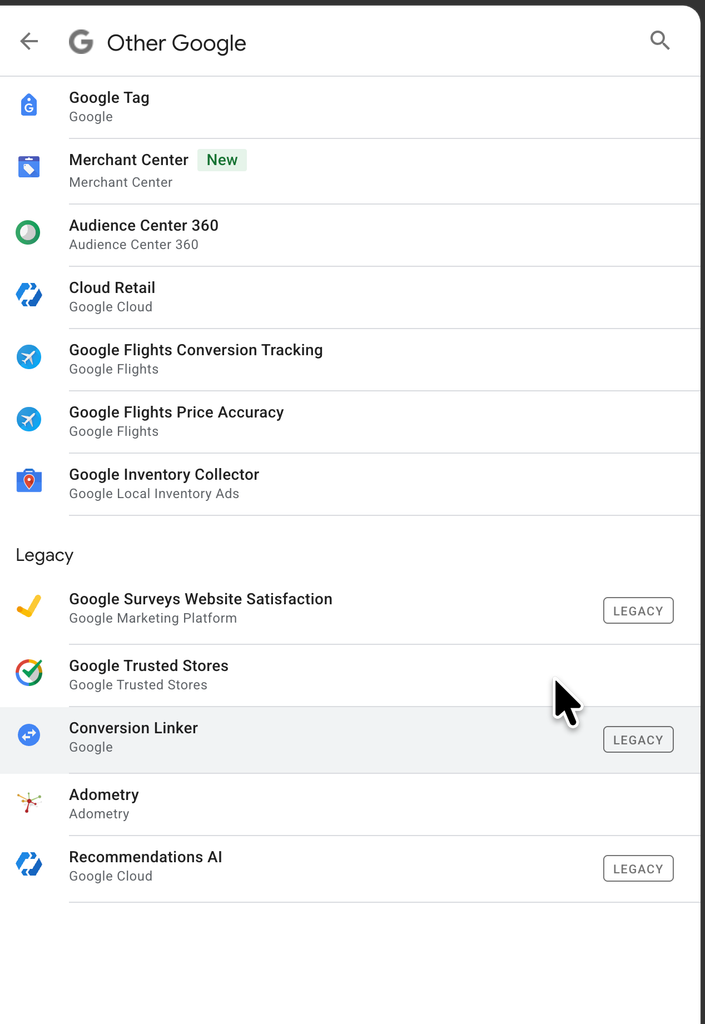
Merchant Center is now a tag type, marked New. For ecommerce accounts this is the interesting one: you can deploy the Merchant Center tag from the container and send data to Merchant Center the same way you send it anywhere else, rather than treating it as a separate snippet somebody pastes into the theme. If you run shopping campaigns, this is worth a look on its own merits.
Conversion Linker is marked LEGACY. It sits in the legacy group alongside Google Surveys, Google Trusted Stores and Recommendations AI.
I want to be careful about what that means, because Conversion Linker has been a reflex for everyone doing Google Ads work for years. Its job has been absorbed by the destination tags. Once Google Ads is attached to the container as a destination, link handling comes with it, and a separate Conversion Linker tag is redundant.
The question I immediately had was about URL passthrough, which is the setting a lot of us rely on for sites with consent banners or redirect-heavy checkouts. The answer is that it moves into the destination tag’s settings fields: set url_passthrough to true there. It did not disappear, it relocated.
The legacy Google Tag type is still in the picker too, and it still works. But its whole reason for existing was to load a product that the container could not load itself, and the container can now do that. Using it means accepting the extra library download you just migrated away from.
“Destination found” replaces “Google tag found”
A small wording change that tells you something useful. Open a GA4 Event tag, paste in a Measurement ID, and the confirmation beside the field now reads Destination found.
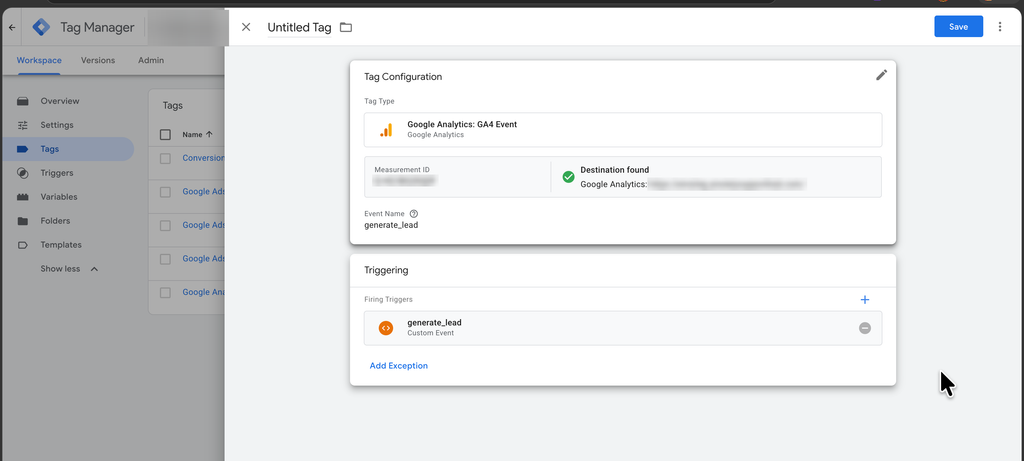
It used to say that a Google tag was found. Now it confirms a destination, and it names which one, showing the product and the stream or account the ID resolves to.
The same confirmation appears on Google Ads event tags when you enter a Conversion ID. One phrase, both products, because the thing being looked up is the same kind of object now.
This is more useful than it looks when you are auditing somebody else’s container. A green Destination found means the ID in that field corresponds to something the container can actually reach. A missing confirmation is your signal that the ID is wrong, the destination is not attached, or you do not have access to it. That used to take a Preview run to discover.
Preview mode gets a Hits Sent tab
Because the container is now a Google Tag, Preview mode can show you what the container actually transmitted. There is a new Hits Sent tab sitting alongside Tags, Variables, Data Layer, Consent and Console.
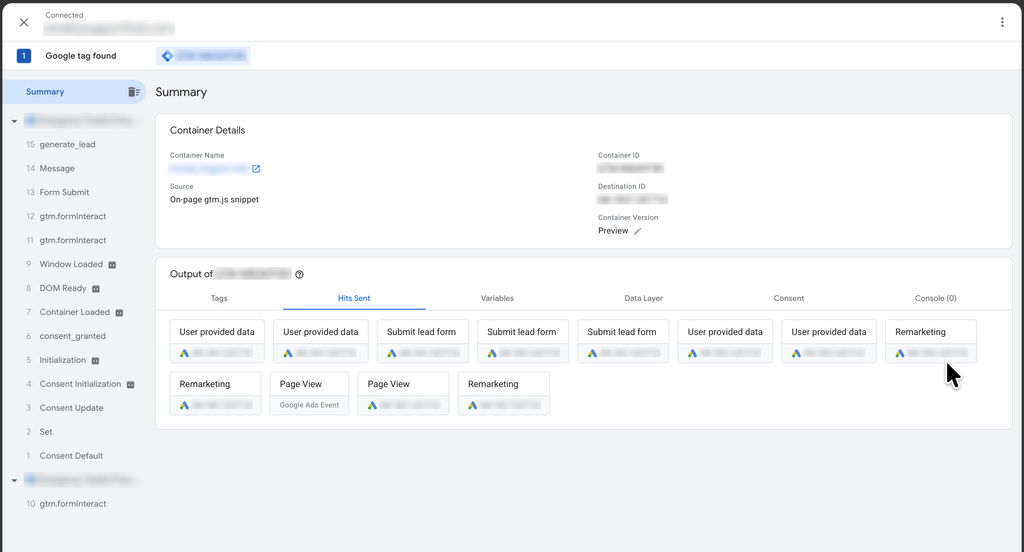
Start with the Container Details panel at the top. It now reports the Destination ID next to the Container ID, and the Source line tells you how the container got onto the page. That alone settles a common argument about whether a container is hardcoded or injected by an app.
Then read the Hits Sent grid. Each card is one hit: the name of what was sent, and underneath it the destination it went to, with the product icon. You can see at a glance that user-provided data went to Google Ads, that a lead form submission went to Google Ads, that remarketing hits fired, and how many times each happened.
It gets more useful when you click into a specific event rather than the summary.
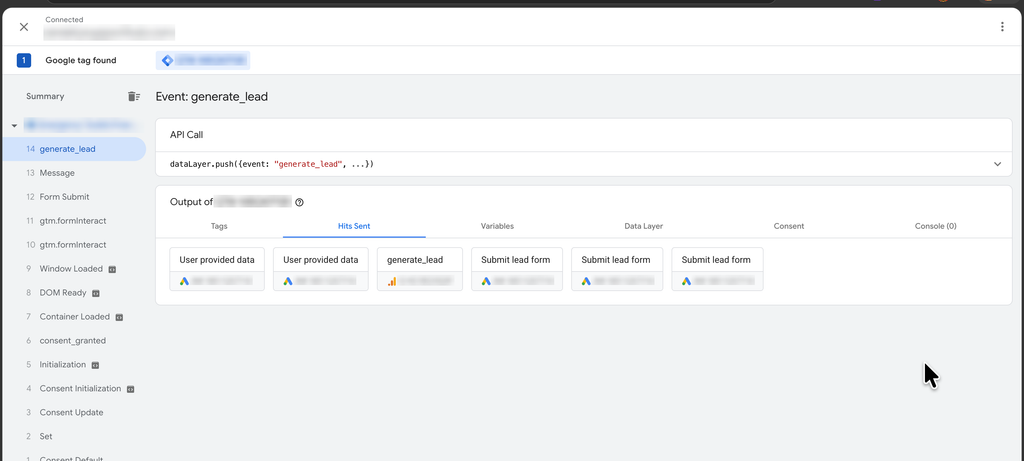
Here the left panel is scoped to one event. The API Call panel shows the dataLayer.push that started it, and Hits Sent shows exactly what left the container as a result. In this example a single lead event produced hits to both the Google Ads destination and the Google Analytics destination, and you can tell them apart by the icon and the ID beneath each card.
I cannot overstate how much time this saves. Verifying that a conversion actually reached Google Ads used to mean opening the network tab, filtering requests, and reading query strings. Now it is a tab in the tool you already had open, and you can hand it to a client who would never open devtools.
One detail worth knowing: a deferred hit gets its own icon. If you have configured data transmission so that advertising or analytics hits are withheld until consent arrives, those hits show as deferred rather than sent, and they move once a consent update comes through. That turns a Basic Consent Mode setup from something you take on faith into something you can watch happen.
Running the migration without breaking anything
Containers created before this release show a banner offering to optimize. The wizard does the mechanical work, but there are decisions inside it that are yours to make.
Step one: choose which tags to link. The wizard lists every Google Tag in the container that you have access to, each one checked by default. Unchecking a tag leaves it as a legacy Google Tag, outside the optimization. Before you accept the defaults, click View settings on each tag and read what it currently has configured. You are about to merge these, and you cannot merge sensibly without knowing what is in each one.
Step two: decide on shared settings. If every tag has identical settings there is nothing to choose and the wizard just applies them. If they differ, you pick one tag’s settings as the blueprint for the container, or you decline to import anything and configure the shared settings yourself.
This is the step that decides whether the migration is boring or painful. Two Google Tags with different cookie settings, different internal traffic definitions or different consent defaults do not merge themselves. One of them is going to change behaviour. Work out which one before you click, not after.
Step three: read the preview. Before accepting, click Show details. You get a list of exactly what will change: the new settings resource, every tag that will be converted from a Google Tag to a Destination tag, and any permission changes. There is also a before-and-after visual of your destination wiring, which is the quickest way to confirm the result matches what you intended.
Step four: it lands in the workspace, not on your site. This is the part that makes the whole thing safe, and it is worth saying clearly because people assume otherwise. The wizard creates workspace changes. Nothing is live until you publish. Preview it, walk your key conversion paths, check the Hits Sent tab, and only then submit.
Step five: know your rollback. Because this is an ordinary container version, reverting to the previous version undoes the entire optimization. Before publishing, note the current version number. That is your undo.
On permissions
By default, people who had access to a Google Tag receive Read access to the container when that tag becomes a destination. This is adjustable under Admin, in External account links.
The reasoning is sound. If someone manages the Google Ads account and the container now overrides their settings, they should be able to see why. But it runs one way only: container users do not gain access to the linked product accounts.
My advice, learned the uncomfortable way on a shared container: audit who currently has access to that Google Tag before you link it. On an agency or multi-client setup, granting container Read access to everyone on a product account can expose more than you intended. Check first, then link.
Mistakes to avoid
Accepting the merged settings without reading them. The wizard will happily apply one tag’s settings to every destination. If your GA4 tag had a 30 minute session timeout and your Ads tag had different cookie settings, somebody is getting new behaviour. Open View settings on each tag first.
Forgetting that automatic event detection now reaches advertising. Those six toggles are container-level. Scrolls, outbound clicks, form interactions, video engagement and file downloads will start being detected for your Google Ads destination too. Decide whether you want that, per toggle, before publishing.
Migrating everything in one workspace on a complex container. On a container with two destinations, do it in one go. On a container with five destinations owned by three teams with conflicting settings, treat it as a proper migration: add destinations incrementally, preview each, publish, watch for a day, then do the next one. The rollback is version-level, so a single mega-change means a single mega-rollback.
Publishing without walking a real conversion. Preview and click through an actual purchase or lead submission, then read the Hits Sent tab. You are checking that the hit reached the right destination with the right ID, not just that a tag turned green.
Assuming the Conversion Linker’s settings came along for free. If you depended on URL passthrough, set url_passthrough to true in the destination tag’s settings fields. Do not assume it carried over just because the Conversion Linker is now redundant.
Deleting legacy Google Tags before you have verified the replacements. Leave them paused or in place through at least one full verification cycle. You can always remove them in the next version.
Treating container quality score as a target. It will suggest things. Some of them will be wrong for your setup. Read the recommendations, apply judgement, ignore the rest.
Where the wizard will not help you
Two situations come up often enough in my work that they are worth calling out before you plan a migration week.
Measurement IDs set by a variable
The wizard can link a Google Tag whose ID is typed in directly, and it can link one that uses a Constant variable. It cannot link one whose ID comes from a lookup table, a regex table, or custom JavaScript.
The reason is structural rather than an oversight. Those variables are evaluated at runtime, on the page, against whatever conditions you built. A regex table that routes to different GA4 properties by hostname only has a meaning when a page is actually loading. The container cannot resolve it at build time, so it cannot register the result as a destination. A Constant has no runtime alternative, which is why it works.
If you run multi-property setups routed by hostname, which is common on multi-brand and multi-region sites, this is the thing that will stop you. You are not doing anything wrong. Plan to keep those tags as legacy Google Tags for now.
Server-side setups
If your client-side container exists mainly to forward events to a server container, this update does very little for you. The optimization affects how Google’s products load and configure themselves in the browser. Your server container is unaffected, and the endpoints you manage there are unchanged.
I would still migrate. Even with a single GA4 tag forwarding to server-side, the legacy Google Tag means an extra library download you no longer need to pay for. The benefit is smaller, but it is not zero, and the cost is one wizard run.
One gap I would like to see closed
The container’s shared settings win over a destination’s own settings. But GTM admins do not automatically get visibility into what the Google Tag had configured on its side. So a conflict between the two is possible and currently invisible.
A flag in the Settings overview saying only “these differ, go look” would be enough. Not the details, which could expose things a container user should not see, just the existence of the disagreement. Until that exists, the shared Read permission is your best defence: give the product account owners visibility into the container so somebody is in a position to notice.
What I would do this week
This is the biggest structural change to Google Tag Manager in a long time, and unusually for a Google release, it mostly removes complexity rather than adding it. Two overlapping technologies became one. The extra library loads go away. The settings stop living in two places.
If you manage containers, here is the order I would work in.
- Open the Overview on every container you own. Anything drawn with a Google Tag between the container and its destination is unmigrated. That is your backlog, and it takes about thirty seconds per container to build.
- Start with your simplest container. One or two destinations, settings that already agree. Run the wizard, preview, publish, watch it for a day. You want your first migration to be boring.
- Before the complex ones, document the current settings. Screenshot each Google Tag’s settings panel. When you merge, you will want to know what you had.
- Check the automatic event detection toggles on every migrated container. This is the one that quietly changes what your advertising platforms receive.
- Leave the multi-property regex-table containers alone until Google gives the wizard a way to handle runtime-resolved IDs.