
For years, managing Google Tag Manager has required either technical know-how or constant back-and-forth with a developer. Creating tags, updating triggers, and retrieving data all meant navigating a complex interface — or submitting a ticket and waiting.
That is beginning to change. Thanks to a technology called the MCP Server, it is now possible to manage Google Tag Manager simply by typing a request in plain language inside an AI application. This guide explains what that means, why it matters for marketers, and how to get started.
What Is an MCP Server, and Why Should Marketers Care?
MCP stands for Model Context Protocol. In plain terms, it is a standard that allows AI tools — such as Claude — to connect directly to external platforms and take actions on your behalf.
Think of it like a universal remote control. Instead of learning the specific buttons and menus of each platform you use, you simply tell the AI what you want done, and it communicates with the platform in the background.
When an MCP Server is configured for Google Tag Manager, you can do things like:
- Ask the AI to create a new tag for a specific campaign
- Request a list of all your GTM accounts and containers
- Update trigger settings without opening the GTM interface
- Manage user permissions across multiple accounts
All of this happens through a simple typed request — no coding required.
Who Built the GTM MCP Server?
The MCP Server for Google Tag Manager was developed by Stape, a company that specialises in server-side tagging and tag management infrastructure. Their solution connects directly to Google Tag Manager’s API and surfaces its capabilities inside AI tools like the Claude desktop application.
What Can You Do With It?
Once the MCP Server is set up, you can manage virtually every major aspect of Google Tag Manager through conversation. This includes:
Account and Container Management — Create, update, or retrieve information about your GTM accounts and containers without logging into the interface.
Tags, Triggers, and Variables — Add new tags, adjust firing rules, and manage variables by simply describing what you need.
Workspaces and Versions — View the latest published version of a container, check workspace status, or create a new version when your changes are ready.
User Permissions — Review and update who has access to which accounts and containers across your organisation.
For marketing teams managing multiple client accounts or running frequent campaign updates, the time savings can be significant.
How to Set It Up
Setting up the GTM MCP Server requires just a few steps. Before you begin, ensure that Node.js version 18 or higher is installed on your computer, and that you have downloaded the Claude desktop application.
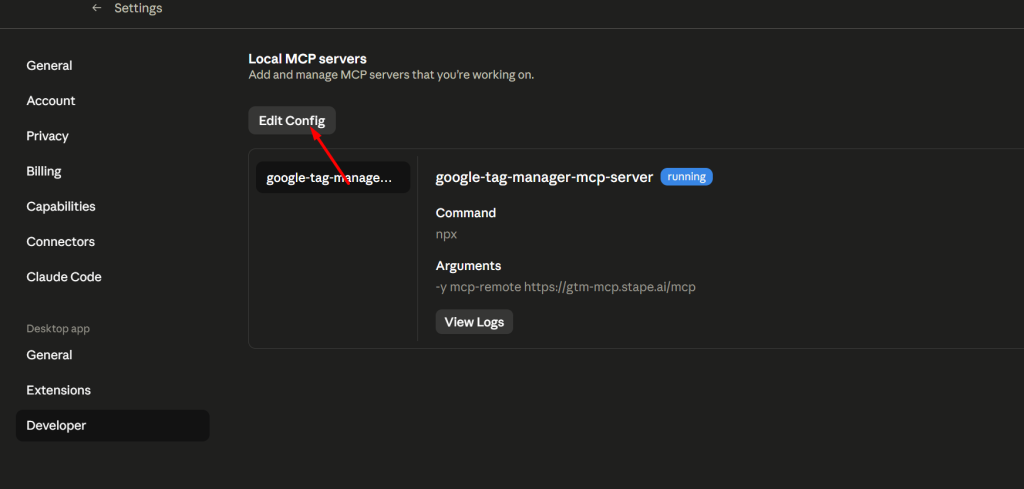
Step 1: Open Claude Desktop Settings
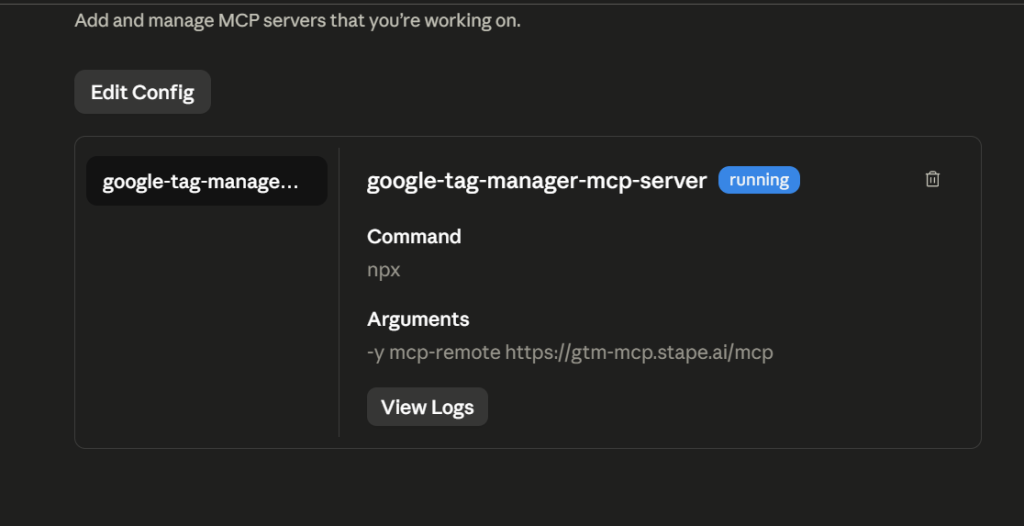
Launch the Claude desktop app, navigate to Settings → Developer → Edit Config. This will open a configuration file in a text editor.
Step 2: Add the MCP Server Configuration
Add the contents of the configuration file with the following code snippet:
{
“mcpServers”: {
“google-tag-manager-mcp-server”: {
“command”: “npx”,
“args”: [
“-y”,
“mcp-remote”,
“https://gtm-mcp.stape.ai/mcp”
]
}
}
}
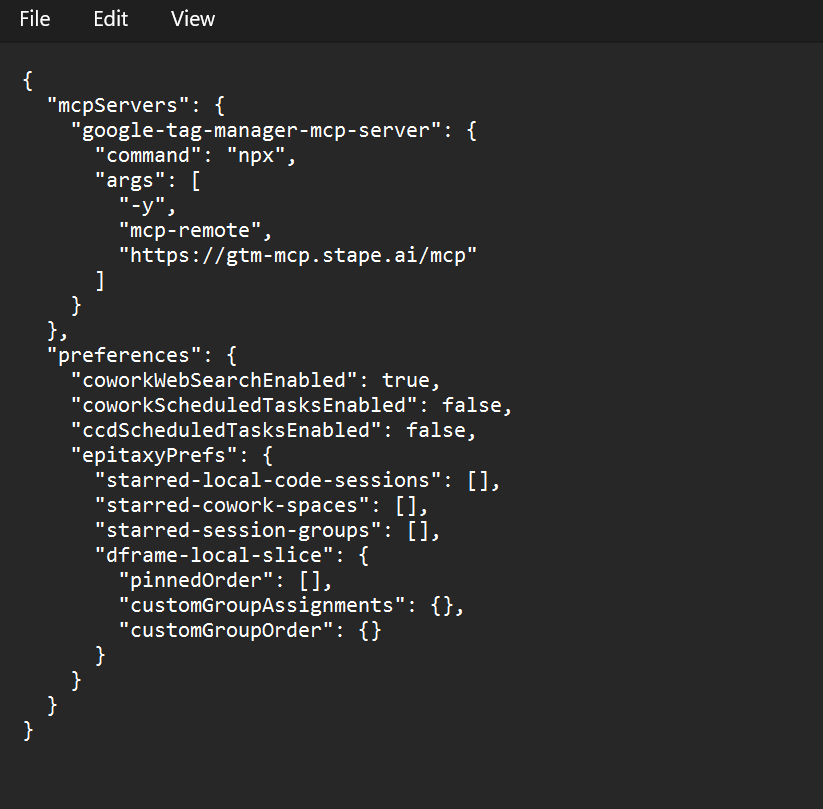
Save the file once this is in place.
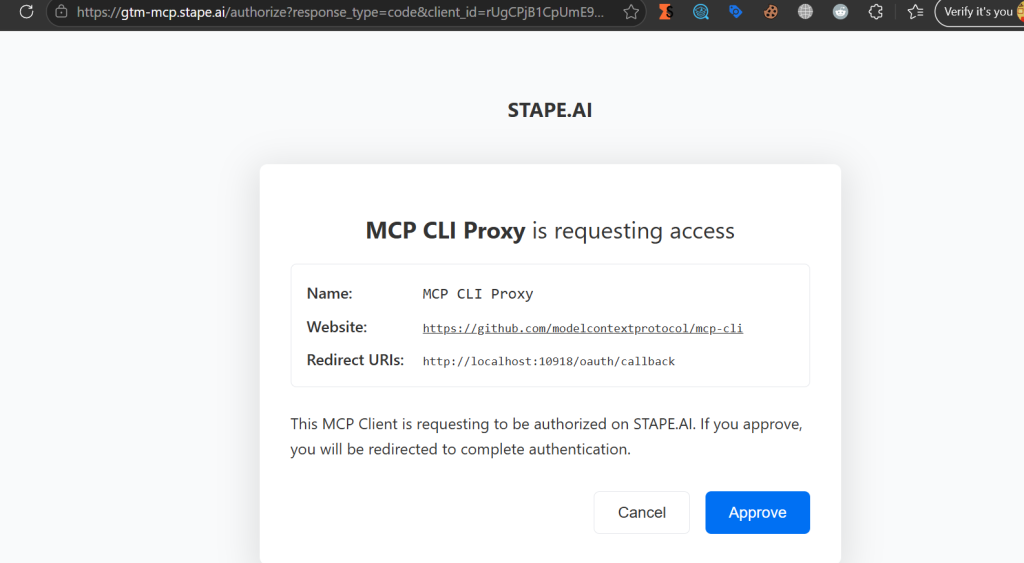
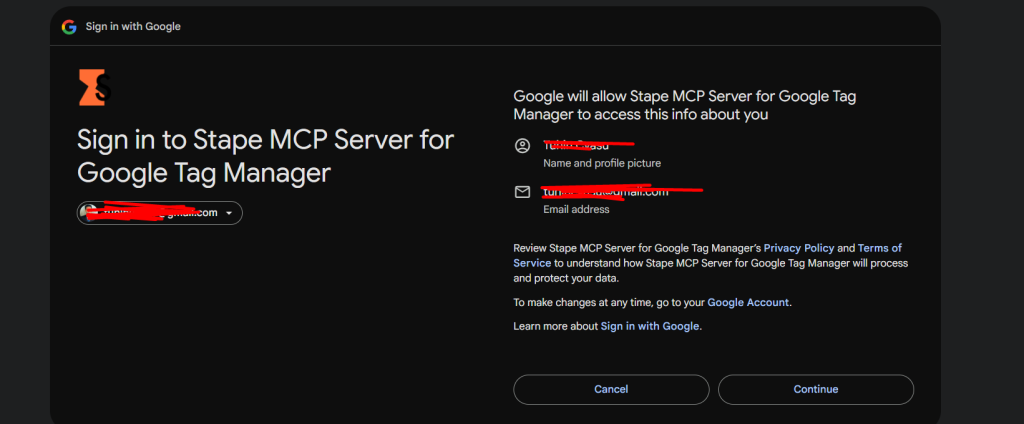
Step 3: Restart Claude and Authenticate
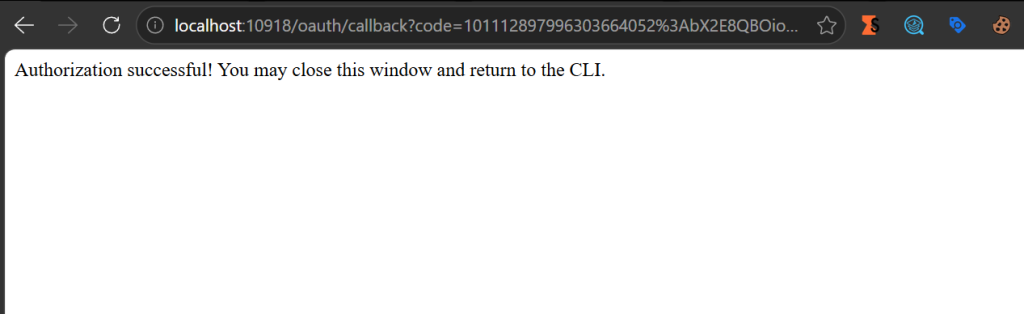
Close and reopen the Claude desktop application. A browser window will appear prompting you to log in with your Google Account. Complete this authentication step to grant Claude the necessary permissions to access Google Tag Manager on your behalf.
Step 4: Confirm the Tools Are Available
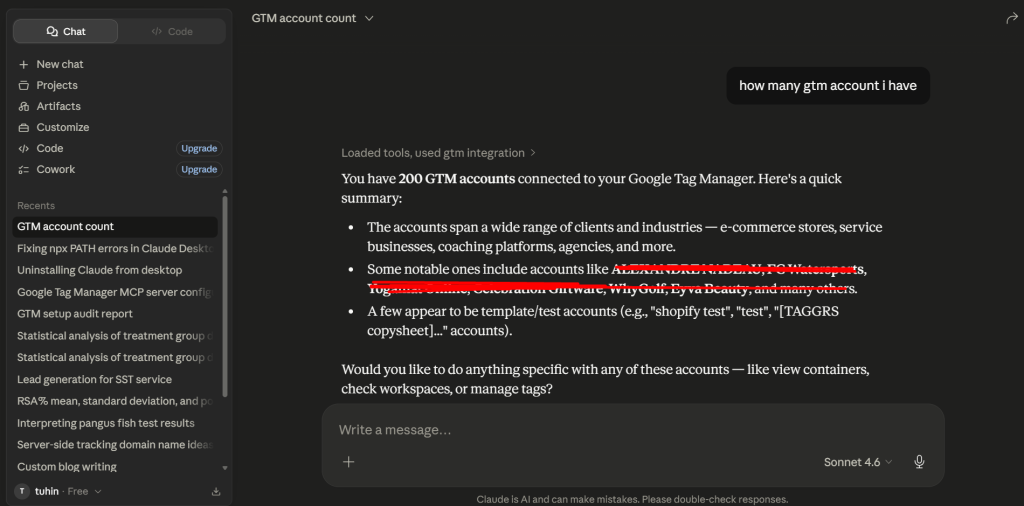
Once you have authenticated, the GTM tools will be active inside Claude. You can verify this by typing a simple request, such as asking Claude to list your GTM accounts.
Troubleshooting
If you encounter authentication errors or the tools are not appearing after setup, the most common fix is to clear your locally stored credentials. To do this, delete the .mcp-auth folder on your computer (found at ~/.mcp-auth) and restart the Claude application. This will prompt a fresh authentication flow and typically resolves persistent issues.
A New Way to Work With Tag Management
The MCP Server for Google Tag Manager represents a meaningful shift in how marketing teams can interact with their technical infrastructure. Rather than depending entirely on developers for routine tag management tasks, marketers can now take direct action through natural language — quickly, accurately, and without needing to understand the underlying technology.
For teams managing large numbers of accounts or working at pace with campaign activity, this is a practical tool worth exploring.
To get started, visit Stape’s documentation for the full configuration guide and additional resources.
Real-World Use Cases for Marketers
Understanding what the GTM MCP Server can do in theory is one thing — seeing how it applies to everyday marketing work is another. Below are six practical scenarios where this technology can save time, reduce dependency on developers, and help teams move faster.
1. Campaign Launch Preparation
Every campaign launch involves a checklist of tagging tasks: setting up conversion tracking, adding remarketing pixels, configuring UTM variable captures, and ensuring everything fires correctly before the campaign goes live. Traditionally, this requires either a marketer with GTM expertise or a developer to implement on request.
With the MCP Server, a marketer can describe what is needed in plain language — “Create a Google Ads conversion tag for the new spring campaign and set it to fire on the order confirmation page” — and the AI handles the implementation. This reduces launch timelines and eliminates the risk of tags being delayed due to resource availability.
2. Multi-Account Auditing for Agencies
Digital marketing agencies often manage GTM across dozens or even hundreds of client accounts. Conducting a routine audit — checking which containers have unpublished changes, verifying that key tags are present, or confirming that no unauthorised modifications have been made — is an enormously time-consuming task when done manually.
With AI connected to GTM via the MCP Server, an account manager can request a comprehensive status report across all accounts in a matter of seconds. This makes regular auditing practical rather than exceptional, improving the quality of oversight across a client portfolio.
3. User Access Management
Managing who has access to which GTM accounts is a routine but often overlooked administrative task. When team members join or leave, or when client relationships change, permissions need to be updated promptly — both for operational continuity and for security reasons.
Rather than logging into each account individually, a manager can instruct the AI to add or remove a specific user’s access across all relevant containers at once. This reduces the administrative burden and ensures that access changes are applied consistently and without delay.
4. Tag Troubleshooting Without Developer Support
When a conversion tag stops recording data, identifying the cause typically requires someone with technical knowledge to inspect the tag configuration, check trigger conditions, and compare the current setup against what was previously working.
With the MCP Server, a marketer can ask the AI to retrieve the full configuration of a specific tag — its firing triggers, associated variables, and any blocking conditions — and present it in plain language. This gives non-technical team members the information they need to identify obvious issues themselves, or to brief a developer far more precisely, reducing diagnostic time on both sides.
5. Version Control and Publishing
After a round of tag updates, publishing a new container version in GTM involves reviewing changes, creating a version, and confirming publication. While not technically complex, it is a step that many marketers avoid doing independently for fear of making an error.
With the MCP Server, the process becomes conversational. A marketer can ask the AI to summarise what has changed in the current workspace, confirm that everything looks correct, and then publish the new version — all without navigating the GTM interface directly. This promotes a more active role for marketers in managing their own tag environments.
6. Routine Documentation and Reporting
Keeping an accurate record of what tags, triggers, and variables exist in a GTM container is important for auditing, onboarding new team members, and maintaining compliance — but it is rarely prioritised because it takes considerable time to compile manually.
With the MCP Server, this becomes a repeatable, low-effort task. A marketer can ask the AI to generate a structured summary of all entities within a container on a weekly or monthly basis, providing a living record of the tag environment that stays current without anyone having to maintain it by hand.