
Mixpanel offers a native Google Sheets integration that allows you to move data between Mixpanel and Google Sheets without writing code.
You can:
- Import events into Mixpanel from Google Sheets
- Import user and group properties
- Export Mixpanel reports directly to Sheets
- Export cohorts for analysis
- Schedule recurring syncs
- Share data with teams that don’t have Mixpanel access
In this guide, you’ll learn how to set up the Mixpanel Google Sheets integration and use it to both import and export data.
Why Use Google Sheets With Mixpanel?
Many companies store important business data outside their product analytics platform.
For example:
- CRM exports
- Customer success data
- Subscription records
- Internal reporting spreadsheets
- Marketing campaign data
- Product feedback databases
At the same time, stakeholders often prefer working in spreadsheets instead of analytics tools.
The Google Sheets integration helps bridge that gap by making it easier to move data between Mixpanel and your spreadsheets.
Instead of manually exporting CSV files every week, you can automate much of the process.
What Can You Do With the Integration?
The Mixpanel Google Sheets extension supports two primary workflows.
Import Data Into Mixpanel
You can send data from Google Sheets directly into Mixpanel.
This is useful when:
- Migrating historical data
- Uploading offline events
- Importing customer information
- Sending group properties
- Backfilling missing data
Export Data From Mixpanel
You can also export Mixpanel reports and cohorts into Google Sheets.
This is useful for:
- Executive reporting
- Custom dashboards
- Data sharing
- Further spreadsheet analysis
- Combining Mixpanel data with other business data
The entire process can be handled through a visual interface without needing API knowledge.
Step 1: Install the Mixpanel Google Sheets Extension
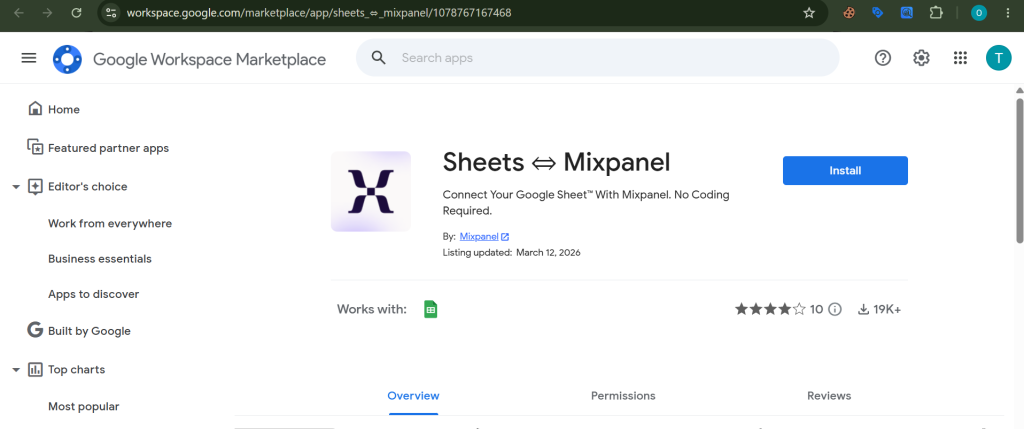
The first step is installing the Sheets ⇔ Mixpanel extension from the Google Workspace Marketplace.
https://workspace.google.com/marketplace/app/sheets_%E2%87%94_mixpanel/1078767167468
Once installed, open any Google Sheet.
Navigate to:
Extensions → Sheets ⇔ Mixpanel
You’ll now see two available options:
- Sheet → Mixpanel
- Mixpanel → Sheet
Each option serves a different purpose depending on whether you’re importing or exporting data.
How to Import Data From Google Sheets Into Mixpanel
Let’s start with importing data.
This workflow allows you to take rows from a spreadsheet and convert them into Mixpanel events, user properties, group properties, or lookup table data.
Step 1: Prepare Your Spreadsheet
Before importing, make sure your sheet contains clear column headers.
For event imports, you’ll typically need columns such as:
| Event Name | User ID | Time |
| Purchase | user123 | 2026-01-15 |
| Sign Up | user456 | 2026-01-16 |
Additional columns can be used as properties.
For example:
| Product | Revenue | Country |
| Coffee | 2.50 | USA |
These columns will become event properties inside Mixpanel.
Step 2: Open Sheet → Mixpanel
From the Extensions menu, choose:
Sheet → Mixpanel
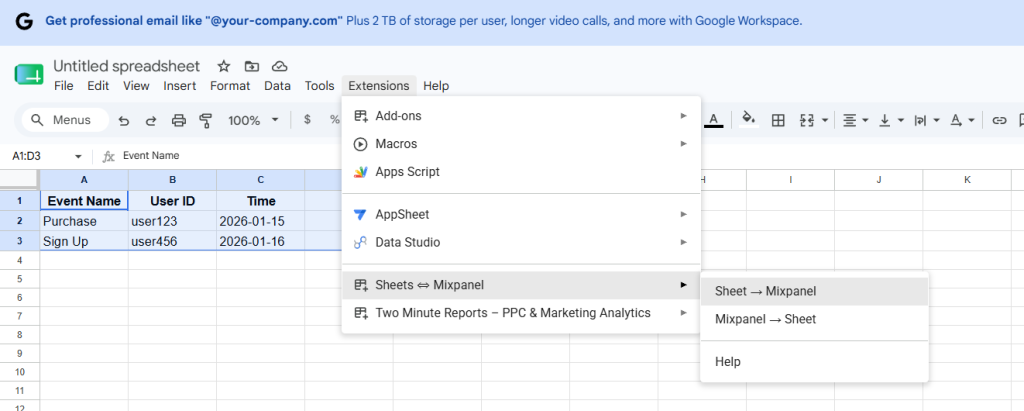
The extension will automatically read the column headers from your active sheet.
You’ll then choose what type of data you’re importing.
Options include:
- Events
- User Profiles
- Group Profiles
- Lookup Tables
Step 3: Map Your Columns
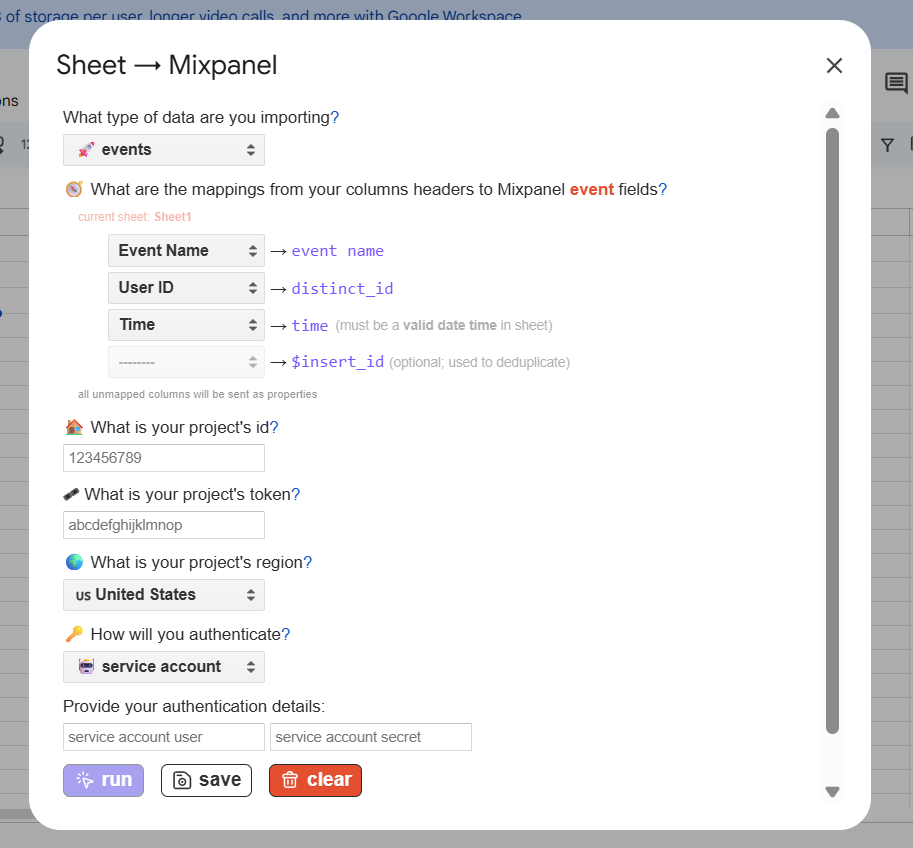
The visual mapper allows you to connect spreadsheet columns with Mixpanel fields.
For event imports, you’ll typically map:
Event Name
The event you want to create in Mixpanel.
Examples:
- Purchase
- Sign Up
- Trial Started
Distinct ID
The unique identifier for the user.
Examples:
- User ID
- Customer ID
- Account ID
Time
The timestamp for the event.
Google Sheets date fields are usually recognized automatically.
Insert ID (Optional)
Used to prevent duplicate event imports.
If you’re importing historical data, including an Insert ID is a good practice because it helps Mixpanel identify duplicate records.
Every additional column becomes an event property.
Step 4: Enter Your Mixpanel Credentials
The extension requires several details from your Mixpanel project.
These include:
Project ID
Used to identify the destination project.
Project Token
Allows events to be sent into Mixpanel.
Project Region
Determines the correct data residency location.
Examples:
- US
- EU
Service Account or Project Secret
Used for authentication.
If your organization already uses Service Accounts, this is generally the recommended approach.
Step 5: Run the Import
Before setting up any automation, run the import manually.
This allows you to verify:
- Event names
- Property mappings
- Timestamps
- User identifiers
Checking these details early can prevent large-scale data issues later.
Once everything looks correct, you can proceed with confidence.
How to Export Mixpanel Data Into Google Sheets
The second major use case is exporting Mixpanel data into Sheets.
This can save significant time for reporting workflows.
Instead of downloading CSV files repeatedly, you can pull reports directly into Google Sheets.
Step 1: Open Mixpanel → Sheet
Navigate to:
Extensions → Sheets ⇔ Mixpanel → Mixpanel → Sheet
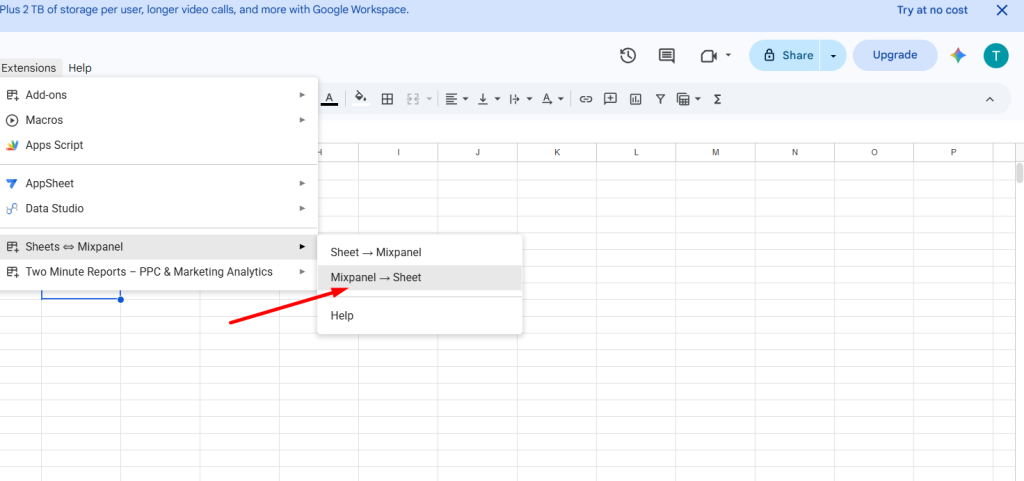
You’ll be presented with an export configuration screen.
Step 2: Copy Your Report URL
Open the Mixpanel report you want to export.
Supported report types include:
- Insights
- Funnels
- Retention
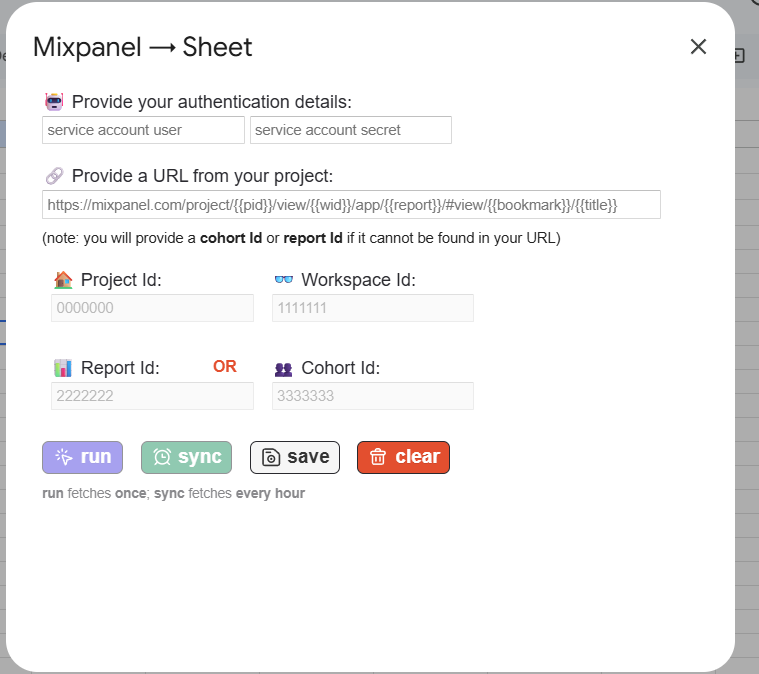
Copy the report URL and paste it into the extension.
The integration automatically extracts much of the required information from the URL.
This makes setup significantly easier.
Step 3: Enter Remaining Project Information
Depending on the report, you may need to provide:
- Project ID
- Workspace ID
- Report ID
- Cohort ID
- Service Account credentials
Once configured, the extension can retrieve the report data directly from Mixpanel.
Step 4: Run the Export
After running the export, Mixpanel creates a new sheet containing the report results.
The output is similar to exporting a CSV manually from Mixpanel, except it happens directly within Google Sheets.
This makes it easier to build dashboards, perform calculations, or combine Mixpanel data with information from other systems.
Automating Reports With Syncs
One of the most useful features of the integration is scheduled syncing.
Rather than running exports manually, you can configure automatic updates.
For example:
- Daily KPI reporting
- Weekly executive dashboards
- Monthly retention tracking
- Marketing performance reports
Once configured, Mixpanel can automatically refresh the data on a recurring schedule.
This reduces manual work and ensures stakeholders always see up-to-date information.
Understanding Run vs Sync
When setting up the integration, you’ll see four options:
Run
Executes the configuration once.
This is best for testing.
Sync
Creates an automated recurring process.
Save
Stores your configuration for future use.
Clear
Removes the saved configuration and sync settings.
As a best practice, always use Run first before enabling automated Syncs.
Testing helps identify configuration issues before automation begins.
Common Use Cases
Over the years, I’ve seen teams use the Mixpanel Google Sheets integration for several practical workflows.
Import Historical Data
When migrating from another analytics platform, historical events can often be imported from spreadsheets.
Share Reports With Non-Mixpanel Users
Executives and stakeholders frequently prefer spreadsheets over analytics dashboards.
Automatic exports make this easier.
Create Custom Dashboards
Some teams combine Mixpanel data with CRM, finance, and marketing data inside Google Sheets for unified reporting.
Maintain Customer Cohorts
Exporting cohorts into Sheets allows teams to enrich customer segments and share them across departments.
Troubleshooting Common Issues
If a manual export works but recurring syncs fail, the issue is often related to Google Apps Script triggers.
Recreating the trigger usually resolves the problem.
Another common issue occurs when users are signed into multiple Google accounts simultaneously.
If the spreadsheet belongs to one Google account but the extension is installed under another account, authentication errors can occur.
Using the same Google account for both the sheet and extension installation typically resolves the issue.
Final Thoughts
The Mixpanel Google Sheets integration is one of the easiest ways to move data between your analytics platform and spreadsheets.
If you’re importing historical events, exporting reports for stakeholders, building custom dashboards, or automating recurring reports, the integration eliminates much of the manual work involved in managing analytics data.
For teams already relying on Google Sheets as part of their workflow, connecting it with Mixpanel can create a more efficient reporting process while making analytics data accessible to a broader audience across the organization.