
What Is Mixpanel Lexicon?
Lexicon is Mixpanel’s built-in data dictionary. You’ll find it under Data → Lexicon in the left-hand navigation. Think of it as the central place where all the metadata about your tracked data lives — descriptions, ownership, query volume, status, and more.
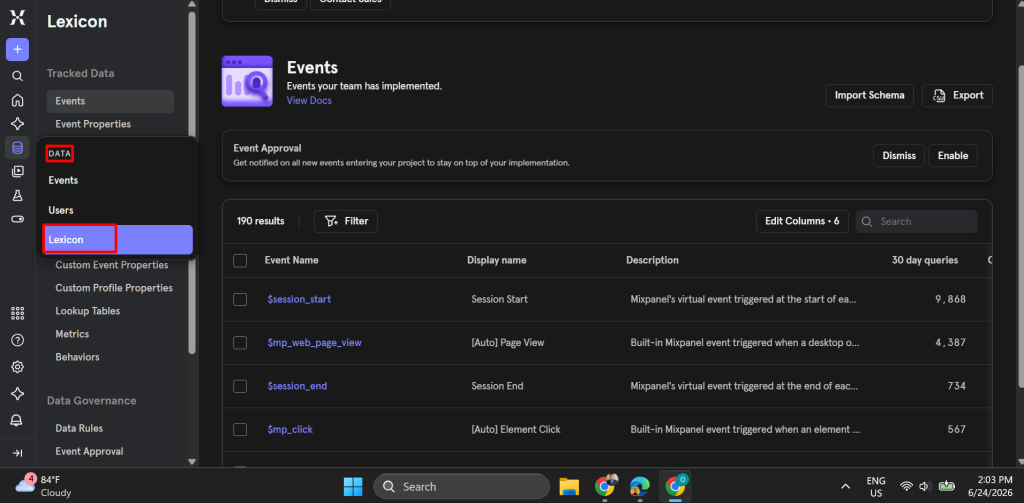
It has two main sections:
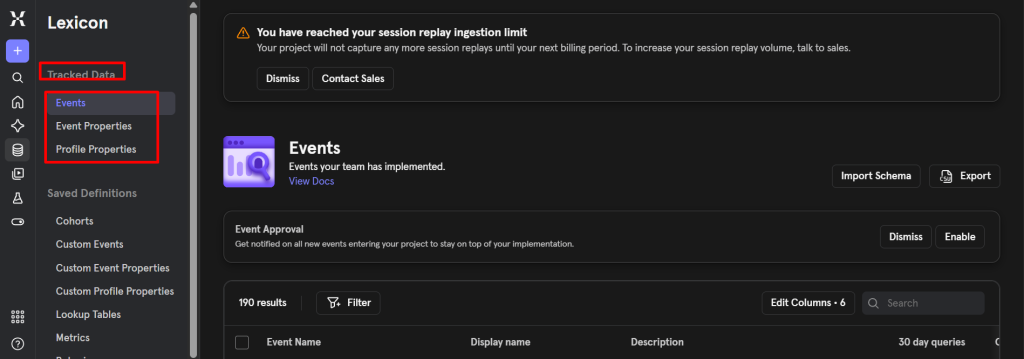
Tracked Data covers the raw stuff your implementation sends to Mixpanel — Events, Event Properties, and Profile Properties.
Computed Data covers what your team builds on top of that raw data — Cohorts, Custom Events, Lookup Tables, Formulas, and Behaviors.
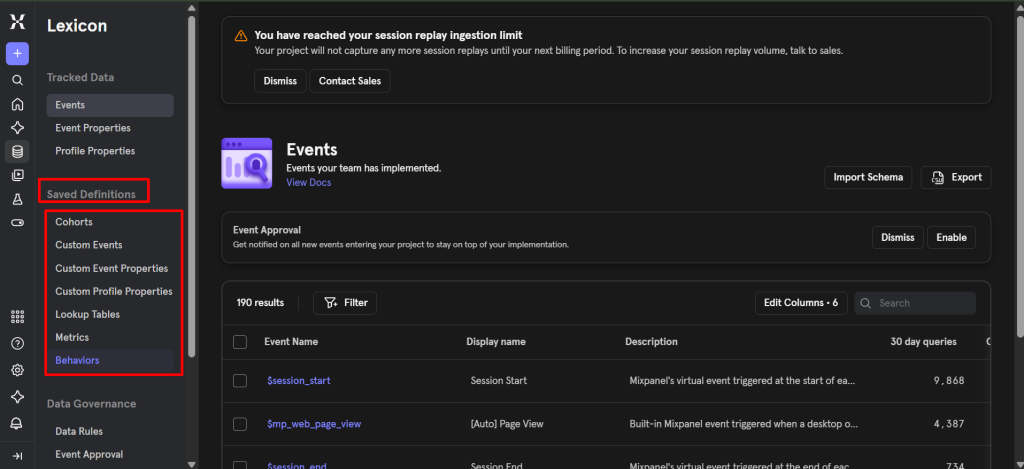
Most teams only look at Tracked Data. The Computed Data section is where you see how consistently your team is building analytical definitions — and whether those definitions are documented or just floating in someone’s head.
Step 1: Get Your First Read on the Events View
When I open Lexicon on a new client project, the first thing I do is look at two columns: 30-Day Queries and Status.
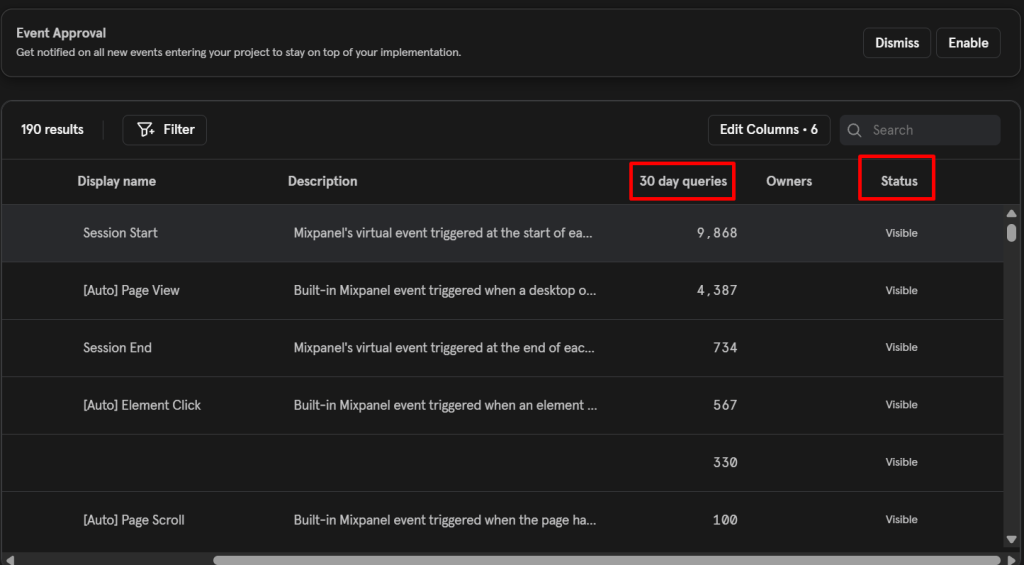
The 30-Day Volume column tells you how much data is flowing in. The 30-Day Queries column tells you how much of that data anyone actually uses. Those two numbers being wildly out of sync is always a red flag.
Here’s the quick read I do in the first five minutes of any Mixpanel audit:
- Sort by 30-Day Volume descending — are your highest-volume events documented? If not, start there. These drive the most reports and carry the most risk if misunderstood.
- Sort by 30-Day Queries ascending — events at zero queries with consistent volume are candidates for hiding or blocking. You’re paying to store data nobody looks at.
- Scan the Status column — anything sitting as Pending has no intentional governance applied to it yet.
That sorting exercise alone will tell you within ten minutes whether a Mixpanel project is healthy or not.
Step 2: Document Your Events Properly
Every event in Lexicon has a few fields worth filling in. Most teams fill in none of them.
The fields that matter most in practice are:
Display Name — This is the name that shows up throughout the Mixpanel interface. Your database event name might be purchase_v3_final_REAL . Your Display Name can be “Purchase Completed.” The underlying data stays exactly as it is in exports and API responses — you’re just cleaning up what analysts see every day.
Description — Write what triggers this event, what platform it fires on, and any quirks worth knowing. A one-liner is better than nothing. “Fires when a user completes checkout and the order confirmation page loads” is infinitely more useful than a blank field.
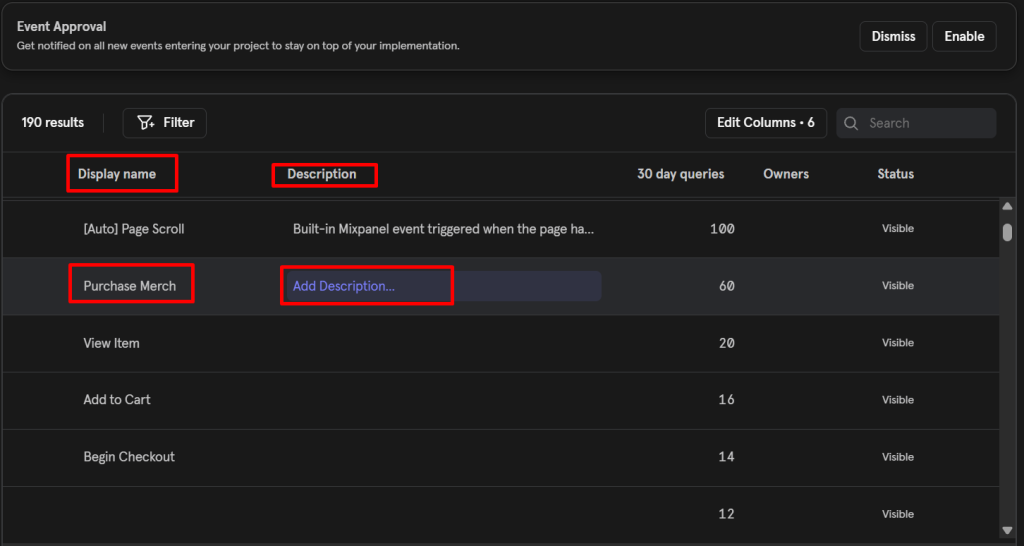
Owners — Assign someone as the point of contact. When a new analyst joins and has a question about this event six months from now, they need to know who to ask.
Tags and Platforms — These let you filter and categorize events later. If you have a large event library, tags like “checkout,” “onboarding,” or “engagement” will save a lot of scrolling.
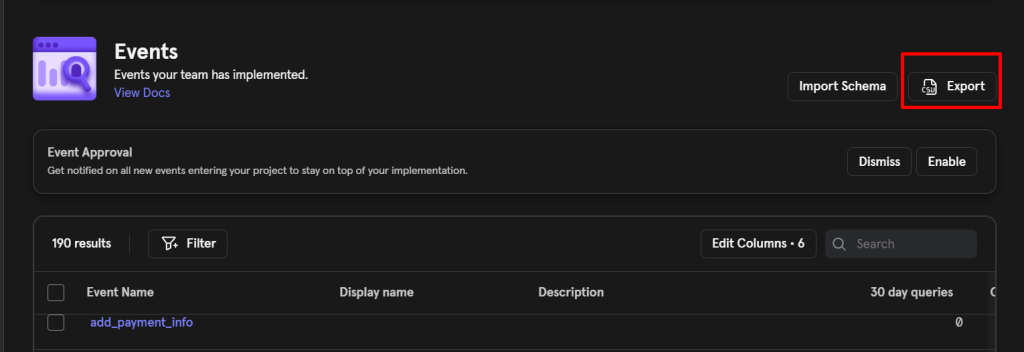
The fastest way to document a neglected project is to export the Lexicon as a CSV, fill everything in using a spreadsheet, and import it back. You can update descriptions, display names, and status for hundreds of events in one pass instead of clicking through each one individually.
Step 3: Understand the Difference Between Hiding and Blocking
This is the one I go over in detail with every client, because confusing these two can cause real problems.
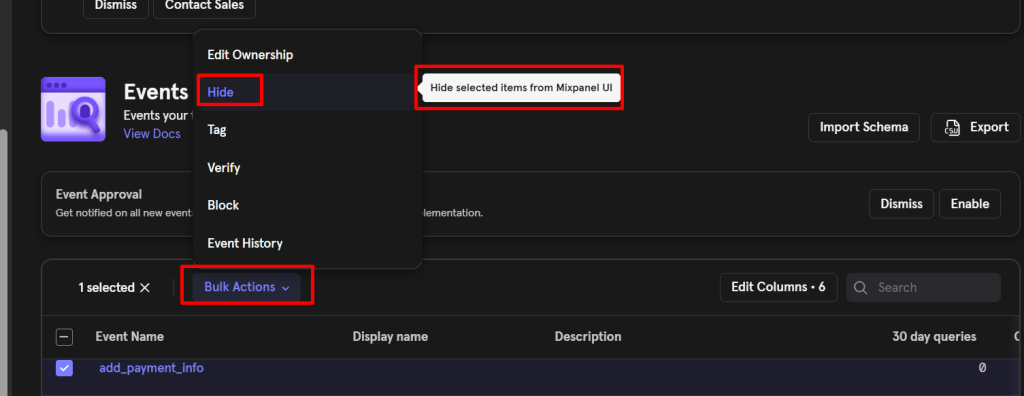
Hiding removes an event or property from the query builder and report dropdowns. The data continues to be ingested and stored normally. Nothing is lost. If you change your mind, you unhide it and it reappears. Hidden events are still accessible — analysts can search for them and manually select them using the “Show Hidden Events/Properties” option in the query builder.
Blocking stops Mixpanel from ingesting any new data for that event or property going forward. Previously stored data remains visible. New data is gone permanently — you cannot recover it.
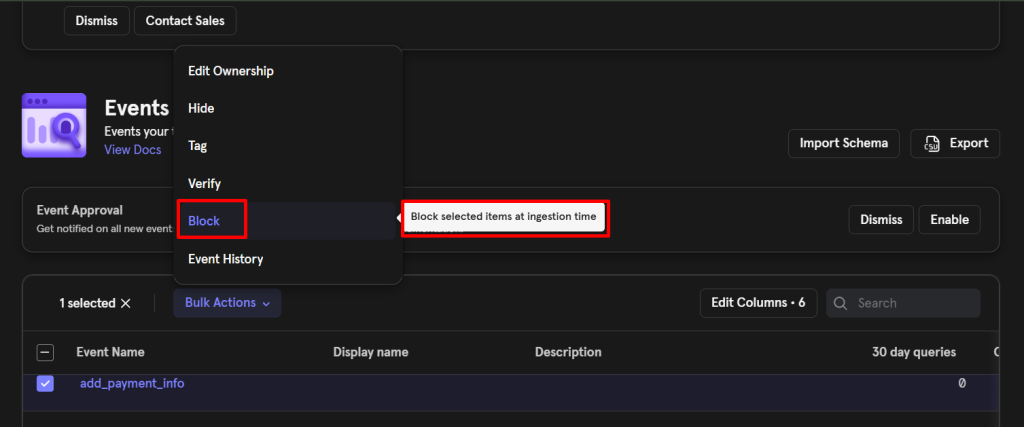
In practice: use hiding to clean up the query builder experience and reduce clutter. Use blocking only when you’ve confirmed you’ll never need that data again, or when there’s a genuine data sensitivity issue — like if someone accidentally sent credit card numbers as a custom property on a form submit event.
A few things to keep in mind with blocking:
- Only project owners can block events and properties
- It takes a few hours for Mixpanel to process the block after you set it
- Previously ingested data will still appear in the interface
There’s also a passive hiding mechanism worth knowing about. Mixpanel automatically hides events from dropdown menus if they haven’t been fired in the last 30 days. For properties and property values, that threshold is 28 days. So if you stop sending a deprecated event, it quietly falls out of the query builder on its own — no manual action needed. It won’t disappear from Lexicon itself, just from the active dropdowns.
Step 4: Merge Duplicate Events and Properties
Here’s a scenario I’ve seen on nearly every multi-platform implementation. The iOS team sends an event called Purchase. The Android team sends the same user action as purchase_item. Now every funnel report needs both selected. Every filter has to account for both. Analysts are getting confused about whether the numbers add up correctly.
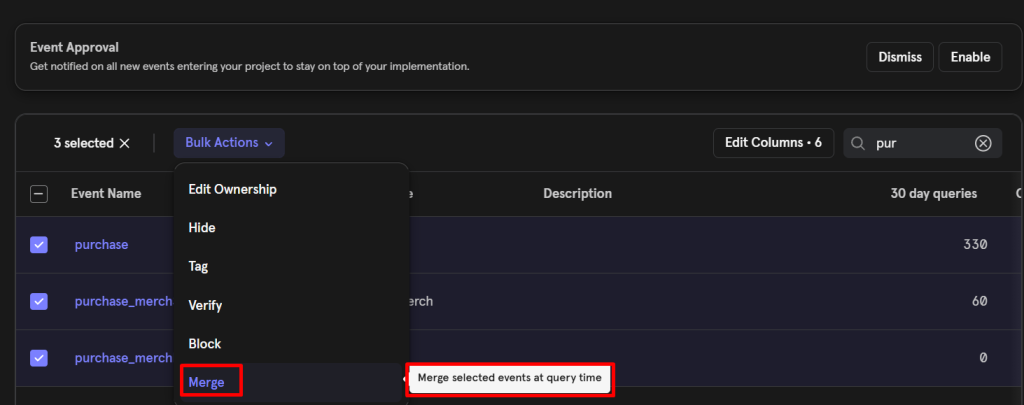
Merging in Lexicon lets you unify these into a single canonical event in the interface without touching your raw data. The underlying events stay exactly as they are in storage. Mixpanel just treats them as one thing everywhere in the UI.
Here’s how to do it:
- Go to Lexicon and select both events you want to merge (hold Shift or Cmd/Ctrl to multi-select)
- Click the Merge icon that appears in the toolbar
- In the “Merge Selected Events Into…” section, choose which event name becomes the canonical one — usually the more consistent or better-named option
- Click Merge. The merged event shows a “Merged” status in the Status column.
After you merge, go update any existing reports that referenced the absorbed event directly. This is the most common post-merge mistake — teams merge events and then wonder why certain saved reports suddenly have gaps. Mixpanel will warn you about this, but it’s easy to click through without fully registering it.
You can do the same thing with properties. If your web implementation sends view_detailsand your mobile sends view_name, you can merge those into one consistent property across your reporting.
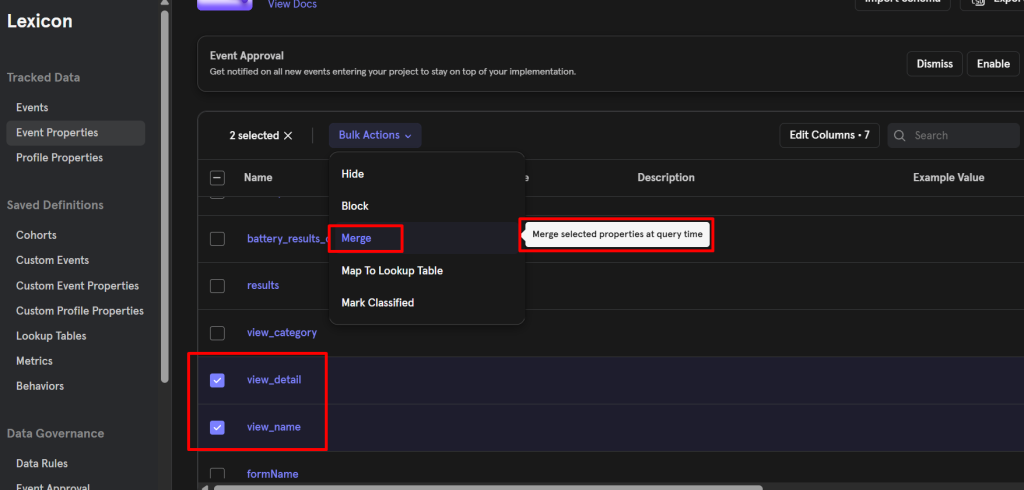
Two limitations worth noting: Autocapture events like [Auto] Page View and [Auto] Element Click cannot be merged. And user profile properties don’t support merging at this time — only events and event properties.
Step 5: Export, Edit in Bulk, and Import Back
The most efficient way to govern a large or undocumented Lexicon is through the export/import cycle rather than clicking through events one by one.
Here’s the workflow I use for client projects:
Export first, always. Before making any changes, export your current Lexicon as a CSV. This is your rollback reference. Project owners, admins, and analysts can all trigger this from the top right of the Lexicon view. You’ll get an email with a download link valid for 14 days. The export can hold up to 5,000 events and 2,000 properties per event.
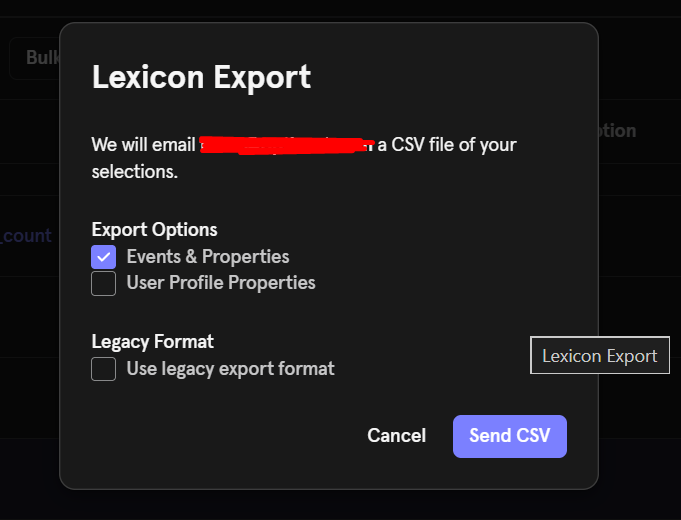
Edit in the spreadsheet. Add descriptions, display names, owners, and example values. Flag events that need merging or hiding. This is much faster than working event by event in the UI.
Import back and review the diff. When you import, Mixpanel shows you a preview of what will change. Existing descriptions for matching event names will be overwritten by what’s in your CSV. If you want to overwrite your entire data dictionary rather than just update matching entries, there’s an option for that during the import flow — make sure you know which mode you’re in before confirming.
Lexicon also accepts imports from Segment Protocols, Avo.app, and mParticle, so if your team already maintains a data dictionary in one of those tools, you don’t have to start from scratch.
Step 6: Use the Schemas API for Automated Governance
For teams building more mature data operations workflows, Mixpanel provides a Lexicon Schemas API that lets you programmatically create, retrieve, and delete dictionary entries.
One important caveat: the API only returns entities that have an associated schema — meaning events and properties that have had some metadata added via the UI, a CSV import, or a previous API call. Events that have been firing in the last 30 days but have never been documented won’t appear in the API response.
This matters if you’re building governance tools on top of the API. You can end up with a technically complete-looking API export that’s actually missing a significant chunk of your active event library. For a complete picture of everything in your Mixpanel project — including undocumented active events — use the CSV export, not the API.
Common Mistakes to Avoid
Blocking instead of hiding. Someone wants to clean up quickly, reaches for Block because it sounds more decisive, and permanently loses incoming data for an event that was feeding a downstream pipeline. Always hide first, confirm it’s truly unneeded, then consider blocking.
Skipping report updates after merging. After you merge two events, any report that directly referenced the absorbed event will break. Budget time for a post-merge report audit — it’s not automatic.
Relying on the Schemas API for discovery. If an event has been firing but nobody has documented it, the API won’t know it exists. Use CSV export for audits, not the API.
Treating Lexicon as a one-time project. The most common issue of all. You clean it up once, feel good, and three months later it’s chaos again because every sprint added new events without any documentation. Lexicon governance needs to be part of your regular cadence — even 30 minutes every two weeks is enough to stay ahead of it.
The Quick Audit Checklist
If you want to run a Lexicon audit right now, here’s the sequence:
- Export the current Lexicon as a CSV before touching anything
- Sort by 30-Day Volume descending — are your highest-volume events documented?
- Sort by 30-Day Queries ascending — flag zero-query events for potential hiding
- Look for naming inconsistencies that could be merged
- Check that every key conversion event has an Owner assigned
- Fill in Description and Example Value for any property that isn’t self-explanatory
- Import your updated CSV and review the preview before confirming
That’s the full picture. Lexicon isn’t the most glamorous part of a Mixpanel implementation, but it’s often the difference between a project your whole team can trust and one where everyone quietly builds their own version of the truth in a spreadsheet somewhere.