
Analytics can tell you what users did.
Session Replay helps you understand why they did it.
You might notice that 70% of users abandon your signup flow.
Or that a checkout page has a low conversion rate.
Or that a newly launched feature isn’t getting adopted.
Traditional analytics can highlight the problem.
But they usually can’t explain what users experienced before the problem occurred.
That’s where Session Replay and Heatmaps become valuable.
Instead of relying solely on event data, you can watch actual user sessions, identify friction points, and understand how users interact with your website or product.
The good news is that if you’re already using Google Tag Manager (GTM), enabling Mixpanel Session Replay and Heatmaps only takes a few minutes.
In this guide, you’ll learn how to configure Session Replay and Heatmaps through GTM, how they work, and the best practices for collecting useful data while maintaining privacy.
What Is Mixpanel Session Replay?
Session Replay allows you to watch recordings of actual user sessions.
Rather than looking at a list of events, you can see:
- Mouse movements
- Clicks
- Scrolling behavior
- Navigation patterns
- Friction points
- Errors encountered during sessions
Think of it as watching a video of how users interact with your website.
This makes it much easier to answer questions like:
- Why are users abandoning checkout?
- What happens before a user churns?
- Why aren’t users completing onboarding?
- Which part of the page is causing confusion?
Instead of guessing, you can see exactly what happened.
What Are Heatmaps?
Heatmaps provide a visual representation of user engagement.
They show:
- Where users click
- Which elements attract attention
- Which sections receive the most engagement
- Areas users largely ignore
For example, you may discover:
- A call-to-action button is rarely clicked
- Users focus on content lower on the page
- Important features are being overlooked
These insights can lead to significant improvements in user experience and conversion rates.
While Session Replay focuses on individual behavior, Heatmaps help identify patterns across large groups of users.
Why Use Session Replay Alongside Analytics?
Many teams make decisions based only on event data.
For example:
You discover that only 20% of users complete onboarding.
Analytics tells you what happened.
Session Replay shows you why.
You might discover:
- Users repeatedly click a non-clickable element
- A button appears broken
- A form validation error isn’t obvious
- Users get stuck on a specific step
This context is often impossible to obtain through events alone.
Combining Session Replay with Mixpanel reports creates a much deeper understanding of user behavior.
Before You Start
Before enabling Session Replay, make sure:
- Mixpanel is already installed through GTM
- Your initialization tag is working correctly
- Events are successfully being sent to Mixpanel
If you haven’t completed the initial Mixpanel setup yet, it’s best to do that first before enabling additional features.
How Session Replay Works in GTM
The Mixpanel GTM template supports Session Replay through initialization options.
Instead of installing another script manually, you simply configure the existing Mixpanel initialization tag.
When the tag loads, Mixpanel begins collecting replay data based on your settings.
This makes implementation significantly easier compared to many standalone replay tools.
Step 1: Open Your Mixpanel Initialization Tag
Inside Google Tag Manager:
Navigate to:
Tags → Mixpanel Initialization Tag
Open the tag.
If you haven’t created an initialization tag yet, create one using the Mixpanel template and select:
Tag Type = init
This tag controls how Mixpanel behaves across your website.
Step 2: Enable Session Replay
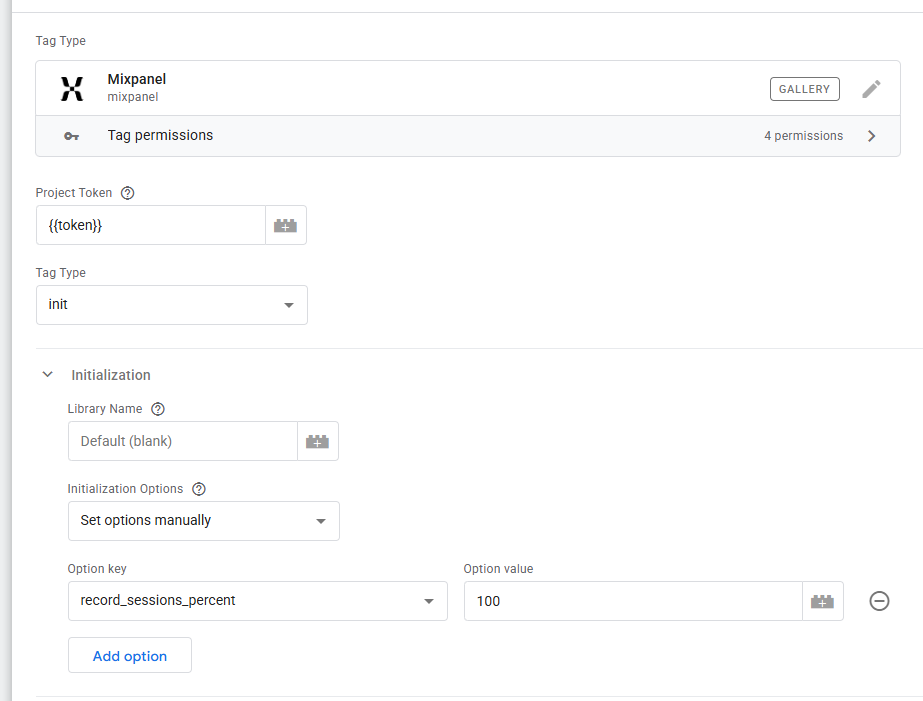
Within the initialization settings, choose:
Set Options Manually
Add a new option:
record_sessions_percent
Value:
100
This tells Mixpanel to record 100% of eligible sessions.
For high-traffic websites, you may want to start with:
25
or
50
to reduce replay volume.
The percentage determines how many sessions are recorded.
Understanding Session Sampling
Recording every session isn’t always necessary.
For example:
A website with 5 million monthly sessions probably doesn’t need replay data from every visitor.
Sampling allows you to balance:
- Data volume
- Storage costs
- Performance
- Investigation needs
Many teams start with:
10% – 25%
and increase later if needed.
For smaller websites, recording all sessions is usually reasonable.
Step 3: Enable Heatmaps
Heatmaps are enabled using another initialization option.
Add:
record_heatmap_data
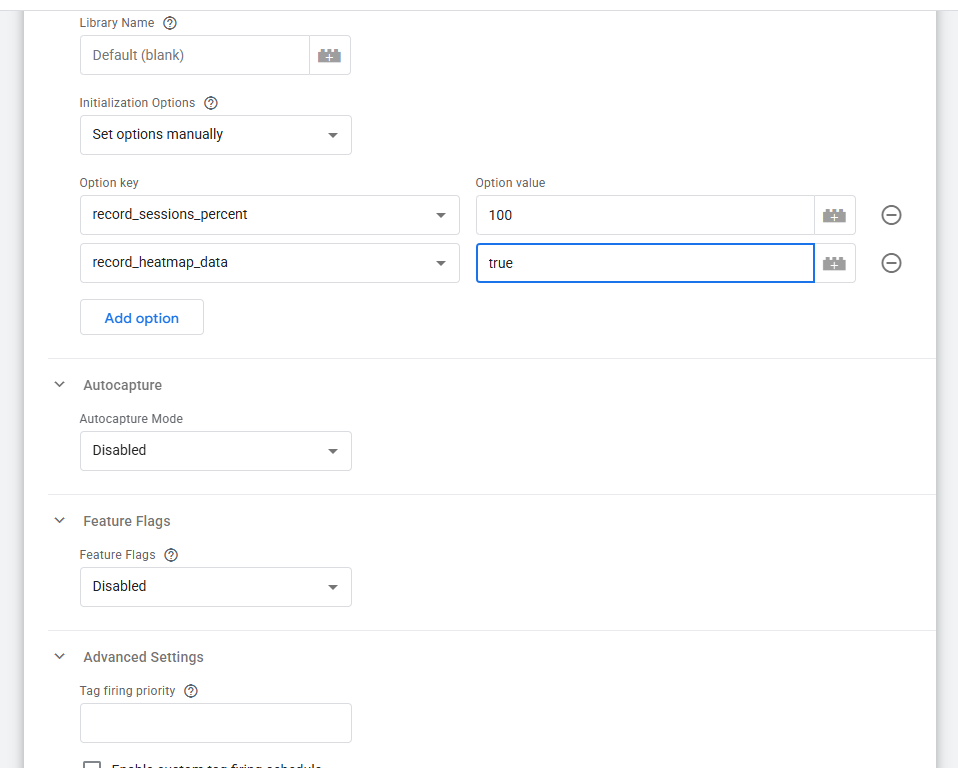
Set the value to:
true
This allows Mixpanel to collect interaction data used to generate Heatmaps.
Once enabled, Heatmaps begin collecting data automatically.
No additional event configuration is required.
Step 4: Configure Data Residency (If Applicable)
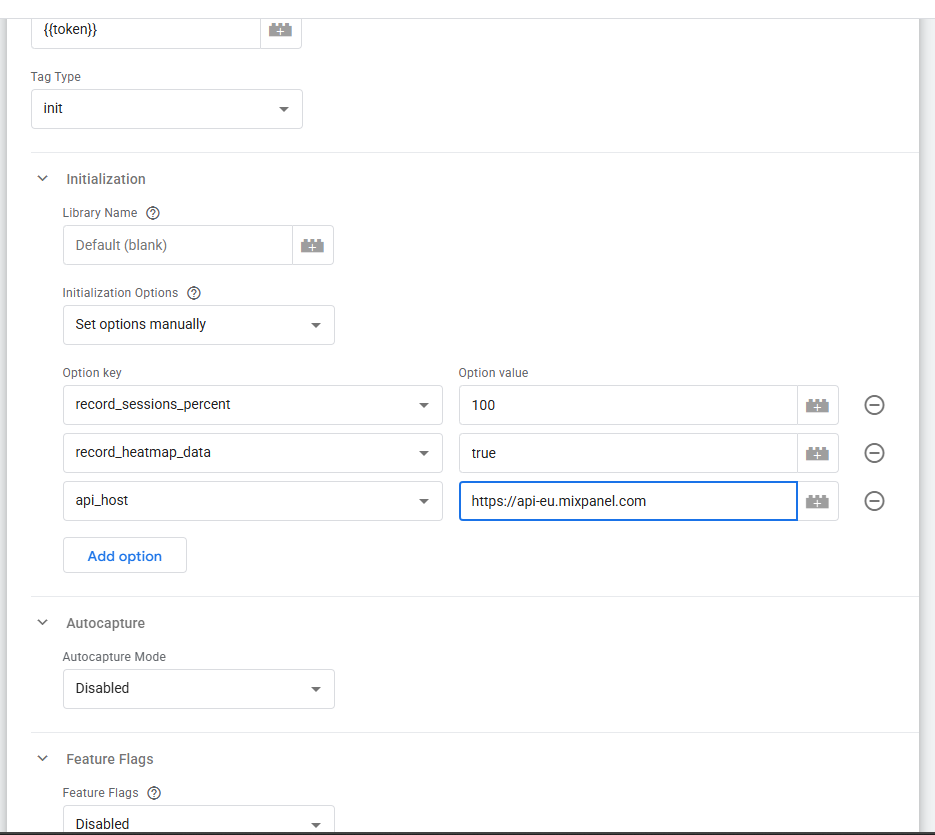
If your Mixpanel project uses regional data storage, you’ll need to specify the correct API host.
For EU Data Residency
api_host
Value:
For India Data Residency
api_host
Value:
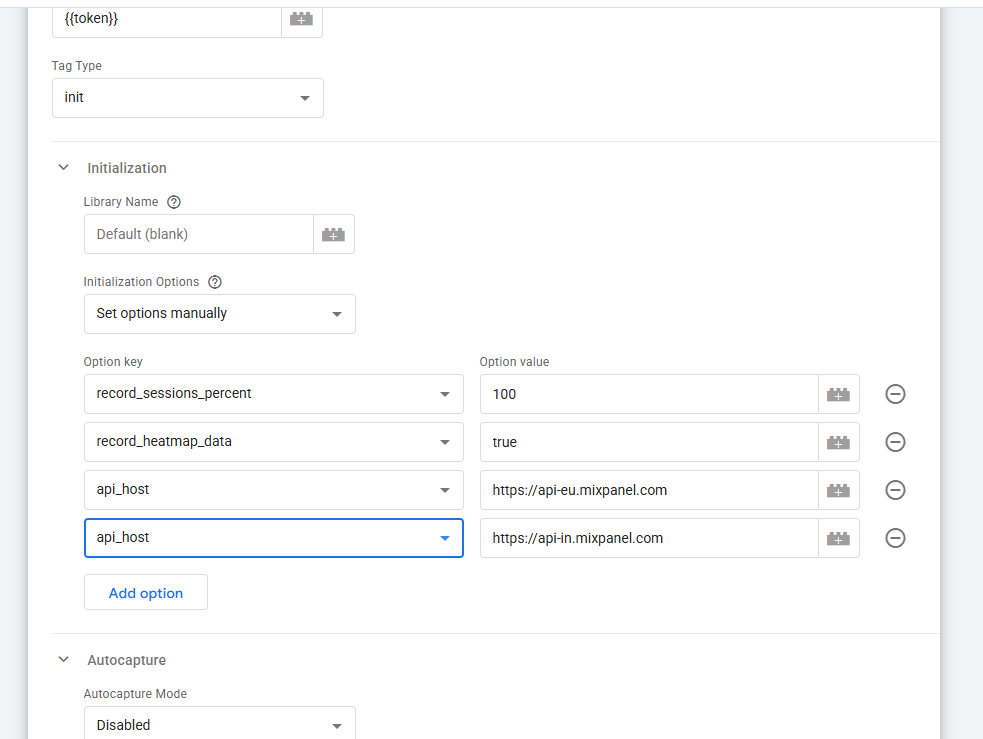
This ensures replay data is routed correctly.
Step 5: Choose the Right Trigger
Your Mixpanel initialization tag should fire as early as possible.
Recommended triggers:
Initialization – All Pages
or
Consent Initialization – All Pages
This ensures replay collection begins when the page loads.
Testing Session Replay
Before publishing changes, always test.
Open GTM Preview Mode.
Visit your website.
Interact with:
- Navigation menus
- Forms
- Buttons
- Product pages
Verify that:
- The Mixpanel tag fires correctly
- No JavaScript errors occur
- Replay collection begins
Once data reaches Mixpanel, replay sessions should start appearing in the Session Replay section.
How Long Does Replay Data Take to Appear?
Many teams expect replays instantly.
In practice, there can be a short processing delay before recordings become available.
If data doesn’t appear immediately:
- Verify initialization settings
- Confirm tags fired correctly
- Check browser console logs
- Review Mixpanel debugging information
Patience during initial testing is normal.
Using Session Replay to Improve Conversions
One of the most valuable use cases for Session Replay is conversion optimization.
Imagine your signup funnel looks like this:
- Landing Page Viewed
- Signup Started
- Signup Abandoned
Analytics tells you users are dropping off.
Replay shows exactly where.
You may discover:
- Users can’t find the submit button
- A field validation error is confusing
- Mobile users encounter layout issues
- A slow-loading component causes frustration
These insights often lead to quick wins.
Using Heatmaps to Improve User Experience
Heatmaps are excellent for answering questions such as:
- Are users clicking my CTA?
- Which sections get the most attention?
- Are important elements being ignored?
- Do users scroll far enough to see key content?
For example:
You may discover that only a small percentage of users scroll to a section containing your primary conversion offer.
Moving that content higher on the page could significantly increase conversions.
These are insights that traditional analytics often misses.
Privacy Considerations
Session Replay is powerful, but privacy should always be considered.
Before enabling replay:
- Review legal requirements
- Verify consent policies
- Understand privacy regulations
- Ensure sensitive data isn’t exposed
This is particularly important for industries handling:
- Healthcare information
- Financial information
- Personally identifiable information
Always review your organization’s compliance requirements before deploying replay tools.
Common Mistakes When Enabling Session Replay
Recording Too Few Sessions
Very low sampling rates often make investigation difficult.
Start with enough data to identify meaningful patterns.
Ignoring Privacy Requirements
Replay tools should never be implemented without considering compliance obligations.
Not Linking Replays to Events
Replay becomes significantly more valuable when paired with Mixpanel events.
Events provide context.
Replay provides explanation.
Together they create a complete picture.
Looking at Individual Sessions Only
Replay is useful for understanding individual behavior.
Heatmaps help reveal broader trends.
The strongest analysis combines both.
When Should You Use Session Replay?
Session Replay is particularly valuable when:
- Optimizing onboarding
- Improving conversion funnels
- Investigating churn
- Debugging UX issues
- Understanding feature adoption
- Reducing friction during signup
If your team regularly asks “Why are users doing this?”, replay data can provide the answer.
Turning Analytics Into Understanding
Most analytics platforms excel at identifying what happened.
Few help explain why it happened.
That’s why Session Replay and Heatmaps are such valuable additions to a Mixpanel implementation.
By combining event tracking, funnels, user journeys, Session Replay, and Heatmaps, teams gain a much more complete understanding of customer behavior.
Instead of making assumptions about user experience, you can observe real interactions, uncover hidden friction, and make improvements based on actual user behavior rather than guesswork.