
A few months ago, a client wanted to redesign their onboarding flow.
The goal was simple: help new users reach activation faster.
The product team was confident the new design would improve conversions. The UX team loved it. Engineering had already finished development.
The only problem?
Nobody knew what would happen when real users started using it.
Releasing the new onboarding to 100% of users felt risky. If activation dropped, thousands of new users could be affected before anyone noticed.
Instead of replacing the existing onboarding flow, we launched the new experience behind a Mixpanel Feature Flag.
Initially, only 10% of new users saw the new version.
Three days later, we compared activation rates between users who saw the old onboarding and users who saw the new one.
The result?
The new flow increased activation by almost 9%.
After that, we gradually increased the rollout from 10% to 25%, then 50%, and eventually 100%.
No emergency deployments.
No rollback.
No guessing.
Just data-driven decisions.
That’s exactly why Feature Flags have become such an important part of modern product development.
What Are Feature Flags?
Think of a Feature Flag as a switch.
The code can already be deployed to production, but the feature remains hidden until you decide to enable it.
Without Feature Flags, releasing a feature usually looks like this:
- Deploy code
- Release feature
- Hope everything works
With Feature Flags, the process becomes:
- Deploy code
- Enable for a small group of users
- Measure impact
- Expand rollout if results are positive
That extra control can save a lot of headaches.
Especially when you’re working on features that directly impact signups, revenue, or retention.
Why Product Teams Love Feature Flags
Feature Flags aren’t just about reducing risk.
They also make experimentation significantly easier.
Let’s say you’re considering a new pricing page.
Instead of replacing the existing version, you can expose the new version to a small percentage of users and compare results.
Questions become much easier to answer:
- Does the new design improve conversions?
- Do users spend more time exploring features?
- Does activation increase?
- Does retention improve?
Rather than relying on opinions, you can rely on actual user behavior.
That’s where Mixpanel becomes particularly useful because the experimentation and analytics live in the same platform.
Setting Up Feature Flags in Mixpanel
Before touching Google Tag Manager, you’ll need to create a Feature Flag inside Mixpanel.
Navigate to the Feature Flags section and create a new flag.
For example:
new_onboarding
Keep flag names simple and descriptive.
A few months from now, you’ll thank yourself.
I’ve seen projects with flag names like:
test_v2_final_new
Nobody remembers what that means six months later.
Use names that clearly describe the experience being controlled.
Configuring Feature Flags in GTM
If you’re already using the Mixpanel GTM template, the setup is surprisingly straightforward.
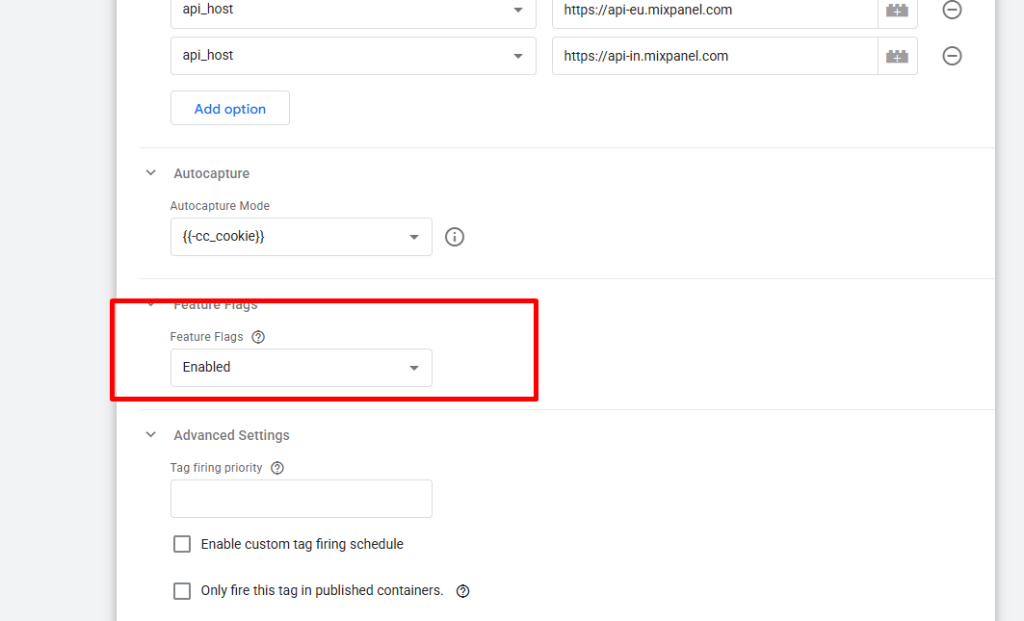
Open your Mixpanel initialization tag.
Inside the configuration settings, enable Feature Flags.
Once enabled, Mixpanel will automatically fetch available flags for the current user.
At this point, the basic setup is complete.
However, where things get interesting is user targeting.
Don’t Roll Out Features to Random Users
This is one mistake I see quite often.
A team creates a Feature Flag and immediately releases it to 10% of all users.
That works.
But there are usually better approaches.
For example, when testing a new dashboard experience, I generally prefer this rollout sequence:
- Internal team
- Customer Success team
- Power users
- Existing customers
- New customers
- Everyone else
Why?
Because bugs are far less expensive when discovered internally than when discovered by paying customers.
A percentage-based rollout is useful.
A user-based rollout is usually smarter.
Passing User Context Through GTM
Feature Flags become much more powerful when Mixpanel knows something about the user.
For example:
- Subscription plan
- Company size
- User role
- Country
- Product tier
Imagine you only want Enterprise customers to see a feature.
You can pass those attributes through GTM using Data Layer Variables.
Example:
dataLayer.push({
company_size: “enterprise”,
plan_type: “enterprise”
});
Mixpanel can then use those attributes when deciding who receives the feature.
This creates significantly more flexibility than simple percentage rollouts.
A Practical Example
Let’s say you’re building a new reporting dashboard.
You don’t want every customer seeing it immediately.
Instead, you create a Feature Flag:
new_reporting_dashboard
You then target:
- Enterprise customers only
- Accounts with more than 50 users
Over the next two weeks, you monitor:
- Dashboard usage
- Session duration
- Feature adoption
- Support tickets
If engagement improves and support requests remain stable, you can gradually expand access.
This approach dramatically reduces release risk.
Measuring Whether a Feature Is Successful
A Feature Flag without measurement isn’t particularly useful.
You still need to define success.
Before enabling any rollout, ask:
“What outcome are we trying to improve?”
Examples:
- Activation Rate
- Trial Conversion Rate
- Feature Adoption
- Retention
- Revenue
I’ve seen teams spend weeks testing features without defining a success metric first.
When the experiment ended, nobody knew whether the feature actually worked.
Start with the business goal.
Then launch the feature.
Not the other way around.
Feature Flags and A/B Testing
One of my favorite use cases is onboarding experiments.
Imagine two onboarding experiences:
Version A is your existing flow.
Version B includes:
- Fewer steps
- Better guidance
- Updated messaging
Instead of replacing the original flow, you expose Version B to a percentage of users.
Now you can compare:
- Activation
- Retention
- Subscription upgrades
If Version B performs better, make it the default experience.
Simple.
This is much safer than launching a redesign to every user and hoping for the best.
Common Mistakes I See
Treating Feature Flags as Permanent Solutions
Feature Flags are temporary controls.
Once a rollout is complete, remove the flag.
Otherwise, you’ll eventually accumulate dozens of unused flags that nobody understands.
Launching Without Success Metrics
Always define success before launching.
Otherwise you’ll spend time collecting data that doesn’t help you make decisions.
Releasing Features Too Quickly
A rollout from 10% to 100% in a single day defeats much of the purpose.
Let the data accumulate.
Give users time to interact with the feature.
Ignoring User Segments
Not every feature should be released to every user.
Targeting often produces much better results than broad rollouts.
How I Typically Use Feature Flags
When implementing Mixpanel for SaaS companies, Feature Flags usually fall into three categories:
New Features
Testing entirely new functionality before wider release.
UX Improvements
Validating design changes before affecting every user.
Experimentation
Comparing different experiences and measuring outcomes.
In all three cases, the goal is the same:
Reduce risk and make decisions based on data rather than assumptions.
Feature Flags don’t guarantee successful releases.
But they do make it much easier to learn what actually works before committing to a full rollout.
And when they’re combined with Mixpanel’s analytics capabilities, they become one of the most valuable tools available to product teams looking to improve their products with confidence.