
A few years ago, one of my clients noticed that their GA4 traffic had dropped almost overnight.
There hadn’t been a website outage.
Marketing campaigns were still running.
Google Search Console showed healthy organic visibility.
Yet GA4 was reporting significantly fewer users.
Everyone assumed tracking had broken.
After a few minutes of investigation, we found the culprit.
Someone had changed a GA4 Data Filter from Testing to Active without understanding its impact.
The filter was working exactly as configured.
The problem was that nobody had validated whether the configuration was correct before activating it.
Unlike many GA4 settings, Data Filters can permanently change the data that appears in your reports.
That’s why reviewing them should be part of every GA4 audit.
How GA Auditor Helps
Data Filters are easy to overlook because they’re buried within the Admin settings.
Many organizations configure them during implementation and never revisit them.
Others inherit GA4 properties and assume existing filters are working correctly.
GA Auditor reviews Data Filters as part of its 150+ point GA4 audit checklist, helping businesses understand which traffic is being filtered, whether those filters align with business needs, and whether important data could be excluded unintentionally.
The goal isn’t simply to reduce noise.
It’s to preserve the integrity of your reporting.
What Are Data Filters in GA4?
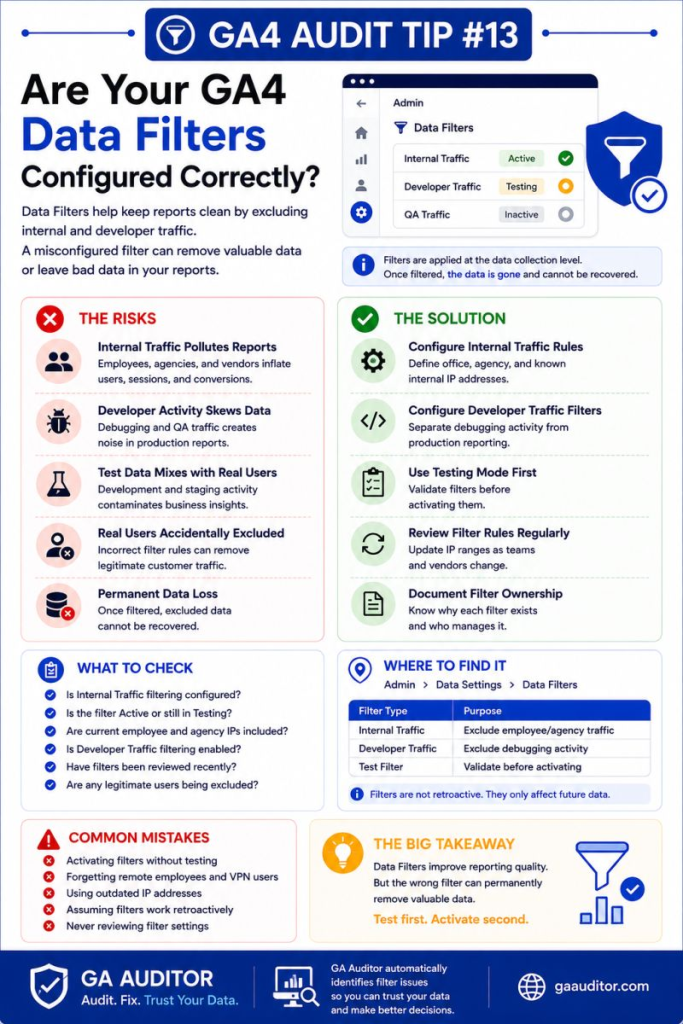
Data Filters allow you to control how certain types of traffic appear in your GA4 reports.
Instead of collecting everything indiscriminately, GA4 can identify specific traffic categories and determine how they should be handled.
At the time of writing, the most commonly used filters include:
- Internal Traffic
- Developer Traffic
Each filter can operate in different modes depending on your confidence in the setup.
Why Data Filters Matter
Most businesses want cleaner reports.
Nobody wants employee testing, developer activity, or unnecessary noise affecting their analysis.
But filtering comes with responsibility.
Because once data is excluded through an active filter, it cannot be recovered within GA4.
This can affect:
- User counts
- Session totals
- Conversion reporting
- Funnel analysis
- Audience creation
- Benchmarking
- Historical comparisons
The challenge isn’t deciding whether to use filters.
The challenge is using them correctly.
Common Issues Found During Audits
Filters Were Activated Without Testing
This is probably the most common issue I see.
Someone configures a filter and immediately switches it to Active.
Nobody validates whether legitimate users are being excluded.
The reports change.
The team panics.
Testing Mode Is Never Reviewed
The opposite problem also occurs.
Filters remain in Testing mode indefinitely.
Internal traffic continues appearing in reports because nobody completes the validation process.
Internal Traffic Definitions Are Outdated
Businesses evolve.
Employees move.
Agencies change.
Remote work becomes more common.
The original definitions no longer reflect reality.
Nobody Understands Existing Filters
Inherited GA4 properties often contain filters that nobody remembers creating.
Questions such as:
“Why is this filter here?”
or
“What exactly does it exclude?”
become surprisingly common.
Developer Traffic Is Ignored
Development teams frequently test websites before launch.
Without proper management, those interactions can influence reporting.
Understanding Filter Modes
One of the most important concepts during an audit is understanding filter status.
Testing Mode
Testing allows you to evaluate whether a filter behaves as expected.
The data remains available while you validate the setup.
This is often the safest starting point.
Active Mode
Active filters exclude matching traffic from standard reporting.
Once active, the excluded data cannot simply be restored.
That’s why testing matters.
How to Audit Data Filters in GA4
Navigate to:
Admin → Data Settings → Data Filters
Review each filter individually.
Ask yourself:
- What type of traffic is this filtering?
- Is the filter still necessary?
- Has it been validated?
- Is the current status appropriate?
- Does the business understand its impact?
Simple questions often uncover overlooked issues.
Questions Worth Asking During an Audit
When reviewing filters, I usually ask:
- Who configured these filters?
- Were they ever tested?
- Has the organization changed since implementation?
- Are remote employees considered?
- Are developers actively testing the website?
- Does leadership understand how filters affect reporting?
These conversations often reveal gaps between implementation and operational reality.
Signs Your Filters Need Attention
A filter review may be worthwhile if you notice:
- Sudden changes in users or sessions.
- Unexpected traffic declines.
- Differences between reporting platforms.
- Internal users appearing in reports.
- Teams unsure how filters work.
- No documentation explaining current settings.
None of these guarantee a problem.
But they usually justify investigation.
Best Practices
A few habits can help avoid unnecessary surprises.
- Always start with Testing mode.
- Validate filters before activation.
- Review internal traffic definitions regularly.
- Update configurations after organizational changes.
- Document why each filter exists.
- Educate stakeholders about filter impacts.
- Include filter reviews in recurring audits.
Data quality is easier to protect than it is to rebuild.
Data Filter Audit Checklist
Use this checklist during your next GA4 review:
□ Review all existing Data Filters.
□ Confirm which filters are active.
□ Validate Testing mode configurations.
□ Review Internal Traffic filters.
□ Review Developer Traffic filters.
□ Update outdated traffic definitions.
□ Document filter purposes.
□ Educate stakeholders on reporting impacts.
□ Include filter reviews in annual audits.
Wrapping Up
Data Filters can dramatically improve reporting quality when they’re implemented thoughtfully.
They can also create confusion when nobody remembers how they work or why they were activated in the first place.
The good news is that reviewing them doesn’t take long.
A few minutes spent understanding your filters can prevent weeks of questions about unexpected reporting changes later.
Because the goal of filtering isn’t to remove data.
It’s to remove the right data while preserving the insights your business depends on.