
I was reviewing a GA4 property with a client when the marketing director asked a question that caught everyone off guard.
“Why do our user numbers look different this month?”
Traffic hadn’t dropped.
Campaigns were still running.
There hadn’t been a major website change.
Yet the user count in GA4 looked noticeably different from what the team expected.
After a few minutes of investigation, we found the answer.
Someone had changed the Reporting Identity setting.
Nothing had broken.
GA4 was simply counting users differently.
This is one of the reasons I always review Reporting Identity during a GA4 audit. It’s a setting that quietly influences some of your most important metrics, yet many teams don’t even know it exists.
If your organization relies on user counts, audience sizes, cross-device analysis, or stakeholder reporting, understanding Reporting Identity is essential.
How GA Auditor Helps
Reporting Identity issues don’t generate alerts.
GA4 won’t tell you:
“Your user numbers changed because someone adjusted identity settings.”
Reports continue to populate.
Dashboards continue to update.
The only thing that changes is how GA4 interprets users.
GA Auditor reviews Reporting Identity as part of its 150+ point GA4 audit checklist, helping organizations understand whether their identity settings align with their implementation, business objectives, and stakeholder expectations.
The objective isn’t to find the “right” identity setting.
It’s to make sure the chosen approach is intentional and understood.
What Is Reporting Identity in GA4?
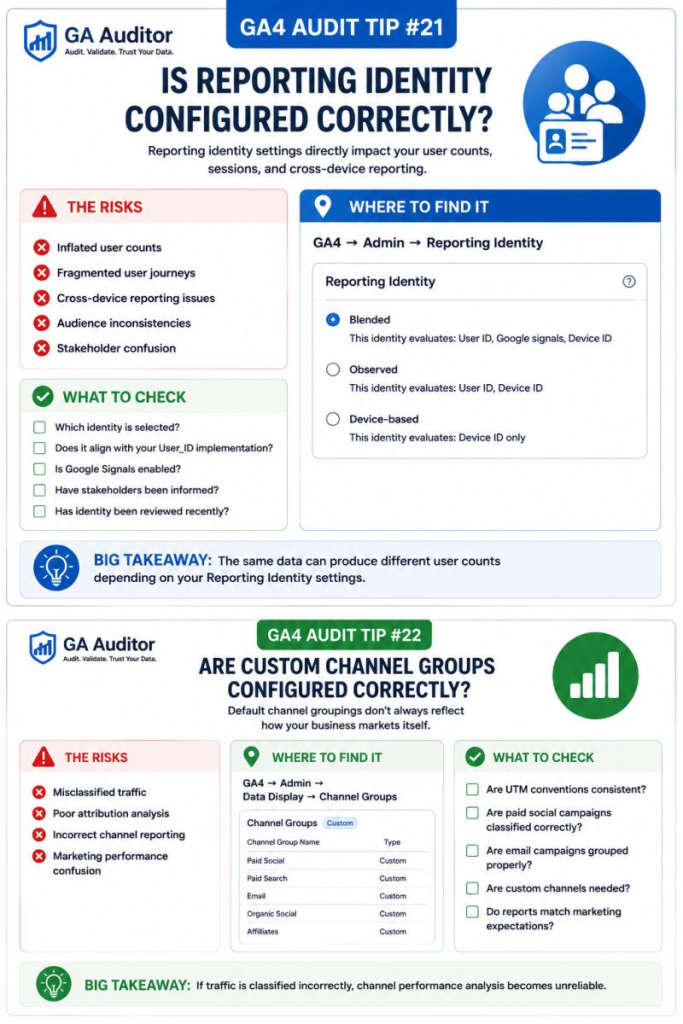
Reporting Identity determines how GA4 identifies and deduplicates users across reports.
In simple terms, it answers the question:
“When should GA4 consider multiple interactions to belong to the same person?”
Different identity methods can produce different user counts, even when the underlying events remain exactly the same.
That’s why two analysts can review the same property and notice changes in reported users without any tracking issue.
The Three Reporting Identity Options
Navigate to:
Admin → Reporting Identity
You’ll typically see three options.
Blended
Blended Reporting Identity uses multiple signals, including:
- User_ID
- Google Signals
- Device identifiers
This option attempts to provide the most complete picture of user behavior across devices.
For organizations using User_ID and Google Signals, this is often the default choice.
Observed
Observed Identity relies only on identifiers that GA4 directly observes, such as:
- User_ID
- Device identifiers
It excludes Google Signals from the identity process.
Businesses that want to reduce dependence on Google Signals often prefer this approach.
Device-Based
Device-Based Reporting Identity treats devices independently.
A user visiting from:
- Desktop
- Mobile
- Tablet
may be counted as separate users.
This option generally produces higher user counts because fewer identities are stitched together.
Why Reporting Identity Matters
A surprising number of metrics depend on how users are identified.
Reporting Identity can influence:
- User counts
- Engaged users
- Audience sizes
- Cross-device reporting
- Funnel analysis
- Retention reporting
- Attribution insights
The underlying events don’t necessarily change.
The way those events are grouped does.
Common Issues Found During Audits
Nobody Knows Which Identity Is Selected
This is probably the most common finding.
I ask:
“Which Reporting Identity are you using?”
The response is often:
“I didn’t know that setting existed.”
Reporting Identity Was Changed Without Communication
Sometimes an administrator changes the setting to test something.
User numbers shift.
Stakeholders panic.
Marketing assumes traffic declined.
Nothing is technically wrong.
Nobody simply communicated the change.
User_ID Exists but Isn’t Considered
Businesses invest time implementing User_ID but continue using settings that don’t maximize its value.
Cross-device opportunities are missed.
Google Signals Is Enabled Without Understanding the Impact
Some organizations activate Google Signals and forget about it.
Years later, no one remembers why it was enabled or how it influences reporting.
Leadership Expects Metrics to Remain Static
One of the biggest challenges isn’t technical.
It’s educational.
Stakeholders often assume:
“Users should always be counted the same way.”
GA4 doesn’t work that way.
Identity decisions influence reporting outcomes.
How to Audit Reporting Identity
Start with a few simple questions.
Ask:
- Which identity setting is currently active?
- Why was it selected?
- Is User_ID implemented?
- Is Google Signals enabled?
- Do stakeholders understand the implications?
If nobody can answer these questions confidently, it’s worth taking a closer look.
Questions Worth Asking During an Audit
These conversations often reveal whether your setup reflects business reality.
- Do users log in across multiple devices?
- Is cross-device analysis important?
- Are Google Ads audiences actively used?
- Has Reporting Identity ever been reviewed?
- Does leadership understand why user numbers may fluctuate?
- Would changing identity settings affect reporting expectations?
Identity isn’t just a technical configuration.
It’s a business decision.
Signs Your Reporting Identity Needs Attention
A review may be worthwhile if:
- User numbers changed unexpectedly.
- Stakeholders question reporting consistency.
- User_ID has recently been implemented.
- Google Signals was enabled years ago.
- Cross-device journeys matter to the business.
- Teams don’t understand how users are counted.
These situations don’t automatically indicate a problem.
But they almost always justify a review.
Best Practices
A few habits can prevent confusion later.
- Document which Reporting Identity is being used.
- Explain the rationale behind the choice.
- Educate stakeholders about reporting implications.
- Review the setting annually.
- Reassess after implementing User_ID.
- Review changes to Google Signals.
- Communicate identity changes before making them.
The configuration itself takes seconds.
The conversations around it matter much more.
Reporting Identity Audit Checklist
Use this checklist during your next review:
□ Review the current Reporting Identity setting.
□ Document why it was selected.
□ Confirm whether User_ID is implemented.
□ Review Google Signals status.
□ Evaluate cross-device reporting requirements.
□ Educate stakeholders about reporting impacts.
□ Communicate changes before implementation.
□ Reassess the setting annually.
□ Include Reporting Identity reviews in recurring audits.
Wrapping Up
One of the easiest ways to lose confidence in analytics is to see numbers change without understanding why.
When that happens, teams often assume tracking is broken.
Sometimes it is.
But sometimes GA4 is simply applying a different definition of a user.
Reporting Identity won’t change how customers behave.
It changes how GA4 interprets that behavior.
The important thing isn’t choosing the “perfect” identity setting.
It’s choosing the one that aligns with your business needs and making sure everyone understands what the numbers actually represent.
Because good analytics isn’t just about collecting data.
It’s about creating shared confidence in what that data means.